Ready to Try GoHighLevel?
Get the all-in-one platform for CRM, automations, funnels & websites — built for agencies.
Start your free trial and explore every feature.
The correct WhatsApp Business profile photo size for GoHighLevel is 640×640 pixels, square, JPEG or PNG, under 5MB.
This is the official spec from both HighLevel and Meta’s WhatsApp Business API documentation. Important truth most articles get wrong: WhatsApp Business does NOT have a separate “cover photo” like Facebook does.
It only has a profile photo (the circular image). The “1200×628” or “1920×1080” cover photo sizes you see in other guides are from Facebook or LinkedIn, not WhatsApp.
This guide covers the actual specs, why other articles are wrong, exact upload steps inside GHL, and design rules that prevent cropping issues.
You searched “WhatsApp cover photo size for GHL” because you want your WhatsApp Business profile to look professional.
Here’s a truth most guides won’t tell you: WhatsApp Business doesn’t have a cover photo.
WhatsApp Business has ONE image on your profile: the profile photo, which displays as a circle. There’s no separate banner, header, or cover photo like Facebook or LinkedIn have.
Anyone telling you to size your WhatsApp cover at 1200×628 or 1920×1080 is giving you Facebook or LinkedIn specs, not WhatsApp specs.
The real, verified WhatsApp cover photo size for GHL from HighLevel and Meta:
640×640 pixels, square, JPEG or PNG, under 5MB.
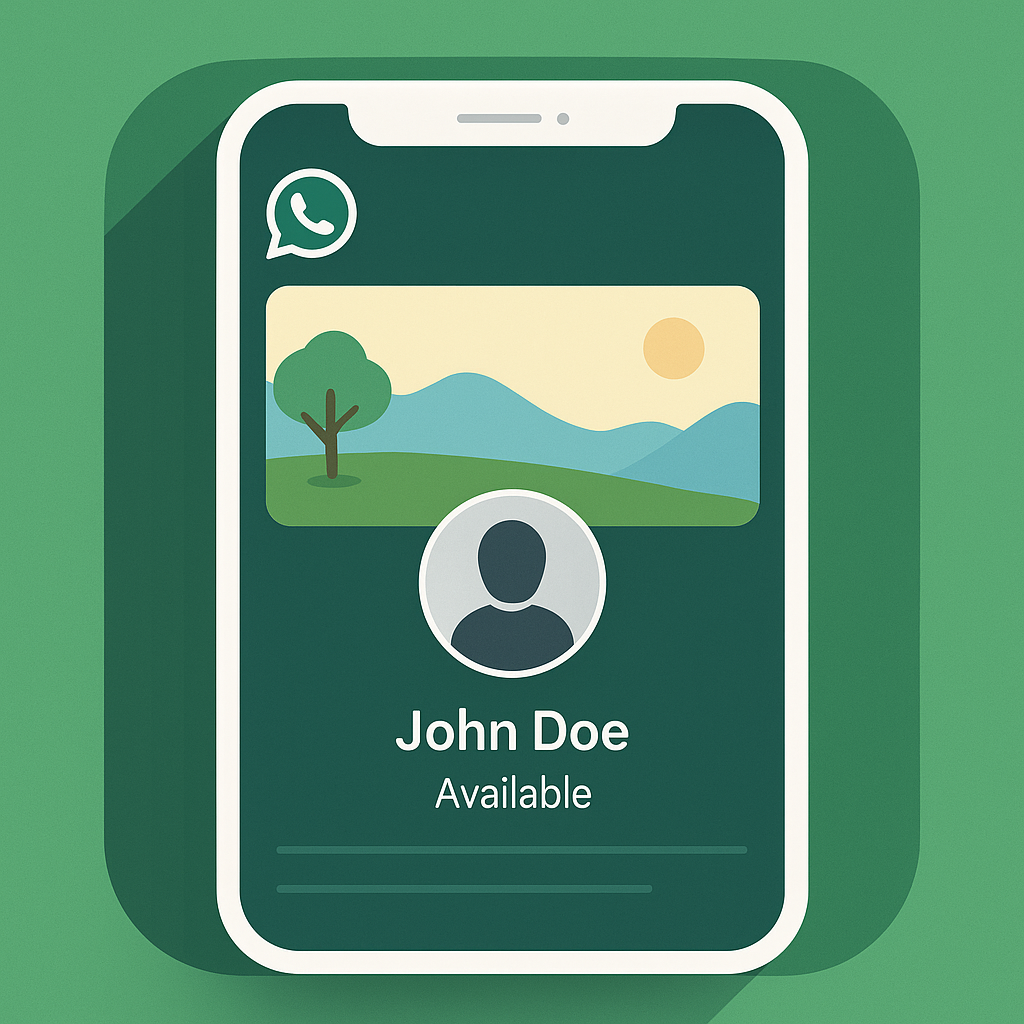
This guide covers everything you actually need: the real specs, why other guides are wrong, the safe design zone for the circular crop, exact upload steps inside GHL, and the common errors that prevent uploads from working.
The Verified WhatsApp Cover Photo Size for GHL Specs
These WhatsApp cover photo size for GHL numbers come directly from HighLevel’s official support documentation and Meta’s WhatsApp Business API docs. Don’t trust any guide that contradicts these.
| Specification | Requirement | Why |
|---|---|---|
| Recommended size | 640×640 pixels | Max edge for WhatsApp Business API; avoids resize quality loss |
| Minimum size | 192×192 pixels | Below this, the resize algorithm causes problems |
| Shape | Square (1:1 ratio) | Non square images get cropped to square |
| Maximum file size | 5MB | Hard cap; larger files fail to upload |
| File format | JPEG or PNG | WebP and other formats may fail upload |
| Display shape | Circle (cropped from square) | Design with center safe zone in mind |
| Recommended DPI | 72 DPI | Higher DPI doesn’t improve quality, just bloats file size |
The single most important rule: upload at exactly 640×640. The WhatsApp Business API resizes everything to 640px max edge anyway. Uploading larger costs file size with no quality benefit. Uploading smaller forces upscaling which causes visible blur.
Why the WhatsApp Cover Photo Size for GHL Confuses So Many People
The phrase “WhatsApp cover photo” gets searched a lot, but it’s based on a misconception. Let’s clear it up.
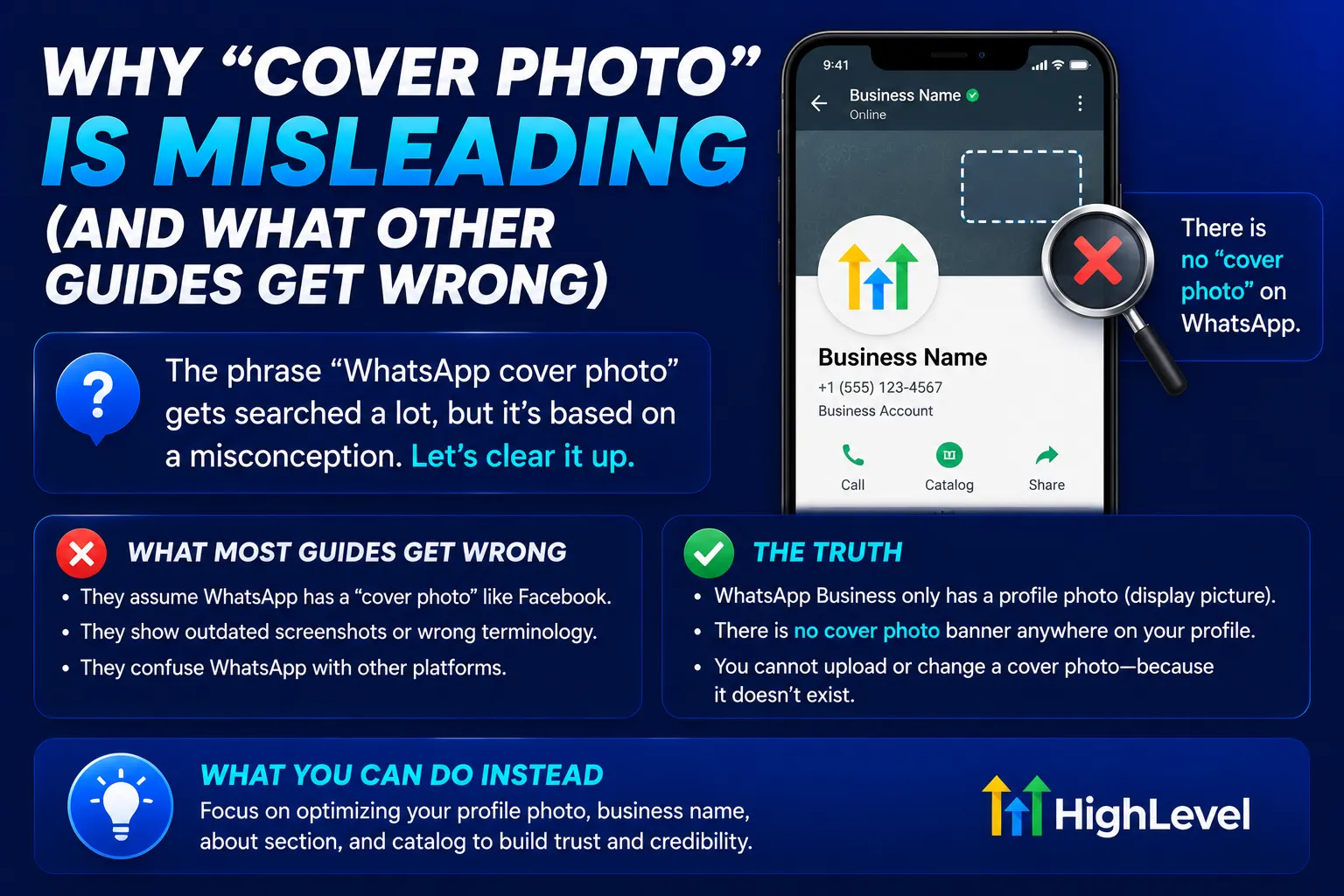
What WhatsApp Business actually has:
- One profile photo (square uploaded, displayed as circle)
- Business name
- Business description
- Business address
- Business email
- Business hours
- Website URL
- Status message (139 character limit)
What WhatsApp Business does NOT have:
- A separate cover photo or banner image
- A header background image
- A wide profile banner like Facebook or LinkedIn
If a guide tells you the WhatsApp cover size is 1200×628 (LinkedIn share size), 1920×1080 (video aspect ratio), or 820×312 (Facebook cover size), they’re confusing platforms. Those dimensions don’t exist on WhatsApp.
The 640×640 square profile photo is the only image you upload to your WhatsApp Business profile through GoHighLevel.
How to Set the WhatsApp Cover Photo Size for GHL in GoHighLevel
The upload takes about two minutes once your image is ready. GoHighLevel pushes the change straight to your WhatsApp Business Account through the Meta API, so you do not need to open Meta Business Manager for this.
- Log into your GoHighLevel sub account
- Go to Settings, then WhatsApp
- Click Manage, then open the Profile tab
- Click the profile photo area and pick your 640×640 file (JPEG or PNG, under 5MB)
- Fill in the business category, description, email, website and address while you are there
- Click Save
Profile changes apply as soon as you click Save. If the sub account runs more than one WhatsApp number, each number carries its own profile. Open Settings, then WhatsApp, then Numbers, and set the photo on each one separately.
If the Upload Fails
“Image upload failed”: Your image is either over 5MB or in an unsupported format (WebP, GIF, BMP, SVG). Convert to JPEG or PNG. Compress with Squoosh.app or TinyPNG if it’s over 5MB.
“Profile photo not updating after upload”: WhatsApp Business API profile updates can take up to 24 hours to fully propagate across all servers.
If your photo still shows the old image after 24 hours, clear the WhatsApp cache on your test device and check again. The GHL dashboard may show “update successful” while WhatsApp’s servers are still processing.
“Permission denied”: Your GHL integration doesn’t have the right scopes. Contact your WhatsApp Business API provider or GHL support to verify your integration has profile update permissions enabled.
Design Rules for a Profile Photo That Doesn’t Look Bad
The profile photo displays as a circle, but you upload a square. This creates design rules most people miss.
The Circle Crop Affects Your Design
When WhatsApp displays your 640×640 square image, it crops to a circle. The corners of your square get hidden. Anything in the corners is invisible to viewers.
Safe design zone: Keep all important elements (logo, text, key visuals) within the center 80% of your image. The outer 10% on every side becomes the corner area that gets clipped.
For a 640×640 image, that means your safe design zone is roughly the center 512×512 pixels.
The Tiny Display Problem
Your profile photo doesn’t just appear at large sizes. WhatsApp displays it as a tiny 50×50 circle (or smaller) in chat lists, message threads, and notifications.
At 50×50 pixels:
- Thin lines disappear
- Small text becomes illegible
- Low contrast designs look like a smudge
- Detailed logos lose all definition
Design rules:
- Use bold, simple shapes
- One strong color contrast (not 5 colors)
- Avoid text smaller than 20% of the image height
- If you must use a logo, use the simplified version (mark only, no tagline)
- Test your design at 50×50 pixels before finalizing
What Works for WhatsApp Profile Photos
- Your logo on a solid color background (best for brand recognition)
- A symbol or icon (works at any size)
- A professional headshot (for personal brands)
- A simplified, bold mark from your full logo
What Doesn’t Work
- Full logos with taglines (illegible at small sizes)
- Wide product photos (square crop loses important parts)
- Detailed scenes or photos of buildings (too busy at 50×50)
- White logos on light backgrounds (no contrast)
- Text heavy designs (always illegible at small sizes)
JPEG or PNG at the WhatsApp Cover Photo Size for GHL
Both work. The choice depends on what’s in your image.
Use JPEG when:
- Your design has photos or photographic elements
- You want the smallest possible file size
- Your design has gradients or smooth color transitions
- You don’t need transparency
Use PNG when:
- Your design is a logo with solid colors
- You have sharp edges or thin lines
- You need transparency (though WhatsApp will display it on a default background)
- File size isn’t a primary concern
For most business logos, PNG produces a sharper result. For photographic headshots, JPEG is fine.
Common Mistakes With the WhatsApp Cover Photo Size for GHL
1. Uploading at print resolution. A 5000×5000 image at 300 DPI is technically high quality, but it gets scaled down to 640×640 anyway.
The original detail is lost in the resize, and large files often produce more compression artifacts than properly sized images.
2. Forgetting the circle crop. Designing with content in the corners means that content disappears when WhatsApp crops to a circle. Always design for the center 80%.
3. Using a wide horizontal logo. Wide logos look great in square crops on Facebook or LinkedIn but get cut off when forced into a 1:1 ratio. Use a square or simplified version for WhatsApp.
4. Trying to upload a “cover photo” expecting it to display somewhere. There’s no cover photo on WhatsApp. If your guide says to upload one, your guide is wrong.
5. Using WebP format. Modern compression formats like WebP often fail to upload through GHL. Stick to JPEG or PNG.
6. Not testing at small sizes. Your profile photo displays as a tiny circle in chat lists. If it looks like a smudge at 50×50, your customers see a smudge in their chats. Always test the small display size before finalizing.
7. Updating Facebook or Instagram and expecting WhatsApp to update too. Each Meta platform (Facebook, Instagram, WhatsApp Business) has separate profile photos. Updating one does not update the others.
8. Uploading without checking the connection. Make sure your WhatsApp Business Account is properly connected to GoHighLevel before uploading. If the integration is broken, uploads appear successful in GHL but never reach WhatsApp’s servers.
Why Your WhatsApp Profile Matters for GHL Users
Your WhatsApp Business profile photo is the first visual signal customers get when they interact with your business through GHL’s messaging features.
For agencies running client WhatsApp campaigns: a clean, professional profile photo improves message engagement rates. Customers are more likely to read and respond to messages from a business that looks credible.
For service businesses: when a customer searches for you or shares your WhatsApp contact, the profile photo is what they see first. A professional photo makes the difference between “I’ll respond later” and “I’ll respond now.”
For ecommerce: profile photo trust translates to higher conversion on WhatsApp driven orders. A blurry or amateur photo signals a low trust merchant.
A 640×640 square logo upload takes 10 minutes including design. The brand consistency it produces pays back across thousands of customer interactions.
The Bigger Picture: WhatsApp Business Profile Completeness
The profile photo is one piece of a complete WhatsApp Business profile. To look fully professional, also configure:
- Business name: match your actual business name (Meta verifies this)
- Business description: short, clear, value driven (139 character limit on status)
- Business address: if you have a physical location
- Business email: a real, monitored address
- Business hours: when customers can expect a response
- Website URL: your main business website or specific WhatsApp landing page
- Business category: select the most accurate option
All of these are managed through the same Settings → WhatsApp section in GHL. Set them up at the same time as the profile photo for a complete, professional presence.
The Bottom Line on the WhatsApp Cover Photo Size for GHL
The verified WhatsApp Business profile photo size for GoHighLevel is 640×640 pixels, square, JPEG or PNG, under 5MB. That’s the official spec from HighLevel and Meta.
WhatsApp Business does not have a separate cover photo. The “cover photo” articles online with 1200×628 or 1920×1080 specs are confusing WhatsApp with Facebook or LinkedIn. Don’t follow them.
Three rules to follow:
- Upload exactly 640×640 pixels. Avoids unnecessary resize quality loss.
- Design for the circle crop. Keep everything important in the center 80%.
- Test at 50×50 pixels. Your photo will display this small in chat lists.
Get the profile photo right and your WhatsApp Business presence looks credible. Get it wrong and it looks amateur regardless of how good your messaging is.
Article verified and updated for 2026.
Where Did the WhatsApp Cover Photo Size for GHL Idea Come From?
The phrase confuses people for a good reason. In 2022 WhatsApp did test a real cover photo for business profiles.
It showed up in a small beta of the WhatsApp Business app on iOS, and testers reported a size close to 1211×681 pixels.
It never rolled out as a normal feature for everyone, and it was never part of the WhatsApp Business API that GoHighLevel connects to.
The test got picked up in the news, the phrase stuck, and other sites kept publishing Facebook banner sizes to match the search.
So if a client asks you for a WhatsApp cover photo, what they actually need is a 640×640 profile image.
What Do the Official Sources Say About the WhatsApp Cover Photo Size for GHL?
Two sources agree on the numbers, which is why you can trust them.
HighLevel documents the profile picture in its own help center.
The image is cropped to a square automatically, the recommended size is 640×640 pixels, the minimum is 192 pixels on either side, the file limit is 5MB, and only JPEG and PNG are accepted.
Meta documents the same thing on the API side.
The WhatsApp business profile photo is stored with a maximum edge of 640 pixels and a maximum file size of 5MB, and every upload is scaled and cropped to a square before it is saved.
Any guide quoting 1920×1080 or 1200×628 is quoting Facebook or LinkedIn, not WhatsApp.
Sources: HighLevel WhatsApp Business Profile Management and Meta WhatsApp profile photo reference.
Your WhatsApp Cover Photo Size for GHL Checklist
Run through this before every client upload and nothing gets missed.
- The file matches the WhatsApp cover photo size for GHL at exactly 640×640 pixels
- The shorter side is never below 192 pixels
- The format is JPEG or PNG, never WebP or HEIC
- The file is comfortably under 5MB
Then check the design side.
- The logo mark sits inside the centre 80 percent so the circle crop does not cut it
- The design still reads at 50 pixels wide
- Every WhatsApp number in the sub account has the photo set, not just the first one
- The rest of the business profile is filled in as well as the photo
Once the WhatsApp cover photo size for GHL is handled, the same care should go into the rest of the client build.
We use the same checklist approach on every GoHighLevel migration service project, and we store the finished setup inside a GoHighLevel snapshot so the next account starts ready.
If you are moving a client onto GoHighLevel from another platform, our Kajabi to GoHighLevel migration guide walks through the full process.
Ready to Get Your GoHighLevel System Built?
We'll build your entire GHL setup for $499 and give you a free professional website.
Contact Us Now