Last updated:
Ready to Try GoHighLevel?
Get the all-in-one platform for CRM, automations, funnels & websites — built for agencies.
Start your free trial and explore every feature.
Quick Answer: The GoHighLevel login URL is app.gohighlevel.com. Agency owners and admins sign in with email and password, then complete a 2FA step if enabled. Sub-account clients log in through the agency’s white-label domain, though the same login also works at app.gohighlevel.com.
Mobile users access GHL through the LeadConnector app on iOS and Android. Forgot your password? Go to app.gohighlevel.com/forgot-password. The reset email usually arrives within a few minutes.
Signed up with Google? Use Continue with Google, not the password field. 2FA locked out? Sub-account users contact their agency admin.
Agency owners use a backup code or the Account Lockout Support Form at gohighlevel.com/loginhelp. The most common causes of login failures: wrong URL, wrong authentication method, browser extension interference, and an expired invite link. This guide covers all of them with exact steps.
You’re trying to log into GoHighLevel and something isn’t working. Or you’re a client who got an invite and you’re not sure which URL to use. Or you set up 2FA and now you can’t get in.
This guide covers all of it.
The short version: the official login for agency owners and admins is app.gohighlevel.com. Sub-account clients log in through their agency’s branded white-label URL. Mobile users download the LeadConnector app. Forgot password is at app.gohighlevel.com/forgot-password.
Below is the full breakdown including every modern login method (password plus security code, Google sign-in and Client Portal magic links), every common error and its fix, and how to set up white-label login for your clients.
The Three GoHighLevel Login Methods in 2026
GoHighLevel offers three login paths, depending on who you are and how you access the platform. Agency teams use app.gohighlevel.com, clients use their agency’s white-label domain, and everyone can use the LeadConnector mobile app. Businesses looking for easier CRM setup, automation and support can also use autogencrm.com to manage their GoHighLevel system.
| Login Method | URL or Access Point | Who Uses It |
|---|---|---|
| Agency Dashboard | app.gohighlevel.com | Agency owners, admins, team members |
| White-Label Login Domain | Custom domain (e.g. app.youragency.com) | Sub-account clients |
| LeadConnector Mobile App | App Store / Google Play | All users on phone or tablet |
Sub-account users can technically sign in at app.gohighlevel.com, but the unbranded page confuses clients and creates avoidable support requests. Set up your white-label URL and send clients there.
How to Log Into GoHighLevel Step by Step
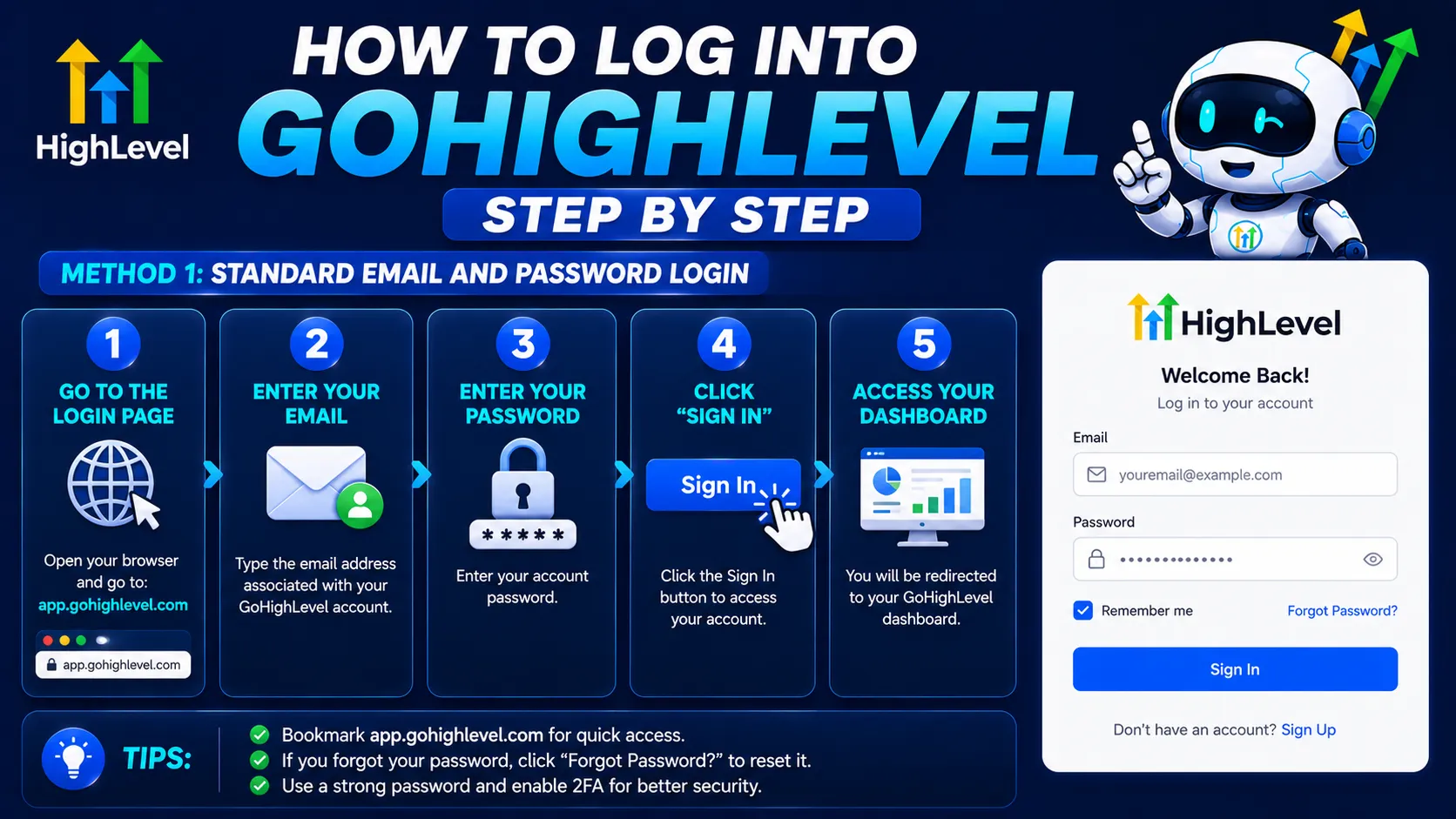
To log into GoHighLevel, open app.gohighlevel.com or your agency’s white-label URL and enter your email and password. Then type the Login Security Code sent to your email or phone. Google sign-in and the LeadConnector mobile app work too. The five methods below cover each way in, step by step.
New to GoHighLevel? Try it free for 30 days
Get HighLevel's official 30-day free trial and free Bootcamp through our partner link (the standard trial is 14 days). Prefer it done for you? We set up GoHighLevel from $499, with a free website.
Start 30-day free trialHave us set it upPartner link: we may earn a commission at no extra cost to you. Disclosure
Method 1: Standard Email and Password Login
The standard GoHighLevel login uses your email and password at app.gohighlevel.com. After you click Sign In, HighLevel asks for a Login Security Code sent to your email or phone. An authenticator app code also works if you set one up. You then land on your agency dashboard or sub-account, depending on your role.
- Go to app.gohighlevel.com
- Enter your registered email address
- Enter your password
- Click Sign In
- Enter the Login Security Code sent to your email or phone, or your authenticator app code if you set one up
- You land on your Agency Dashboard or sub-account based on your role
Method 2: The Login Security Code (Two-Step Verification)
If you don’t want to get stuck on the second screen, it helps to know what it is. After your password, HighLevel asks for a one-time security code. It is a second factor, not a replacement for your password, and it goes to your email or phone.
- Go to app.gohighlevel.com
- Enter your email and password, then click Sign In
- Choose where to receive the code: email or phone
- Check your inbox or texts for the code (the email is titled Login Security Code)
- Enter the code on the login page
- You’re logged in
Codes only go to an email or phone number already verified on your profile. If you cannot receive one, see the 2FA sections below.
Method 3: Continue with Google (SSO)
If you originally signed up using Google, use the Google SSO option instead of typing a password. Google sign-in and email/password are separate login methods in GoHighLevel, so a user created through Google with no password set must click Continue with Google. Follow these steps:
- Go to app.gohighlevel.com
- Click Continue with Google
- Select your Google account
- You’re logged in
Important: Google SSO and email/password are separate authentication methods in GoHighLevel. If your user was created through Google sign-in and you never set a password, the password field will not work, so use Continue with Google. Google sign-in is offered on app.gohighlevel.com, and a white-label login page may not show it.
Method 4: Mobile Login (LeadConnector App)
On a phone or tablet, log in through the LeadConnector app from the App Store or Google Play. The mobile app is not called GoHighLevel. If your agency has its own branded app, download that instead. Use the same email and password as the web version, then enter the security code.
- Download LeadConnector from the App Store or Google Play (note: not “GoHighLevel”, the mobile app is called LeadConnector)
- Open the app
- If your agency has its own branded mobile app, download that app instead of LeadConnector
- Use the same email and password as the web version
- Enter the one-time security code sent to your email or phone
LeadConnector Login vs GoHighLevel Login
LeadConnector and GoHighLevel are the same platform and the same account. LeadConnector is HighLevel’s unbranded name, so agencies can give clients a mobile app that does not say HighLevel anywhere. There is no separate LeadConnector account to create, manage or pay for.
In practice, that means:
- Your LeadConnector login is the same email and password you use on the web app. There is no separate LeadConnector account to create.
- Changing your password on the web changes it for the mobile app too.
- If your agency pays for HighLevel’s white-label mobile app, you download the app under your agency’s brand name instead of LeadConnector. Your agency will tell you what to search for.
On the web, the same account opens at app.gohighlevel.com or at your agency’s white-label domain. Both lead to the same sub-accounts and data.
Method 5: Magic Link for Client Portal Access
Magic links belong to the Client Portal, where contacts open courses, communities and other apps. They do not log anyone into the CRM itself. Magic links let clients log into the client portal with one click, with no password needed. Each link is time-limited and tied to one contact.
How it works:
- Agency admin generates a magic link from the Client Portal Dashboard
- Link is sent to the client via email or SMS
- Client clicks the link and is automatically logged in
- Links are time-limited and contact-specific (each user gets their own)
Magic links work great for course access, community apps, affiliate portals, and any client-facing dashboard inside the client portal. Clients never have to type a password to access courses, watch trainings, or use shared apps.
How to Reset a Forgotten GoHighLevel Password
To reset a forgotten GoHighLevel password, go to app.gohighlevel.com/forgot-password, enter the email on your account and click Send Reset Link. The email usually arrives within a few minutes. Open the link and create a new password that meets the security rules. Then log in again with the security code.
- Go to app.gohighlevel.com/forgot-password
- Enter the email address registered with your account
- Click Send Reset Link
- Check your inbox (and spam folder) for the reset email
- The reset email usually arrives within a few minutes
- Click the link in the email
- Create a new password following the security requirements (at least 12 characters, with uppercase and lowercase letters, a number and a special character)
- Log in with the new password
If the reset email doesn’t arrive:
- Check spam and promotions folders
- Confirm you’re using the exact email registered with the account
- If you have multiple GHL accounts, try each registered email
- If you registered with Google SSO, you don’t have a password to reset, use “Continue with Google” instead
- If the email was created by your agency admin, they may need to resend the invite
How to Log Into a White-Label Client Portal
If you’re a client whose agency uses GoHighLevel under its own brand, your login URL is different. Use the custom URL your agency gave you, such as app.youragency.com, with the email your agency used to create your account. On your first login, accept the original invite email to set a password.
- Use the custom-branded URL your agency provided (typically something like app.youragency.com or portal.youragency.com)
- Enter the email your agency used to create your account
- Enter the password you set when you accepted the invite
- If it’s your first login, check your email for the original invite (if the link no longer works, ask your agency to resend it)
Don’t have the branded URL? Email your account manager. The same email and password also work at app.gohighlevel.com, but the branded URL is the one your agency supports.
GoHighLevel Login Error Messages Explained
HighLevel’s help center documents a short list of named login errors. Matching the exact wording on your screen is the fastest way to the right fix. Most of them come from blocked requests, unverified email or phone details, or the wrong sign-in method, as the table below shows.
| Error message | What it usually means | What to do |
|---|---|---|
| Unable to log you in at this time | Something between you and HighLevel is blocking the request, such as ISP security filters, antivirus web protection or a VPN | Pause web protection or the VPN, try another network, or use Google sign-in at app.gohighlevel.com if your account is linked to Google |
| Not able to send the security code at this time | The 2FA code has nowhere valid to go, often because no phone number is on the user profile or the agency email sending setup has a problem | Check spam for an email titled Login Security Code, then ask an agency admin to add your phone number under Settings → Team |
| User does not exist in this Agency | You are on a white-label login domain that belongs to a different agency than the one your user was created in | Use the login URL from the agency that invited you, or sign in at app.gohighlevel.com |
| Web server is returning an Unknown Error | Damaged or outdated site data in your browser | Clear site data for the login domain, then reload the page |
If the page loads but never moves past Sign In, check that cookies are allowed for app.gohighlevel.com. Without cookies, the browser cannot keep your session.
GoHighLevel Login Troubleshooting: Common Errors and Fixes
Most GoHighLevel login errors have simple fixes. Wrong credentials, a Google SSO account used with a password, the wrong account, locked sign-ins, missing 2FA codes and browser extensions cause most of them. Each common error below lists its likely causes and the fix that works.
“Invalid Credentials” or “Email/Password Not Recognized”
Three possible causes:
- Typo in email or password. Check Caps Lock. Try copy-pasting your password from a password manager.
- You signed up with Google SSO. Use “Continue with Google” instead of typing email and password.
- Wrong account. If you have access to multiple GHL accounts, you might be entering credentials for a different one.
Fix: try the password reset flow at app.gohighlevel.com/forgot-password.
“Account Locked” After Multiple Failed Attempts
Repeated failed attempts can temporarily block sign-in, and HighLevel does not publish a lockout window. Stop guessing passwords once you see the lock. Use Forgot Password instead, or ask another agency admin to reset your password from Settings → Team. That is usually the fastest way back in.
Fix: don’t keep trying. Use Forgot Password instead, or ask another agency admin to reset your password from Settings → Team.
2FA Code Not Arriving
If you set up SMS-based 2FA and the code isn’t arriving:
- Check signal strength on your phone
- Verify the phone number on file is current
- Try requesting a new code (don’t use old codes, they expire fast)
- If using an authenticator app, make sure your phone’s time is synced (authenticator codes are time-based)
How GoHighLevel 2FA and the Login Security Code Work
After your password, HighLevel asks for a one-time Login Security Code. You choose where it goes: your email or your phone. If you have connected an authenticator app, you can use its code instead. The rules below explain most 2FA confusion.
A few rules explain most 2FA confusion:
- Codes only go to verified channels. SMS is offered only if the phone number on your profile is already verified. Email is offered once your email is verified.
- Authenticator apps are optional. Google Authenticator, Microsoft Authenticator, Authy and similar apps work. Set one up in Settings → My Profile → Security.
- Only you can link an authenticator. An admin cannot set one up for another user through Login As.
- Backup codes are your safety net. HighLevel generates ten single-use backup codes when you connect an authenticator. You can regenerate them from the same Security screen while you still have access.
- The mobile app asks too. Current versions of the LeadConnector app request a one-time code by email or phone at login.
When we onboard agency teams, we have every admin connect an authenticator and store the backup codes in a password manager on day one. That turns a lost phone into a minor inconvenience instead of a lockout.
Lost Access to 2FA Device
If your phone broke, you switched phones, or you deleted the authenticator app, you can’t use authenticator codes. Use one of the ten single-use backup codes HighLevel gave you when you connected the app. If you have none, the fix depends on whether you are a sub-account user or the agency owner:
Fix:
- If you’re a sub-account user: Ask your agency admin to check the email and phone number on your user profile (Settings → Team) so the login code can reach you.
- If you’re the agency owner: If another agency admin exists, ask them first. Otherwise use the Account Lockout Support Form at gohighlevel.com/loginhelp or call HighLevel support at +1 (888) 732-4197.
Build 2FA recovery into your client onboarding documentation now, before someone needs it in an emergency.
Login Page Loads But “Sign In” Button Does Nothing
This is usually caused by browser extensions blocking the authentication system. It can also come from a VPN or antivirus web protection that inspects your traffic. A quick test in a private browser window usually tells you which one is to blame.
Fix:
- Try logging in through Incognito mode (Chrome) or Private Window (Safari/Firefox)
- If it works in incognito, an extension is the problem
- Ad blockers, privacy extensions, VPNs that inspect SSL traffic and antivirus web protection are the usual suspects
- Disable extensions one at a time to find the culprit
- Add app.gohighlevel.com to your extension’s allow list
“Permission Denied” When Switching Sub-Accounts
When you switch between sub-accounts, cached session tokens from a previous account can conflict and trigger a Permission Denied message. It rarely means your role changed. Logging out fully, clearing cookies for gohighlevel.com and signing in fresh usually clears it, as the steps below show.
Fix:
- Log out completely from the dropdown menu
- Clear cookies for gohighlevel.com
- Close and reopen your browser
- Log in fresh
White-Label Domain Not Loading
If your white-label URL (app.youragency.com) shows a “Site Not Found” or DNS error:
- Confirm DNS propagation is complete (usually within 30 minutes, occasionally longer)
- Verify the CNAME record at your DNS registrar points to whitelabel.ludicrous.cloud (on Cloudflare, set it to DNS only)
- Check the subdomain is saved in Settings → Company → Whitelabel → Whitelabel Domain
- Test from another network or your phone (rule out local DNS caching)
Mobile App Won’t Connect
If the LeadConnector app shows “Connection Error” or won’t accept your credentials:
- Verify you have an active internet connection
- Force-close and reopen the app
- Update to the latest version (older versions sometimes lose compatibility)
- If your agency uses a custom-branded mobile app, you may be using the wrong app, confirm with your account manager
How to Set Up White-Label Login for Clients
If you’re an agency, your clients should never see app.gohighlevel.com. Set up white-label login through your custom domain, such as app.youragency.com, so clients see your brand on the login page. The setup takes a DNS record and a few minutes in Agency Settings, as the steps below show.
Setup Steps (Agency Admin Only)
Only an agency admin can set up the white-label login. Open Agency Settings, then Company and Whitelabel, and add your custom domain. Create a CNAME record at your DNS registrar that points to HighLevel’s target domain. Allow up to 30 minutes for DNS to propagate, then save and test the new URL.
- Log into your agency dashboard
- Go to Agency Settings → Company → Whitelabel (Whitelabel Domain field)
- Add your custom domain (e.g. app.youragency.com)
- Add the CNAME record at your DNS registrar pointing to HighLevel’s target domain (currently whitelabel.ludicrous.cloud)
- Allow up to 30 minutes for DNS propagation
- Click Update to save the domain (there is no separate toggle)
- Test by visiting app.youragency.com in a fresh browser session
Add Your Branding
Once the domain works, customize the login experience:
- Upload your logo
- Choose the light or dark theme for the agency dashboard
- Add your Privacy Policy and Terms URLs
- Set your company name so clients see your brand
- Optional: add custom CSS for advanced styling
A branded login domain (the white-label desktop app) is included on all three agency plans: Starter ($97/month), Unlimited ($297/month) and Agency Pro ($497/month). A white-label mobile app is a separate paid add-on. HighLevel’s standard free trial is 14 days; our partner link extends it to 30.
Who to Contact When You Are Locked Out
The right contact depends on your role. Going to the wrong place first is the main reason lockouts drag on. Sub-account users should contact their agency, and team members should ask another agency admin. Agency owners with no other admin can use HighLevel’s Account Lockout Support.
- Sub-account user (an agency client or their staff): contact your agency. Agency admins manage your user profile, email and phone number, and can resend your invite.
- Agency team member: ask another agency admin. HighLevel says the fastest fix is for another admin to reset your password from Settings → Team, with no support ticket needed.
- Sole agency admin or owner: try a backup code or Forgot Password first. If neither works, use the Account Lockout Support Form on HighLevel’s login help page (gohighlevel.com/loginhelp) or call HighLevel support at +1 (888) 732-4197.
HighLevel’s login help page is only for access problems. Other questions should go through its regular support channels so lockout requests are not delayed.
Keeping a second trusted admin on the agency account is the simplest way to never need that form.
Security Best Practices for GoHighLevel Login
Protect your GoHighLevel login with a few simple habits. Use a unique password for every account, turn on 2FA for every user, especially the agency owner, and store passwords in a password manager. Prefer an authenticator app over SMS codes, because SMS is more exposed to SIM-swap attacks.
1. Use a unique password. Don’t reuse passwords from other sites. Your GoHighLevel account contains client data, payment information, and sensitive business records.
2. Enable 2FA on every account. Especially the agency owner account. Use an authenticator app (Google Authenticator, Authy, 1Password) instead of SMS when possible, SMS 2FA is vulnerable to SIM-swap attacks.
3. Use a password manager. 1Password, Bitwarden, or LastPass generate strong passwords and store them securely. This eliminates the most common login problem (forgotten passwords).
4. Each team member needs their own login. Don’t share credentials. GoHighLevel includes unlimited users on every agency plan, including Starter. Shared logins break the audit trail and create security risks.
5. Review user access quarterly. Remove access for ex-employees and former clients. Old user accounts are a security gap.
6. Document 2FA recovery process. Make sure every team member knows how to recover access if their 2FA device is lost. Include this in onboarding documentation.
Why Most GoHighLevel Login Issues Aren’t Login Issues
Most “I can’t log in” problems are not login problems at all. They come from a few patterns: the wrong URL, the wrong sign-in method, browser issues or an expired invite. Spotting which pattern you are in saves time, because each one has a quick fix. The patterns are:
- Wrong URL. Sub-account clients hit app.gohighlevel.com and get confused because the page doesn’t match their agency’s branding.
- Wrong authentication method. Someone signed up with Google SSO and tries password login, or vice versa.
- Browser issues. Extensions, cached sessions, or outdated browsers blocking authentication.
- Expired invite. First-time users open an old invite link that no longer works.
- Lost 2FA. Phone replaced or authenticator app deleted without backup codes.
Fix the underlying cause and the login works.
Last reviewed by the AutogenCRM team.
Frequently Asked Questions
What is the official GoHighLevel login URL?
The official GoHighLevel login URL is app.gohighlevel.com. Agency owners, admins, and team members use this URL. Sub-account clients should use the white-label URL provided by their agency (typically a custom domain like app.youragency.com). The same credentials also work at app.gohighlevel.com.
How do I reset my GoHighLevel password?
Go to app.gohighlevel.com/forgot-password, enter your registered email, and click Send Reset Link. The reset email usually arrives within a few minutes.
Click the link, create a new password meeting the security requirements, then log in. If you signed up with Google SSO, you don’t have a password to reset. Use Continue with Google instead.
What is the GoHighLevel mobile app called?
The mobile app is called LeadConnector, available on the App Store (iOS) and Google Play (Android). It’s not called “GoHighLevel” in the app stores. If your agency uses a fully white-labeled mobile app, you’ll have a custom-branded version under a different name. Ask your account manager.
What is the GoHighLevel login security code?
It is the two-step verification code HighLevel asks for after your password. You choose to receive it by email or by text to a verified phone number, or you use an authenticator app if you connected one.
Enter the code to finish signing in. Codes expire quickly, so always request a fresh one instead of reusing an old code. It does not replace your password.
What are GoHighLevel magic links?
Magic links are one-click login URLs for the client portal. Agency admins generate them from the Client Portal Dashboard, then send them to clients via email or SMS.
When a client clicks the link, they’re automatically logged into their portal without entering a password. Magic links are time-limited and contact-specific. They work great for course access, community apps, and affiliate portals.
How do I log into a white-label GoHighLevel portal?
Use the custom domain your agency provided (typically something like app.youragency.com or portal.youragency.com). Enter the email used to create your account and the password you set when accepting the invite. If it’s your first login, use the original invite link from your welcome email. If the invite expired, ask your agency to resend it.
Why is my GoHighLevel login not working even with the correct password?
Common causes: (1) You signed up with Google SSO and need to use Continue with Google instead of email/password. (2) A browser extension, VPN or antivirus web protection is blocking the sign-in. Try Incognito mode. (3) Repeated failed attempts may have temporarily blocked sign-in, so reset your password instead of retrying. (4) Cached cookies from a different sub-account are conflicting, log out completely, clear cookies for gohighlevel.com, and log in fresh.
How do I reset 2FA on a GoHighLevel account?
If you connected an authenticator app, use one of its ten single-use backup codes first. If you have none, a sub-account user should ask their agency admin to confirm the email and phone number on their user profile so a code can reach them. Agency owners without a backup code can use the Account Lockout Support Form at gohighlevel.com/loginhelp or call HighLevel support at +1 (888) 732-4197.
Can I log into GoHighLevel from multiple devices at the same time?
Yes. You can be logged in on desktop, mobile app, and tablet simultaneously. Sessions persist independently. Logging out from one device doesn’t log you out from others. If you suspect unauthorized access, change your password, which can end your other active sessions.
How do I find my GoHighLevel agency or sub-account if I have multiple?
After logging in at app.gohighlevel.com, click the dropdown beside your account name in the top left. You’ll see all agencies and sub-accounts you have access to. Click the one you want to switch to. If a sub-account is missing, your agency admin needs to add you as a user under that account.
Is the GHL login the same as the HighLevel and LeadConnector login?
Yes. GHL, GoHighLevel, HighLevel and LeadConnector all refer to the same platform and the same user account. You sign in on the web at app.gohighlevel.com or your agency’s white-label domain, and in the LeadConnector mobile app with the same email and password. Only a paid white-label mobile app changes the app name you download.
Why am I not receiving my GoHighLevel login security code?
Check spam for an email titled Login Security Code, then request a new code once the resend timer allows. SMS codes only go to a phone number already verified on your profile. If no phone is listed, ask an agency admin to add one under Settings → Team. An authenticator app or backup code also works if you set one up.
What are the GoHighLevel password requirements?
HighLevel requires at least 12 characters, including uppercase and lowercase letters, at least one number and at least one special character such as ! or #. Use a password you do not use anywhere else. Changing your password can end your other active sessions, so expect to sign in again on your phone and other browsers.
Can I sign in to GoHighLevel with Google?
Yes, Google sign-in is available on app.gohighlevel.com, and HighLevel suggests it as a fallback when a 2FA code will not arrive. White-label login pages may not show the Google option, so use app.gohighlevel.com in that case. Client Portal Google sign-in is a separate setting each sub-account can turn on or off.
Ready to Get Your GoHighLevel System Built?
We'll build your entire GHL setup for $499 and give you a free professional website.
Book a Free Call See Packages & PricingOr call +1 (681) 276-7045 · Mon–Fri, 9 AM–5 PM ET