
Ready to Try GoHighLevel?
Get the all-in-one platform for CRM, automations, funnels & websites — built for agencies.
Start your free trial and explore every feature.
GoHighLevel snapshots are pre-built sub-account configurations that package workflows, pipelines, funnels, websites, calendars, email templates, SMS sequences, custom fields, and tags into a single shareable file. You import them into a new sub-account and skip 20 to 40 hours of manual setup. Snapshots come in three flavors: free (great for getting started), paid ($97 to $997, niche-specific and high-converting), and agency-built (your own custom systems). This guide covers what snapshots include, what they don’t, how to import them in 15 to 20 minutes, the best free and paid options for 2026, and the common mistakes that cause failed deployments.
You signed up for GoHighLevel, and you’re staring at an empty sub-account. The platform replaces 10+ tools, which means you have a lot to set up.
This is exactly what snapshots solve.
A snapshot is a complete sub-account configuration packaged into a shareable link. Click import, and you skip the manual work: workflows, funnels, pipelines, email sequences, SMS templates, calendars, tags, and custom fields all load into your account in under 20 minutes, powered by AutoGen CRM. Visit autogencrm.com to explore ready-made snapshots built for agencies that want to launch faster and smarter.
Snapshots are how agencies deploy 50 client accounts in the time it would take to build one from scratch. They’re also one of the highest-leverage features in the entire GHL ecosystem.
This guide covers everything: what snapshots actually include, the three free snapshots most agencies should grab first, the best paid options, how to import properly, and the mistakes that cause silent deployment failures.
What Are GoHighLevel Snapshots?
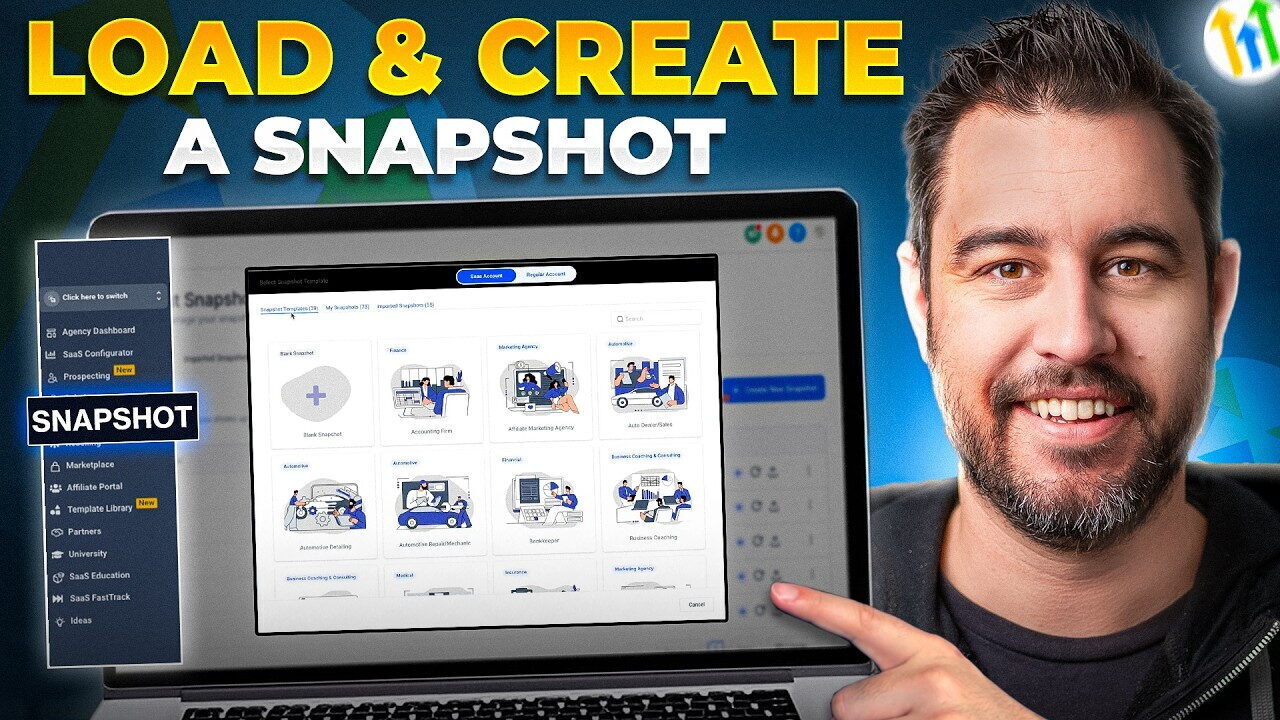
A GoHighLevel snapshot is a packaged copy of a sub-account’s configuration. It captures the structure (not the data) of a working account so it can be deployed to another sub-account without rebuilding from scratch.
Think of it like a save file for a fully configured GHL setup. Workflows, pipelines, funnels, calendars, email templates, SMS sequences, tags, custom fields, and global settings all bundle into one shareable link.
When you import the snapshot, GHL recreates that entire setup inside the destination account. You then customize branding, connect integrations, set Custom Values, and you’re live.
What Snapshots Include and Don’t Include
This is the most important table in this entire article. Most snapshot deployment problems trace back to misunderstanding what gets transferred.
| ✅ Included in Snapshot | ❌ NOT Included in Snapshot |
|---|---|
| Workflow automation sequences | Contacts and contact data |
| Pipeline stages and structure | Calendar availability and connected emails |
| Funnels and websites (pages and structure) | Stripe, Gmail, and other integration credentials |
| Email templates and SMS templates | A2P 10DLC registration (transfers per account) |
| Forms and surveys | Billing configuration |
| Custom field definitions | User accounts and permissions |
| Tags and Smart Lists | LC Phone numbers |
| Custom Values (keys, not values) | Conversation history and message logs |
| Calendar configurations (structure) | Domain settings |
| Trigger links | Trustpilot or review platform connections |
The big takeaway: snapshots transfer structure, not data, not connections, not credentials. After import, you connect integrations, configure Custom Values, and activate workflows manually.
The Three Sharing Modes
GHL supports three snapshot sharing options. Pick the right one for your situation.
1. Public Link. Anyone with the link can import. Use for marketplace listings, free downloads, blog post lead magnets, and community sharing.
2. Restricted Link. Only specific GHL accounts can import using the link. Use for premium paid snapshots and partner-only sharing. Buyers receive access after purchase.
3. Agency-Only. The snapshot is only deployable within your own agency’s sub-accounts. Not externally shareable. Use this for proprietary agency systems you don’t want distributed publicly.
Free GoHighLevel Snapshots Worth Grabbing
Free snapshots are perfect for getting started, learning how snapshots work, or solving specific operational problems without building from scratch.
Three free snapshots that solve real pain points for most agencies and businesses:
1. A2P 10DLC Snapshot
A pre-configured setup for SMS compliance and A2P 10DLC registration. Includes the registration workflow, opt-in form templates, compliant message structures, and number setup checklist. Saves you hours on the carrier compliance process and helps you avoid the most common SMS-blocking issues.
👉 Import this snapshot for free
Best for: Anyone running US SMS for the first time. The A2P process trips up most new GHL users.
2. 4-Year Email Nurture Campaign Snapshot
A long-term lead nurture sequence with weekly email touchpoints, SMS triggers, and behavioral automation over 4 years. Includes segmentation logic, event-based follow-ups, and re-engagement branches.
👉 Import this snapshot for free
Best for: Coaches, consultants, course creators, and agencies who want to keep cold leads warm without manual follow-up. The 4-year horizon catches buyers who weren’t ready in year 1 or 2.
3. AI Employee Snapshot
Pre-built workflows that use the GHL AI Employee Suite for lead follow-up, task creation, call transcription handling, and engagement scoring. Includes templates for Conversation AI training, Voice AI scripts, and the workflow connections that tie AI features into your CRM properly.
👉 Import this snapshot for free
Best for: Agencies and businesses adopting AI features in 2026 who don’t want to wire up the AI integration manually.
Paid GoHighLevel Snapshots Worth Considering
Free snapshots are great for getting started. Paid snapshots are where the real ROI lives if you’re running an agency or scaling a service business.
Pricing in the GoHighLevel snapshot market typically ranges from $97 to $997 depending on niche specificity, complexity, and what’s bundled (workflows + funnels + email copy + training).
Ultimate AI Automation Agency Snapshot ($297 one-time)
A full AI-powered automation system covering content creation, lead generation, appointment scheduling, and data entry automation. Built for agencies who want to deliver “AI agency services” without configuring AI features from scratch.
Best for: Agencies building AI-as-a-service offerings.
Niche Industry Pack Snapshots ($297 to $997)
Industry-specific snapshots for real estate, med spas, restaurants, dental, fitness, salons, and similar verticals. Each includes funnels, workflows, automations, and copy specifically built for that industry’s customer journey.
Best for: Agencies serving a specific niche or local service businesses who want a proven system instead of building from scratch.
SaaS Agency Snapshot ($197 to $497 one-time)
Complete white-label SaaS reselling setup. Includes 52-week nurture campaigns, client onboarding workflows, rebilling automations, and white-label assets. Designed for agencies on the SaaS Pro plan ($497/month) who want to start reselling GHL under their own brand.
Best for: Agencies productizing GHL into a recurring revenue SaaS offer.
Free vs Paid Snapshots: Which Should You Use?
| Use Free Snapshots If | Use Paid Snapshots If |
|---|---|
| You’re new to GHL and learning the platform | You serve a specific niche (real estate, dental, med spa) |
| You need a specific tool (A2P, AI, nurture) | You need a complete client onboarding system |
| Your budget is tight | You want proven, conversion-tested systems |
| You only need 1 to 2 features | You’re scaling to 10+ clients on the same niche |
| You’re testing ideas before scaling | You want updates and support included |
For most users, the smart play is: start with the free snapshots, learn how snapshots work, then upgrade to paid niche-specific options when your business needs them.
How to Import a GoHighLevel Snapshot
Importing a snapshot is the easy part. Configuring it after import is where most deployments succeed or fail.
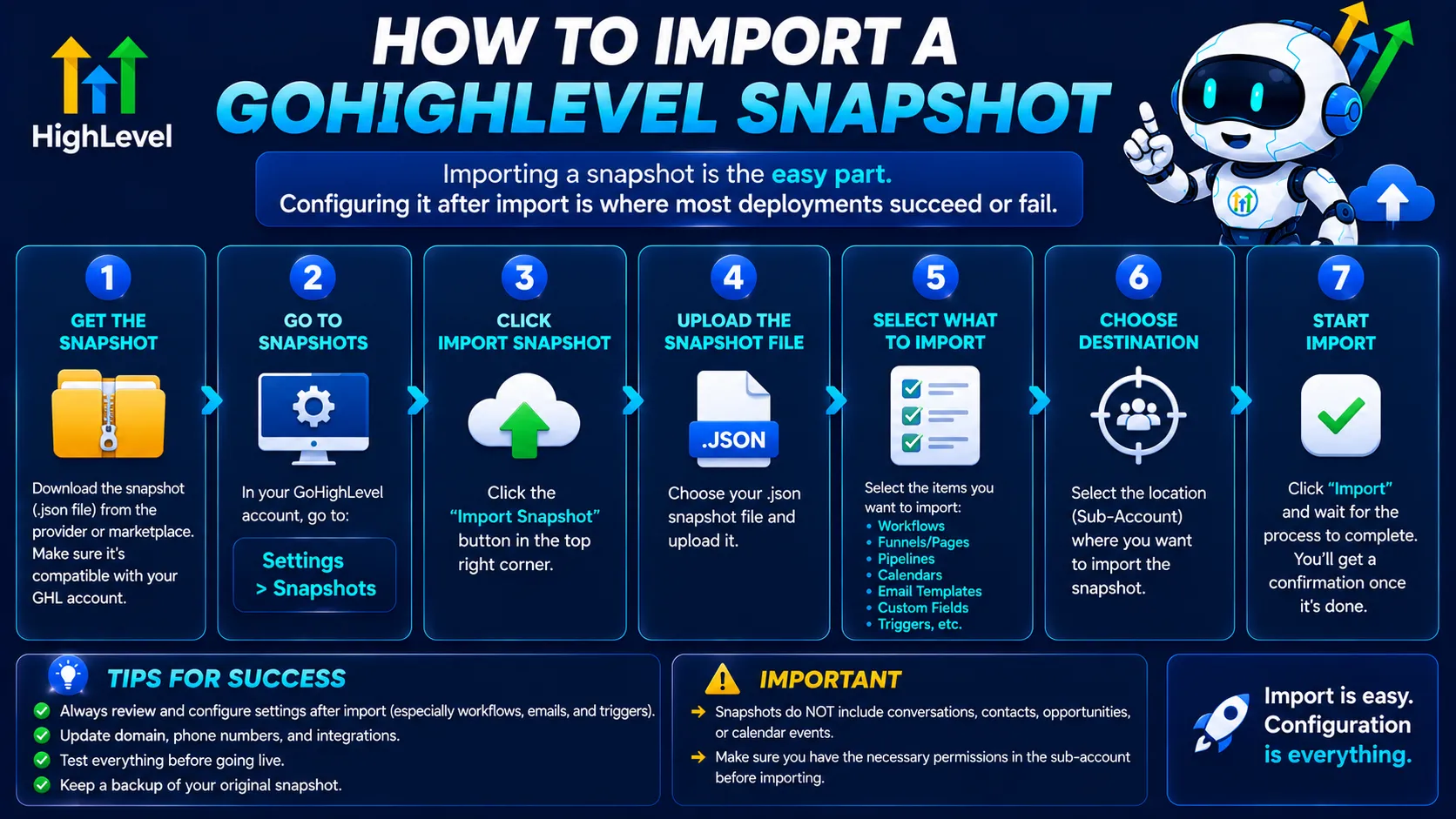
Import From the Marketplace
- Log into your GoHighLevel agency dashboard
- Click App Marketplace in the sidebar (or Snapshots, depending on your version)
- Browse or search by industry, use case, or keyword
- Filter by free vs paid
- Click any snapshot to preview the contents (number of funnels, automations, pipelines)
- Click Import
- Select which sub-account to import into
- Confirm the import
- Wait 1 to 5 minutes for the snapshot to load
The snapshot loads into your account without overwriting any existing data.
Import From a Direct Link
If someone shared a snapshot link with you outside the marketplace:
- Log into your GoHighLevel account
- Click the snapshot link they shared
- You’ll be redirected to a confirmation page inside GHL
- Select the destination sub-account
- Click Import
- Wait for the import to complete
Post-Import Configuration (Critical)
This is the part most people skip and then wonder why their snapshot “doesn’t work.”
- Set all Custom Values. Snapshots include Custom Value keys (like {{location.business_name}}) but not the values. Go to Settings → Custom Values and fill in every field with the client’s specific data.
- Connect integrations. Stripe, Gmail/Outlook, calendar accounts, and any third-party tools must be reconnected. The snapshot brings the workflow structure but not the credentials.
- Activate workflows. All imported workflows start in Draft status as a safety measure. Go to Automation → Workflows and switch each one to Active.
- Connect calendars. Booking calendars import as structure but need to be reconnected to actual Google or Outlook calendar accounts.
- Set up A2P 10DLC. If the snapshot includes SMS workflows, register A2P for the new account. Snapshots cannot transfer A2P registration.
- Add a domain. Funnels and websites import without domain settings. Connect your custom domain in Settings → Domains.
- Customize branding. Replace placeholder logos, colors, copy, and images with the client’s actual brand assets.
- Test the full flow. Submit a test form, book a test appointment, send a test SMS. Verify everything lands correctly before going live.
Skipping any of these steps causes silent failures: workflows that don’t fire, forms that don’t capture, calendars that show wrong availability.
Total post-import configuration time: usually 15 to 20 minutes for a simple snapshot, 1 to 3 hours for a complex industry pack.
The 2026 AI-Assisted Snapshot Deployment Update
A meaningful improvement HighLevel rolled out in March 2026: AI-assisted snapshot customization.
After you import a snapshot, GHL’s AI now:
- Suggests which Custom Value placeholder fields to update first
- Flags workflows that reference missing connections (Stripe not connected, calendar missing, etc.)
- Highlights inactive workflows that would normally be activated
- Recommends pipeline stages that may need renaming for the client’s specific business
This cuts post-import configuration time roughly in half for users who follow the AI’s suggestions. It’s especially helpful for agencies onboarding non-technical clients.
How to Build a Snapshot the Right Way (For Agencies)
If you want to build snapshots for your own agency or sell them, do it from a deployment-first mindset.
Step 1: Prepare the Source Sub-Account
- Remove all real client contact data
- Replace all Custom Values with descriptive placeholders (“YOUR_BUSINESS_NAME_HERE”)
- Remove hardcoded phone numbers, URLs, and calendar IDs from workflow message text
- Use Custom Values everywhere instead of hardcoded text
Step 2: Test the Cleaned Source Account
Run a test contact through every workflow. Verify merge fields resolve to placeholders, not blank or broken data.
Step 3: Create the Snapshot
Agency Dashboard → Snapshots → Create Snapshot → select source sub-account → choose components → name with version number (e.g. “HVAC v4 Apr 2026”) → save.
Step 4: Document the Snapshot
Write a setup document listing every Custom Value that needs to be filled in after import, every integration to reconnect, and the activation steps. A snapshot without documentation is a puzzle without an answer key.
Step 5: Test on a Fresh Sandbox
Import the snapshot into a brand new sub-account and follow your own setup document. If anything is unclear or breaks, fix it before sharing or selling.
Step 6: Version and Maintain
Track which snapshot version each client account is running. A simple spreadsheet (client name, snapshot version, import date) prevents confusion when you debug issues months later.
Common Snapshot Deployment Mistakes
1. Importing into a live client account. Always import into a fresh sub-account first, configure it, then migrate specific workflows or pipelines to the live account if needed. Direct import into a live account can overwrite existing pipeline stages and workflow configurations without warning.
2. Forgetting to activate workflows. All imported workflows start as Draft. If you forget to activate them, your automations never fire. Clients call asking why their leads aren’t getting follow-up.
3. Not setting Custom Values. The snapshot has placeholders. If you don’t fill them in, your client gets messages saying “Welcome to YOUR_BUSINESS_NAME_HERE.”
4. Skipping integration reconnection. Stripe, Gmail, calendars all need to be reconnected. Workflows that depend on these will silently fail until you reconnect.
5. Buying snapshots without checking what’s included. Always preview the snapshot before purchase. Some marketplace snapshots look comprehensive but include only basic structures.
6. Not version-naming snapshots. “Real Estate Snapshot” doesn’t tell you which version. “Real Estate v3, April 2026” does. Version everything.
7. Sharing public links for paid snapshots. Once a public link is out, anyone can import. Use Restricted links for paid distribution.
Where to Find GoHighLevel Snapshots
1. The official HighLevel App Marketplace. Built into your GHL account. Browse free and paid snapshots inside the platform.
2. Third-party marketplaces. AutoGenCRM, Extendly, HL Snaps by HL Pro Tools, and others sell niche-specific premium snapshots.
3. The official GHL Facebook group and community. Free snapshots get shared regularly. Always check what’s included before importing.
4. Direct from agencies. Many agencies that work with specific niches sell their proven snapshots directly. These are often the highest quality because they’re built from real client work.
5. AI Studio and the Workflow AI Builder. If you can’t find a snapshot that fits, generate workflows and pages from prompts using GHL’s built-in AI tools, then save your build as your own snapshot.
The Honest Take on GoHighLevel Snapshots
Snapshots are the single feature that separates agencies that scale from agencies that plateau.
A well-built snapshot turns a 2-day client onboarding into a 2-hour one. It lets you deploy the same proven system to 10, 50, or 200 clients without rebuilding each time. It’s the foundation of every successful agency running multiple sub-accounts on GHL.
But snapshots only work if:
- You build them with deployment in mind (Custom Values, no hardcoded text, clean source account)
- You document them properly (setup checklist, version tracking)
- You configure them correctly after import (activate workflows, set values, reconnect integrations)
Free snapshots are a great starting point. Paid niche snapshots are worth it when you’re scaling. Custom-built snapshots are how serious agencies operate.
Pick the path that matches where your business is today. Don’t overthink it.
Article verified and updated for 2026.
Frequently Asked Questions
What is a GoHighLevel snapshot?
A GoHighLevel snapshot is a packaged copy of a sub-account’s configuration, including workflows, pipelines, funnels, websites, calendars, email templates, SMS sequences, custom fields, tags, and forms. Snapshots can be shared via link and imported into any GoHighLevel sub-account, making them the fastest way to deploy a complete CRM and marketing system without rebuilding from scratch.
Are GoHighLevel snapshots free?
Many snapshots are free, including official options in the GHL Marketplace and community-shared snapshots from agencies. Paid snapshots typically range from $97 to $997 depending on complexity and niche. Creating snapshots within your own agency for your own sub-accounts is included in all GHL plans at no extra charge.
How long does it take to import a GoHighLevel snapshot?
The import itself takes 1 to 5 minutes. Post-import configuration (Custom Values, integration reconnection, workflow activation, branding customization, A2P registration) takes another 15 minutes to 3 hours depending on complexity. Plan for 30 to 60 minutes total for most snapshots.
What does a GoHighLevel snapshot include?
Snapshots include workflows, pipelines, funnels, websites, calendars (structure), email and SMS templates, custom field definitions, tags, Smart Lists, forms, and trigger links. They do NOT include contacts, integration credentials, A2P 10DLC registration, billing, user accounts, LC Phone numbers, conversation history, or domain settings. Structure transfers; data and credentials don’t.
Can I sell my own GoHighLevel snapshots?
Yes. Many GHL agencies sell their snapshots through the official Marketplace, third-party sites, or directly to other agencies. Pricing typically ranges from $97 to $997 depending on complexity. A well-built niche snapshot can generate $10,000 to $30,000 in one-time revenue from a single build investment, depending on demand.
How do I update an existing snapshot?
Make changes in the source sub-account, then create a new snapshot from Agency Dashboard → Snapshots → Create New Snapshot with a new version number (e.g. “v4 April 2026”). The old snapshot link remains valid for users on the previous version. GHL does not auto-update existing snapshot installations. Distribute the new link manually to anyone who needs the update.
Why are my workflows in Draft after importing a snapshot?
This is intentional. GHL sets all imported workflows to Draft status as a safety measure to prevent accidental sends during setup. Go to Automation → Workflows and manually activate each workflow when you’re ready. Without this step, your snapshot’s automations will not fire.
Can I import a snapshot into an existing client account?
You can, but it’s risky. Naming conflicts can overwrite existing pipeline stages and workflow configurations without warning. Best practice: import into a fresh sub-account first, configure it, then manually migrate only the specific workflows or pipelines you need into the live client account.
What’s the difference between free and paid GoHighLevel snapshots?
Free snapshots typically solve one specific problem (A2P setup, email nurture, AI workflows) and work as lead magnets or starter kits. Paid snapshots ($97 to $997) are usually niche-specific (real estate, dental, med spa, SaaS) with complete systems including funnels, workflows, copy, and proven conversion structures. Paid snapshots often include creator support, lifetime updates, and detailed setup documentation.
Can I share a snapshot publicly?
Yes. GHL supports three sharing modes: Public links (anyone can import), Restricted links (only specific accounts can import, used for paid snapshots), and Agency-only (deployable only within your agency’s sub-accounts). Pick the mode that matches your distribution strategy.
Ready to Get Your GoHighLevel System Built?
We'll build your entire GHL setup for $499 and give you a free professional website.
Contact Us Now
Pingback: Kajabi to GoHighLevel Migration: The Best 2026 Guide
Pingback: Kartra to GoHighLevel Migration: The Best 2026 Guide
Pingback: GoHighLevel Migration Service: The Best 2026 Walkthrough