Last updated:
Ready to Try GoHighLevel?
Get the all-in-one platform for CRM, automations, funnels & websites — built for agencies.
Start your free trial and explore every feature.
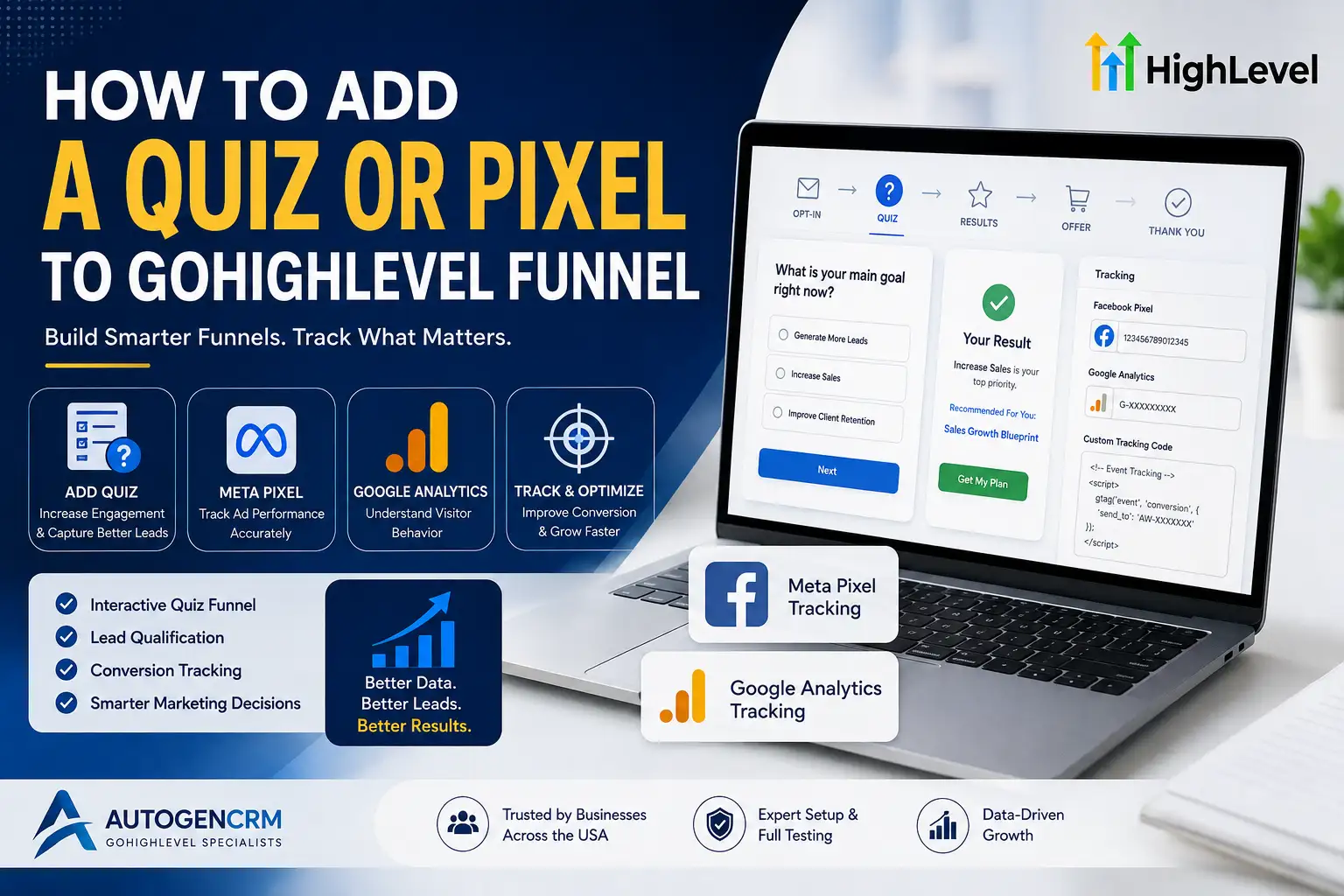
Want to learn how to add a quiz to a GoHighLevel funnel the right way? You’re in the right place. Many business owners build a funnel but skip two features that boost results the most. A quiz keeps visitors engaged while collecting useful information. A tracking pixel shows exactly how visitors interact with your pages. Together, these tools turn a basic funnel into a smarter, data-driven system. At AutogenCRM, we set up both features for businesses across the USA every week. This guide walks you through the exact steps, from start to finish. No technical background is required to follow along. By the end, your funnel will collect better data and better leads. Let’s get started.
How to Add a Quiz to a GoHighLevel Funnel: Getting Started
Before adding either feature, open your funnel inside your GoHighLevel account. Make sure the page you’re editing is already published or in draft mode. Both quizzes and pixels can be added without leaving the funnel builder. This keeps the entire setup process simple and fast. Once you’re inside the editor, you’re ready to begin.
Why Add a Quiz to Your GoHighLevel Funnel
A GoHighLevel quiz funnel helps visitors feel more involved before converting. Instead of a plain form, a quiz feels interactive and personal. This is a simple example of an interactive quiz funnel done right. Using a quiz funnel builder makes this process quick, even for beginners. It also works well as a lead capture quiz for gathering better information upfront.
New to GoHighLevel? Try it free for 30 days
Get HighLevel's official 30-day free trial and free Bootcamp through our partner link (the standard trial is 14 days). Prefer it done for you? We set up GoHighLevel from $499, with a free website.
Start 30-day free trialHave us set it upPartner link: we may earn a commission at no extra cost to you. Disclosure
Step 1: Building the Quiz Inside Your Funnel
Start by adding a new page or section for your quiz. Choose a question format that fits your offer, like multiple choice. Keep questions short and focused on your visitor’s needs. Each answer should guide the visitor closer to your final offer. This keeps the experience simple and easy to follow.
Step 2: Setting Up Quiz Logic and Results
Once your questions are set, configure how the quiz responds. Different answers can lead to different quiz results or recommendations. This helps with early lead qualification, showing you who’s a strong fit. You can also connect quiz answers to tags inside your CRM. This makes follow-up messaging far more relevant later on.
Why Add a Tracking Pixel to Your GoHighLevel Funnel
Tracking pixels show you what happens after someone visits your funnel. Setting up Facebook Pixel for GoHighLevel lets you track ad performance accurately. This is essential if you’re running paid traffic to your pages. Without Meta Pixel tracking, you’re guessing which ads convert. Adding this early saves money on ineffective campaigns later.
Step 3: Adding Facebook or Meta Pixel to Your Funnel
Go to your funnel settings and locate the tracking code section. Paste your pixel ID into the designated field. GoHighLevel will apply this pixel across every page in the funnel. Test the pixel using Facebook’s built-in testing tool. This confirms data is flowing correctly before running any ads.
Step 4: Adding Google Analytics Tracking
Google Analytics tracking works similarly to pixel setup. Paste your tracking ID into the same settings section. This lets you monitor traffic sources and visitor behavior. Analytics data helps you understand where your best leads come from. Reviewing this regularly improves future marketing decisions.
Using Custom Tracking Code for Advanced Setups
Some businesses need more than standard pixel tracking. Adding custom tracking code allows for advanced event tracking. This might include tracking specific button clicks or form completions. A website tracking pixel placed correctly captures these smaller interactions. This level of detail helps refine your marketing strategy over time.
Visitor Tracking and Conversion Tracking Explained
Visitor tracking shows how people move through your funnel step by step. Conversion tracking shows exactly when a visitor completes your desired action. Together, this is often called funnel conversion tracking. This data reveals where visitors drop off before converting. Fixing these weak points often improves results significantly.
Reviewing Funnel Analytics and Performance
Once tracking is active, check your funnel analytics regularly. Look at completion rates for each step of your funnel. Reviewing funnel performance monthly helps you catch issues early. Small drops in performance often point to a specific page problem. Catching this early saves time and marketing budget.
How This Improves Lead Generation and Engagement
Adding both features directly supports stronger lead generation. Quizzes increase user engagement by making the process feel personal. Pixels support marketing automation by feeding data into your ad campaigns. Combined, these tools support better conversion optimization across your entire funnel. This is why both features work best together, not separately.
Add Quiz or Pixel to GoHighLevel Funnel: Best GHL Workflows
Learning how to add a Quiz to a GoHighLevel Funnel works best alongside solid automation. Pairing this setup with best ghl workflows ensures leads are followed up correctly. Quiz answers can trigger specific automations based on visitor responses. Pixel data can inform which leads receive priority follow-up. This creates a smarter, more responsive GoHighLevel funnel overall.
How AutogenCRM Helps You Set This Up
Setting up quizzes and pixels correctly takes attention to detail. AutogenCRM configures both features as part of every GoHighLevel funnel we build. Our team tests each pixel and quiz before your funnel goes live. This ensures your data is accurate from day one. Businesses across the USA trust us to get this setup right the first time.
Final Thoughts
Knowing how to add a Quiz to a GoHighLevel Funnel gives your marketing a real advantage. Quizzes improve engagement, while pixels give you accurate tracking data. Together, they help you understand and improve your funnel over time. AutogenCRM sets up both features correctly for businesses that want better results. A properly tracked, interactive funnel consistently outperforms a basic, static one.
Frequently Asked Questions
1. How do I add a Facebook pixel to my GoHighLevel funnel?
Paste your pixel ID into the funnel’s tracking code settings, and it applies automatically across all pages.
2. Can I add a quiz to any GoHighLevel funnel page?
Yes. Quizzes can be added to most funnel pages using the built-in funnel builder.
3. Why isn’t my pixel tracking data showing up correctly?
This usually happens due to an incorrect pixel ID or a page that hasn’t fully published yet.
4. What’s the difference between a quiz funnel and a regular funnel?
A quiz funnel engages visitors with questions before presenting an offer, while a regular funnel goes straight to the offer.
5. Do I need coding knowledge to add tracking pixels in GoHighLevel?
No. Pixel setup only requires pasting a code into a designated field within funnel settings.
Need Help Setting Up Tracking on Your Funnel? Talk to Our Experts
Getting your quiz and pixel setup right the first time saves time and marketing budget. AutogenCRM builds and tests fully tracked GoHighLevel funnels for businesses across the USA. Talk to our experts today and get a funnel that captures leads and data accurately.
Ready to Get Your GoHighLevel System Built?
We'll build your entire GHL setup for $499 and give you a free professional website.
Book a Free Call See Packages & PricingOr call +1 (681) 276-7045 · Mon–Fri, 9 AM–5 PM ET