Last updated:
Ready to Try GoHighLevel?
Get the all-in-one platform for CRM, automations, funnels & websites — built for agencies.
Start your free trial and explore every feature.
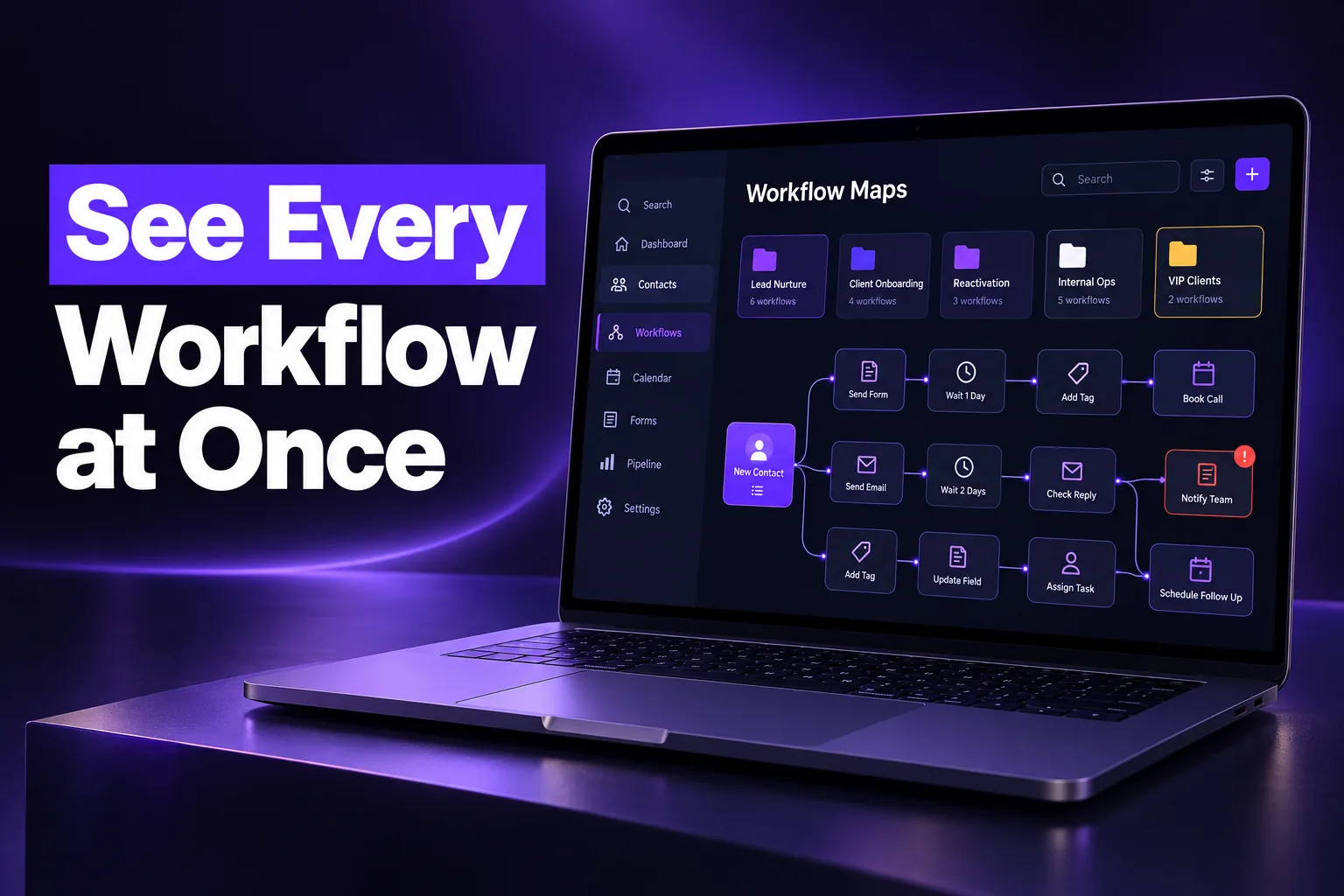
GoHighLevel Workflow Maps is a new, automatically generated visual view of every workflow in a sub-account, showing folders, workflows and the tags, forms, calendars and pipelines that connect them. HighLevel announced it at LevelUp Day on October 27, 2026, alongside workflow A/B testing, an Association Created trigger and several new triggers in other modules.
This guide lists what changed in short, plain lists, then explains how an agency can use Workflow Maps to audit an account. You can read HighLevel’s full announcement in the official LevelUp Day 2026 updates post.
What Are GoHighLevel Workflow Maps?
GoHighLevel Workflow Maps is a map of your automations that HighLevel draws for you from the workflows you have already built. You do not create it by hand. Each sub-account has its own map, and it shows which assets start a workflow and what each workflow changes, so you can see how separate automations connect before you edit anything.
HighLevel’s help center gives a simple example: a form starts a lead intake workflow, that workflow adds a tag, and the tag starts a follow-up workflow. On the map, that chain is visible in one place instead of across three builder tabs.
- Where to find it: Automation > Workflows, then Workflow Maps beside the Workflows list title. Inside a workflow, click Maps in the builder’s top bar.
- What it shows: workflows inside their folders, with connected assets such as tags, forms, calendars, pipelines and custom fields around them.
- Views: you can pan, zoom, and switch between 2D and 3D views, and use search and filters to isolate one workflow or asset.
- What it does not show: wait, if/else, goto and other internal logic steps stay in the builder. The map focuses on connections between workflows and assets.
- Who can organize it: agency admins can rename workflows and folders, change folder colors, add sticky notes and save the layout for everyone in the sub-account.
The Five Workflow Maps Features Announced at LevelUp 2026
HighLevel shipped Workflow Maps with five connected tools: the map itself, a contact journey view, a central error finder, a Workflow Canvas for linked workflows and an AI assistant. Together they let you understand, troubleshoot and tidy a sub-account from one screen, then jump into the builder only for the step that actually needs a change.
- The map: an automatic visual of all workflows, folders and connected assets. Click a workflow to see its status, last update, enrollments and connected assets, or click an asset to see every workflow that uses it.
- Contact journey: search a contact by name, email or phone in the Contacts tab and trace the workflows they entered over the last 60 days (HighLevel’s window). You can see where they finished, where they are waiting and where they hit an error.
- Error finder: workflows with recent execution errors get a badge. “Review workflows with errors” groups them, split into Published and Draft, and the “Has issues” filter narrows the map to flagged workflows only.
- Workflow Canvas (linked workflows): select a workflow and click Linked workflows to see it next to every workflow it hands contacts to, through shared assets or direct actions. It is built for tracing journeys like lead capture to qualification to booking.
- AI assistant: ask in plain language to explain a workflow, filter the map, reorganize folders or draft workflow builds and edits. Proposed structural changes and builds go through approval controls before the assistant runs them.
What the error badge does and does not do
The badge points you to a problem; it does not fix it. HighLevel’s help article is clear that “Mark as read” only clears the badge. It does not retry the failed run or repair the step, so the actual fix still happens in the builder.
Asset usage and “Missing asset” badges
Selecting a tag, form, calendar or pipeline shows which workflows use it and how, with separate trigger and action counts. A “Missing asset” badge means the asset was deleted but workflows still reference it. An empty usage list only covers workflows, so check other places an asset might be used before you delete it.
New to GoHighLevel? Try it free for 30 days
Get HighLevel's official 30-day free trial and free Bootcamp through our partner link (the standard trial is 14 days). Prefer it done for you? We set up GoHighLevel from $499, with a free website.
Start 30-day free trialHave us set it upPartner link: we may earn a commission at no extra cost to you. Disclosure
GoHighLevel Workflow A/B Testing
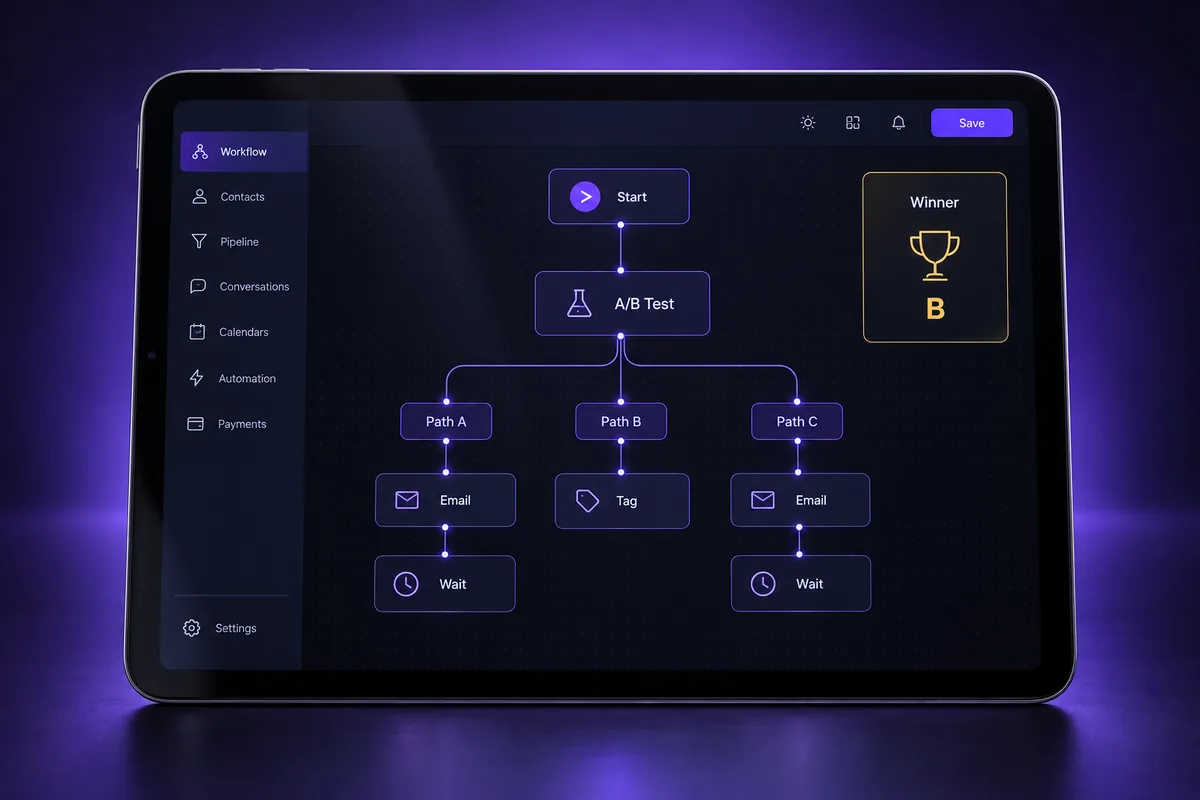
GoHighLevel workflow A/B testing is a new workflow action that splits contacts evenly across up to 10 paths, according to HighLevel, and measures each path against a conversion goal you choose. When the test ends, new contacts are routed automatically to the winning path, so the workflow keeps improving without you rebuilding it.
- Where it lives: Automation > Workflows > Add action > A/B Test.
- Paths: up to 10, with contacts split evenly between them.
- Winner criteria: email activity, appointments, tags or payments.
- Test duration: you set how long the test runs before a winner is picked.
- After the test: new contacts go to the winning path automatically.
Other HighLevel Workflow Updates
The other HighLevel workflow updates from LevelUp 2026 add new ways to start automations and make snapshots safer to move. The Association Created trigger is in beta, snapshot dependency resolution covers workflows and email templates, and several modules outside Workflows now feed their own triggers into the builder.
Association Created trigger (beta)
- Association Created (beta): starts a workflow when a new relationship is created between CRM records, such as a contact linked to a property or a company. You can filter by the associated object and the relationship label. HighLevel says to enable it in Labs for your location first.
Snapshot dependency resolution
- Automated asset dependency resolution: when you create or refresh a snapshot, HighLevel now detects and bundles assets a workflow depends on, for example the email template a workflow sends. HighLevel says it currently supports Workflows and Email Templates, which should cut down on broken automations after a snapshot loads into a new sub-account.
New triggers in other modules
- Social Planner posts: a trigger for post approvals, rejections, scheduling, publishing and publishing failures, with filters for category, platform, status, post type, social account and tags. It is useful for alerting the team when a post fails.
- Project Management (private beta): triggers for a task being added, completed or reaching its reminder date, plus an “Add task” action that creates tasks in a chosen list. Access is through HighLevel’s private beta sign-up.
- Ecommerce product views and cart additions: Viewed Product and Add to Cart triggers for Shopify and HighLevel stores. HighLevel tracks browsing anonymously and backfills it to the contact once the shopper identifies at checkout or login. Shopify stores need the Web Pixel, which installs when you connect or reconnect Shopify.
- Shopify per-shipment fulfillment: each Shopify shipment now fires its own Order Fulfilled trigger listing only the items in that shipment, so partial fulfillments are handled natively. New custom values include fulfilled quantity, product names, tracking URLs, Order ID and Billing Address.
If you run a store on Shopify, our GoHighLevel Shopify integration guide covers the connection itself before you lean on these triggers.
How to Find GoHighLevel Workflow Errors Faster
GoHighLevel workflow errors used to mean opening workflows one by one and reading execution logs. With Workflow Maps, flagged workflows carry a badge, one review screen lists them all, and each failed execution shows the step that failed and the error message. You still fix the step in the builder.
- Start with the error review: it shows every flagged workflow in one list, grouped by Published and Draft.
- Read the error with the step: HighLevel’s example is a failed webhook action. Read that execution’s error before you change the action.
- Clear the badge last: only mark it as read after the fix is published, so the badge stays useful for your team.
Errors that repeat often point to a setup problem rather than a single bad step. Our list of GoHighLevel setup mistakes that cost agencies covers the common root causes.
How Agencies Should Use Workflow Maps for an Account Audit
Workflow Maps is the best new tool for auditing an inherited or messy GoHighLevel account, because it shows the whole automation picture before you touch anything. Use it to find broken workflows, orphaned tags and forms, duplicate automations and missing assets, then decide what to fix, merge or retire. It reports what is there; your judgement decides what should stay.
What to look for
- Broken workflows: anything with an error badge, and any “Missing asset” badge. A missing asset means a workflow still points at something that was deleted, which often explains silent follow-up failures.
- Orphaned tags and forms: assets with an empty workflow usage list. They may be leftovers from an old setup or a snapshot, but confirm they are not used outside workflows before removing them.
- Duplicate automations: two workflows started by the same form or tag, or similar workflows in different folders. They are a common reason contacts get the same message twice.
- Drafts that look live: the error review separates Published and Draft. A draft that was meant to be running is a gap in the client’s follow-up.
- Long handoff chains: use the Workflow Canvas to see how many workflows a lead passes through. Long chains that rely on tags to hand off are harder to maintain and easier to break.
- Real contact paths: trace a few recent leads with the contact journey view. If a lead stalled or hit an error, you have a concrete problem to show the client.
What to try first, and what to wait on
- Try first: the map, the error review and asset usage. They read the account without changing it, so they are safe on client accounts.
- Use with care: the AI assistant can reorganize folders and propose builds. Review every proposal in the approval step, and agree folder changes with the client, because the saved layout is shared with everyone in the sub-account.
- Test before relying on it: workflow A/B testing changes who gets which path. Run it on one workflow with a clear winner criterion before rolling it out.
- Wait on betas: the Association Created trigger and the Project Management automations are beta. Check Labs or your plan, and keep them off client-critical workflows until they are generally available.
- Check before snapshot work: dependency resolution covers workflows and email templates for now, so still review other assets after loading a snapshot. Our guide on how to install a GoHighLevel snapshot walks through the checks.
Inherited a Tangled GHL Account?
If Workflow Maps shows a wall of error badges, duplicate automations or missing assets, the account likely needs a proper rebuild rather than patching. That is common after several freelancers or a mismatched snapshot. Our team can review the account and rebuild the automations cleanly.
See our GoHighLevel workflow setup service, or read the signs of a broken GoHighLevel setup first. If you are building from a template, our GoHighLevel snapshot service covers clean snapshot builds, and our guide to GHL workflows for lead follow-up explains the outcomes good automations should deliver.
Frequently Asked Questions
Do I need to build Workflow Maps manually?
No. Workflow Maps reads the workflows you have already built and draws their connections automatically, including folders and assets such as tags, forms, calendars and pipelines. Each sub-account has its own map. Agency admins can still rearrange folders, rename items, add sticky notes and save the layout so everyone sees the same organized view.
Can I edit workflow steps from the map?
Not directly. The map is for understanding and organizing. You can preview a workflow without leaving the map, but changing its steps means clicking Open in builder. Internal logic steps like wait and if/else are only visible in the builder, while the map focuses on how workflows and assets connect to each other.
How many paths can a GoHighLevel workflow A/B test have?
HighLevel says a workflow A/B test can split contacts evenly across up to 10 paths. You choose the winning criteria from email activity, appointments, tags or payments, and set the test duration. When the test ends, new contacts are automatically routed to the winning path, so you do not need to rebuild the workflow.
Does “Mark as read” fix a workflow error?
No. According to HighLevel’s help center, Mark as read only clears the error badge on the map. It does not retry the failed execution or repair the step. Open the flagged workflow in the builder, correct the step that failed, publish it, and then return to Workflow Maps to mark the issue as read.
Is the Association Created trigger available to everyone?
It is labeled beta. HighLevel’s instructions say to enable the Association Created trigger in Labs for your location before it appears in the workflow builder. Because it is beta, test it on non-critical workflows first and check your account’s Labs settings, since availability can differ between accounts and may change as HighLevel rolls it out.
Ready to Get Your GoHighLevel System Built?
We'll build your entire GHL setup for $499 and give you a free professional website.
Book a Free Call See Packages & PricingOr call +1 (681) 276-7045 · Mon–Fri, 9 AM–5 PM ET