Last updated:
Ready to Try GoHighLevel?
Get the all-in-one platform for CRM, automations, funnels & websites — built for agencies.
Start your free trial and explore every feature.
A HubSpot to GoHighLevel migration is not one job. It is two.
The first job is data. Contacts, companies, deals, and notes. That part is mostly mechanical and it goes fine if you prepare properly.
The second job is everything HubSpot will not let you export. Workflows, sequences, forms, landing pages, and email templates cannot be carried across as files. They have to be rebuilt inside GoHighLevel.
People who understand this before they start have a smooth HubSpot to GoHighLevel migration. People who do not are the ones posting at 2am asking where their automations went. This guide covers the whole process, using the official documented behaviour of both platforms.
What moves in a HubSpot to GoHighLevel migration
Moves as data: contacts, companies, deals, tickets, custom objects, and the custom field values attached to them. The official HubSpot exports documentation confirms you can export standard and custom objects. You can also include up to four associated objects in one export, so related records travel together.
Does not move: workflows, sequences, email templates, forms, landing pages, reports, dashboards, and meeting links. None of these export in a format another CRM can read. Every one of them is a rebuild.
That second list is where the real work sits. Budget your time accordingly. The export is an afternoon. The rebuild is the project.
Why teams start a HubSpot to GoHighLevel migration at all
Teams start a HubSpot to GoHighLevel migration to cut costs, consolidate tools or serve agency clients. The reason matters, because it shapes what you rebuild and what you leave behind. A lean rebuild suits a cost move, while a consolidation move needs every replaced tool mapped first.
Most moves happen for one of three reasons. Cost, because HubSpot pricing climbs quickly as contact counts and seats grow. Consolidation, because the business is paying separately for texting, booking, funnels, and review requests that GoHighLevel includes in one login. Or client work, because agencies want to give every client the same system under their own brand.
If cost is your reason, rebuild only what you use and keep the system lean. If consolidation is your reason, your migration also means switching off other tools, so plan those cancellations too. If client work is your reason, build the system once as a snapshot and reuse it, instead of rebuilding by hand for every client.
Knowing your reason stops your HubSpot to GoHighLevel migration from copying the old system exactly. You are not trying to recreate the old system. You are trying to end up with a better one.
New to GoHighLevel? Try it free for 30 days
Get HighLevel's official 30-day free trial and free Bootcamp through our partner link (the standard trial is 14 days). Prefer it done for you? We set up GoHighLevel from $499, with a free website.
Start 30-day free trialHave us set it upPartner link: we may earn a commission at no extra cost to you. Disclosure
Prepare these four things before any HubSpot to GoHighLevel migration
Do not touch the export button yet. A HubSpot to GoHighLevel migration goes smoothly when you prepare first. Decide which records are worth keeping, and set a cutoff date for old contacts and lost deals. Then list every custom property you use. The four steps below cover everything to settle before exporting.
1. Decide what you need. Most HubSpot accounts carry years of dead records.
Contacts who never replied, deals lost in 2021, duplicate companies. Migrating rubbish costs you nothing in fees and everything in clarity. Decide your cutoff date now.
2. List your custom fields. Write down every custom property in HubSpot that you use. You will need to create the matching fields in GoHighLevel before importing, because unmapped columns are simply ignored during import.
3. Screenshot your automations. Open every workflow and sequence you rely on and capture what it does. Trigger, wait times, conditions, and messages. This becomes your rebuild plan.
4. Pick your GoHighLevel plan. The official HighLevel pricing page lists Starter at $97 a month, Unlimited at $297 a month, and Agency Pro at $497 a month, with a 14 day free trial. Sub account needs and API access differ between them, so choose before you build, not after.
Step 1: Export your data from HubSpot
Export each HubSpot object separately: contacts first, then companies, then deals, then anything custom. Choose CSV as the file format, because that is what GoHighLevel imports. HubSpot allows up to thirty exports in a rolling 24 hour window, and only one export runs at a time. Plan your exports around those limits.
HubSpot offers XLSX, CSV, and XLS formats. Choose CSV, because that is what GoHighLevel imports.
A few documented limits are worth knowing before you begin. You can complete up to thirty exports in a rolling 24 hour window, and only one export runs at a time. Large exports get split automatically into multiple files inside a zip archive. The download link that HubSpot returns expires after five minutes, so download it as soon as it is ready.
By default each row carries up to 1,000 associations, which is far more than most businesses need, but worth knowing if you have unusually connected records.
Step 2: Clean the file before your HubSpot to GoHighLevel migration
Cleaning the file decides whether your HubSpot to GoHighLevel migration ends in a clean CRM or a mess. Remove rows with no name, email or phone, because GoHighLevel needs one of them. Standardise phone numbers and country codes, delete duplicate rows and rename headers to match your GoHighLevel fields.
- Delete rows with no name, no email, and no phone number, because GoHighLevel needs at least one of those three to create a contact
- Strip brackets, spaces, and letters out of phone numbers
- Fix the country code format so every number is consistent
- Remove duplicate rows inside the file itself
- Rename your column headers to plain words that match your GoHighLevel fields
- Split the file if it is over 30 MB, which is the import size limit
Save it as a CSV with one sheet only, and make sure the first row is your header row and is not blank.
Step 3: Build your custom fields first
Create every custom field in GoHighLevel settings before you import anything. Use the list of HubSpot properties you made earlier, and match each field type, such as text, date, dropdown or number. Once every field exists, each column in your CSV has a place to land during mapping.
If a field does not exist, the column will be ignored and that data is gone from the import. You would then have to re import to fix it, which creates duplicates. Ten minutes here saves hours later.
Step 4: Import your contacts
Import your contacts into GoHighLevel from a clean CSV, one object at a time. Map every column to a matching field, and decide whether the import creates new records or updates existing ones. Duplicates are matched by Contact ID first, then email, then phone. Check your user access before you start.
Only an administrator can run an import, according to the official HighLevel import guide, so make sure you have the right access.
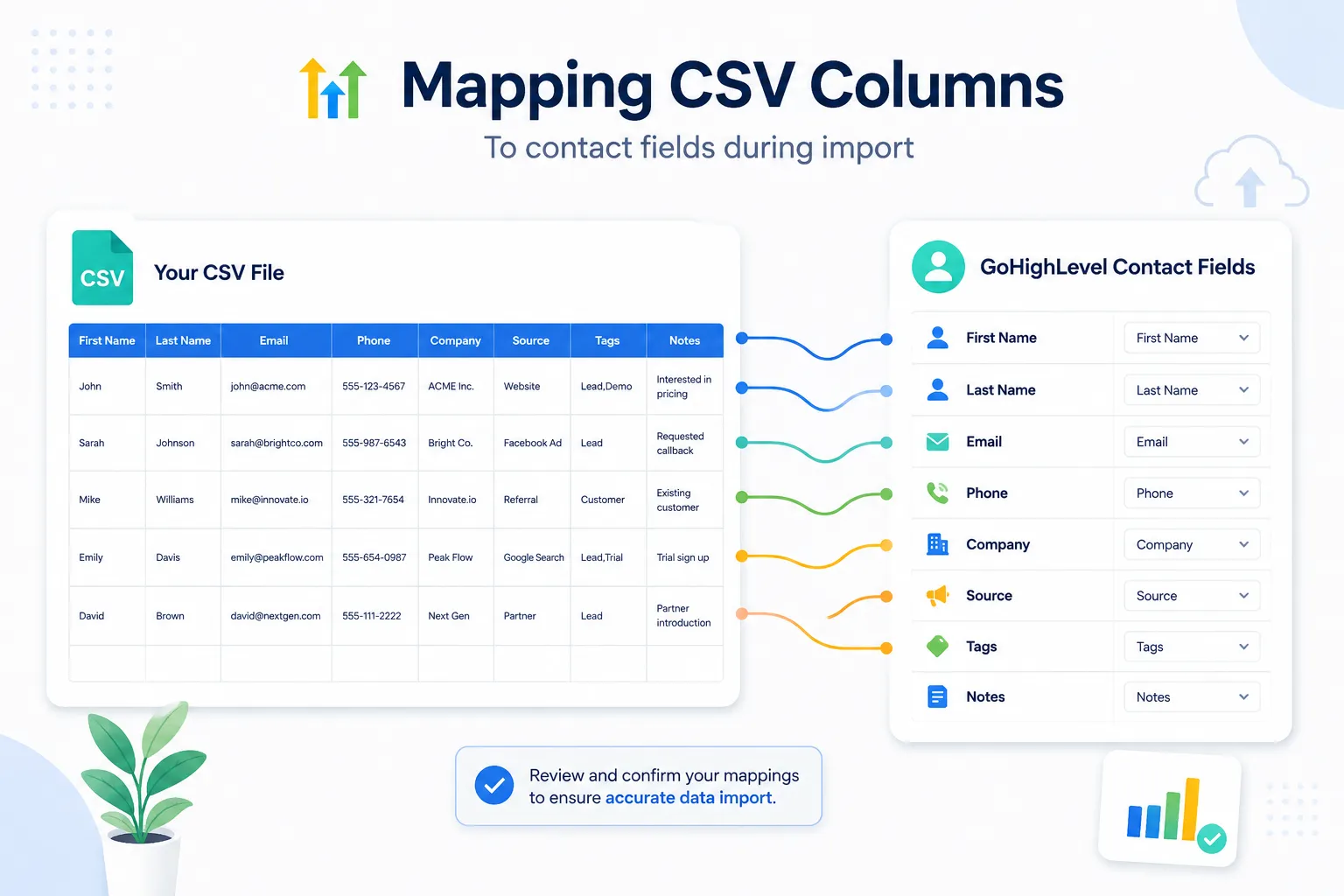
Open Contacts, choose Import Contacts, and select whether you are importing contacts only or contacts with opportunities. Upload your CSV, choose whether you are creating new records or updating existing ones, then map each column to the matching GoHighLevel field.
Two settings matter here. Duplicates are matched in a set order: Contact ID first, then email, then phone. And if you are updating existing records, turn on the option that stops empty values overwriting good data. Without it, a blank cell can wipe a field that already had something useful in it.
Review the mapping screen carefully before you confirm. This is the last easy moment to catch a mistake.
Step 5: Rebuild what a HubSpot to GoHighLevel migration cannot carry
Workflows, forms, calendars, pipelines and templates do not carry over in a HubSpot to GoHighLevel migration, so rebuild them from your screenshots. Order matters. Pipelines come first so imported deals have stages to land in, then forms and calendars, then workflows. Templates come last, once the system works.

Pipelines first. Recreate your deal stages so imported opportunities have somewhere sensible to land.
Forms and calendars second. These are how new leads enter the system, so they need to work before anything else.
Workflows third. Start with the one that follows up a new lead. That single automation usually carries most of the value. Add the rest once it is tested.
Templates last. Copy your email and text wording across and rewrite anything that referenced HubSpot features that do not exist here.
Resist the urge to rebuild everything. Most teams find that a third of their old HubSpot workflows were never used. Migration is a good moment to leave those behind.
Step 6: Do not switch off HubSpot yet
A HubSpot to GoHighLevel migration is only finished when the new system has handled real leads. The safest approach runs both systems side by side for at least two weeks. Keep HubSpot active until the checks below pass, because cancelling early can lose records you cannot get back.
During that time, send a real lead through your new forms and watch it travel all the way to a booked appointment. Check that emails arrive in inboxes and not spam. Confirm your A2P 10DLC registration is approved before you rely on text messages, because carriers block unregistered traffic.
Compare contact counts between the two systems. If GoHighLevel has fewer records than expected, find out why before you cancel anything.
Export one final backup from HubSpot and store it somewhere safe. Once that subscription ends, the data is not coming back.
How long a HubSpot to GoHighLevel migration takes
A HubSpot to GoHighLevel migration takes one to six weeks, depending on size. A small business with a few thousand contacts and five workflows needs about one to two weeks. Most of that time goes on rebuilding automations and testing them, not on moving the data itself.
A larger account with custom objects, tens of thousands of records, and heavy automation takes four to six weeks.
The exporting and importing is rarely more than a day of that. Everything else is the rebuild and the testing.
HubSpot to GoHighLevel migration mistakes that cause data loss
Most data loss in a HubSpot to GoHighLevel migration comes from a few avoidable mistakes. The common ones are letting empty cells overwrite good data and importing the same file twice. Cancelling HubSpot before live testing and texting before A2P approval cause the rest. Each one is easy to prevent.
- Importing before creating custom fields, so the values silently disappear
- Letting empty cells overwrite existing data during an update import
- Cancelling HubSpot before the new system has been tested with live leads
- Importing the same file twice to fix a mistake, which creates duplicates
- Turning on automated messages before A2P registration is approved
Every one of these is common and every one is avoidable.
When it makes sense to get help
Run the HubSpot to GoHighLevel migration yourself if your data is simple and your automations are few. The steps above are enough for that. Outside help pays off when the data or the stakes are bigger, because one mistake costs more than the service. Here are the signs.
Get help when you have custom objects, more than about twenty thousand records, complex deal logic, or a team that cannot afford a single day of downtime. In those cases the cost of a mistake is far higher than the cost of the service. You can see how we scope this work on our GHL migration services page.
Your next step
Start with the boring part. Open HubSpot, list your custom properties and screenshot your workflows. That single hour turns a stressful HubSpot to GoHighLevel migration into a simple checklist. With that list in hand, nothing important gets left behind when you cancel HubSpot.
Then export, clean, build your fields, and import in that order. If you would rather have it done and tested for you, our team handles the whole move, including the rebuild. You can also read our guide to GoHighLevel setup mistakes to avoid the errors that show up right after a migration.
Frequently Asked Questions
What data can I move from HubSpot to GoHighLevel?
Contacts, companies, deals, tickets, custom objects and their custom field values move as data. HubSpot lets you include up to four associated objects in one export so related records travel together. Workflows, sequences, email templates, forms, landing pages, reports, dashboards and meeting links do not export and must be rebuilt in GoHighLevel.
What are HubSpot’s export limits when migrating to GoHighLevel?
You can complete up to thirty exports in a rolling 24 hour window, and only one export runs at a time. Large exports are split into multiple files inside a zip archive. The download link HubSpot returns expires after five minutes, so download it as soon as it is ready. Choose CSV, since GoHighLevel imports CSV.
How long does a HubSpot to GoHighLevel migration take?
A small business with a few thousand contacts and five workflows takes about one to two weeks. A larger account with custom objects, tens of thousands of records and heavy automation takes four to six weeks. Exporting and importing rarely take more than a day; the rest of the time goes into rebuilding and testing.
Why does data go missing when importing HubSpot contacts into GoHighLevel?
Usually because the custom fields did not exist before the import. GoHighLevel ignores any column without a matching field, so that data is lost, and re-importing to fix it creates duplicates. Create every custom field first, and when updating records, turn on the option that stops empty values overwriting existing data.
What should I rebuild first after moving from HubSpot to GoHighLevel?
Rebuild pipelines first so imported opportunities have stages to land in. Then forms and calendars, because they bring new leads in. Next come workflows, starting with new lead follow up, and templates come last. Skip what nobody used, since most teams find about a third of their old HubSpot workflows were never used.
Should I hire help for a HubSpot to GoHighLevel migration?
If your data is simple and your automations are few, the steps in the guide are enough to do it yourself. Get help when you have custom objects, more than about twenty thousand records, complex deal logic, or a team that cannot afford a day of downtime. AutoGen CRM handles the whole move, including the rebuild.
Ready to Get Your GoHighLevel System Built?
We'll build your entire GHL setup for $499 and give you a free professional website.
Book a Free Call See Packages & PricingOr call +1 (681) 276-7045 · Mon–Fri, 9 AM–5 PM ET