
Last updated:
Ready to Try GoHighLevel?
Get the all-in-one platform for CRM, automations, funnels & websites — built for agencies.
Start your free trial and explore every feature.
How to Embed GoHighLevel Forms on Your Website
To embed a GoHighLevel form, open the form, click Integrate in the top right, pick your layout, then click Copy Embed Code. Paste that code into your website where you want the form to appear. Every submission lands in your GoHighLevel contacts.
That is the short version. But there is one rule that catches almost everyone, and it is worth knowing before you start.

The rule that trips people up
Your embed code is static. Once it is on your website, it does not update itself. Any change you make to the form’s settings later needs a fresh copy of the code on your site. Otherwise visitors keep seeing the old version.
That means if you go back into GoHighLevel and change the layout, the trigger, or the deactivation settings, your website keeps showing the old behaviour. HighLevel confirms this in their own documentation. You have to generate a fresh embed code and replace the old one on your site.
This is the reason so many people say their form “stopped working” after they edited it. Nothing broke. The page is simply still running the old code.
So make your settings choices first, then copy the code once, rather than copying early and tweaking later.
New to GoHighLevel? Try it free for 30 days
Get HighLevel's official 30-day free trial and free Bootcamp through our partner link (the standard trial is 14 days). Prefer it done for you? We set up GoHighLevel from $499, with a free website.
Start 30-day free trialHave us set it upPartner link: we may earn a commission at no extra cost to you. Disclosure
Set up your custom fields first
Before you build anything, go to Settings and create the custom fields you need. Budget, service type, how they heard about you, whatever your business collects. Do this first because adding fields later means going back and rebuilding parts of the form. Ten minutes now saves an hour later.
Keep the form itself short. Ask for what you need to start a conversation, usually a name, an email, and one qualifying question. Everything else can wait until you are talking to the person.
Where to find the embed code

From your dashboard, go to Sites, then Forms. This takes you to the form builder area. Pick an existing form from the list, or click Add Form to build a new one. Once your form is ready, click the Integrate tab in the top right corner. Choose your form type, then click Copy Embed Code.
There is also a Copy Form Link button next to it. That gives you a plain URL instead. Use the link for emails, text messages and social posts. Use the embed code when you want the form to live on your own page.
Do not retype the code by hand. It contains a long form ID, and one wrong character stops the whole thing working.
The four layout types
GoHighLevel gives you four ways for the form to appear: inline, popup, polite slide-in and sticky sidebar. Inline sits in the page as normal content, while the other three appear over or beside the page and can be timed. Pick one before you copy anything.
| Layout | How it behaves | Best for |
|---|---|---|
| Inline | Sits in the page as normal content and does not interrupt the visitor | Contact pages, landing pages, application forms |
| Popup | Opens in a window over the page and must be closed before reading on | Strong offers and lead magnets |
| Polite Slide In | Slides in from the left or right and can be minimised | Gentle prompts that do not block the page |
| Sticky Sidebar | Stays pinned to the left or right as the visitor scrolls, and can be minimised or opened | Always available booking or quote requests |
Inline is the right choice for most websites. It is the least annoying, it works everywhere, and it causes the fewest problems.
The other three are worth using when you have a specific reason. A slide in on a blog post. A sticky sidebar on a services page. Just do not stack several of them on one page.
Controlling when the form appears
If you pick anything other than inline, you also get to control the timing. There are three parts to this. Triggers decide when the form shows up. You can show it after the visitor scrolls a set percentage of the page or after a set number of seconds. You can also always show it.
Activation decides when the form starts working at all. You can activate it only after someone has visited the page a certain number of times, or keep it always active.
Deactivation decides when the form stops showing. You can stop after it has been displayed a set number of times, stop once the visitor submits their details, or never stop.
The most useful combination for most businesses is a scroll trigger with deactivation once a lead is collected. The form only appears to people who are reading, and it stops bothering anyone who already filled it in.
A short delay beats an instant popup almost every time. Firing at three seconds interrupts someone who has not read a word yet.
Setting the height for popups and slide ins
Popup, Polite Slide In and Sticky Sidebar layouts have a Modal height setting. This stops the form from feeling oversized or spilling over the page. The default is 500 pixels. You can enter any whole number from 1 upwards. Inline layouts do not have this field, so if you cannot find it, check which layout you selected.
Set the height in the Integrate panel before you copy the code, not after.
Adding the code to your website
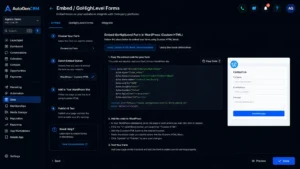
The idea is the same everywhere. Find a place that accepts raw HTML or custom code, paste, save, publish. On WordPress, edit the page, click the plus icon, scroll to the Custom HTML block, and paste your code inside. Save and refresh to check it.
On Squarespace, go to Settings, then Advanced, then Code Injection. Paste into the Header or Footer section if you want the form available across the whole site. Note that Squarespace does not support embedding forms on checkout pages.
On Wix, click the plus button, choose Embed, then Embed a Widget. Select the Code option, paste your code, and click Update.
On Shopify, go to Online Store, then Themes. Click the three dots next to your active theme and choose Edit Code. Open the theme.liquid file and paste the code inside the head or footer section, depending on where you want it.
On Duda, open the editor, go to Widgets, drag an HTML Widget onto the page, and paste the code inside.
Whatever platform you use, save and publish afterwards. Then clear your cache. If you run a caching plugin such as WP Rocket or LiteSpeed, or a service like Cloudflare, your visitors may still be seeing the old page.
Styling the form
Your website CSS cannot reach inside the form. The form loads in a separate frame, so your site styles simply do not apply to it. All styling happens inside the GoHighLevel form builder. Set your fonts, colours, button style and spacing there before you embed.
Do this properly. A form that looks like it belongs on your page gets more submissions than one that looks bolted on from somewhere else.
Test it like a real visitor
Open your live page in a private browser window. A normal window shows you your own cached copy, which hides most problems. Test on a real phone as well, because popups and slide-ins often behave differently on small mobile screens.
Fill in every field, including the optional ones, and submit.
Then open Contacts in GoHighLevel and check the record. Confirm every field has data in it, not just the name and email. A field that quietly saves nothing looks identical to one that works.
Check your notification email arrived. Check the thank you message or redirect fired. Then repeat the whole test on a phone, because forms behave differently on narrow screens.
Use a fresh email address for each test. If you test three times with the same address, GoHighLevel is likely to match those submissions to the same existing contact rather than create three new ones. That looks like a broken form when it is not.
If the form does not appear
If the form does not appear, work through these checks in order. Most problems come from code that was cut off during the paste or a page block that strips scripts. A cache that still serves the old page is another common cause. Start with the first check, because it fixes the issue most often.
Check the code copied correctly and nothing was cut off during the paste. This is the first thing HighLevel support suggests, and it is right more often than you would expect.
Check the code landed in the correct place on the page. Some editors strip out parts of the code for security. If yours did, use a code injection or custom scripts area instead of a normal text block.
Clear every cache you have, including your host and Cloudflare, then check again in a private window.
Check whether you changed the form settings after copying the code. If you did, go back to Integrate, copy the fresh code, and replace the old one.
If the form appears for you but not for one particular person, ask them to try a different browser. Ad blockers and privacy extensions block embedded frames on some setups.
A quick launch checklist
Before you launch an embedded GoHighLevel form, run through a quick checklist. Create custom fields before building the form, and choose the layout and trigger settings before copying the code. Paste it into a block that allows raw HTML. Clear every cache, then test a real submission on desktop and mobile.
- Custom fields created before the form was built
- Layout, trigger and deactivation settings chosen before copying the code
- Embed code copied, not retyped
- Code pasted into a block that allows raw HTML
- Cache cleared everywhere after publishing
- Test submission saved with every field filled in
- Notification email received
- Checked on a phone as well as a desktop
Final thoughts
Embedding a GoHighLevel form takes five minutes. Keeping it working takes a little more care. Build your fields first and choose your settings before you copy anything. Style the form inside GoHighLevel, then test a real submission in a private window on a real phone.
Build your fields first. Choose your settings before you copy anything. Style the form inside GoHighLevel, not on your site. Test with a real submission in a private window on a real phone.
And remember the static code rule. Every time you change the form settings, copy the new code and replace the old one. That single habit prevents most of the trouble people run into.
Before you embed anything, it helps to know what the builder itself can do. Our guide to GoHighLevel forms, templates and vendor forms covers forms vs surveys, conditional logic and where submissions land.
Frequently Asked Questions
Where do I find the embed code for a GoHighLevel form?
From your dashboard, go to Sites, then Forms, and open an existing form or click Add Form. When the form is ready, click the Integrate tab in the top right corner, choose your form type, and click Copy Embed Code. Copy the code rather than retyping it, because one wrong character in the form ID breaks it.
Why did my embedded GoHighLevel form not change after I edited it?
The embed code is static. If you change the layout, trigger or deactivation settings in GoHighLevel, your website keeps showing the old behaviour until you replace the code. Go back to Integrate, copy a fresh embed code and swap it in. To avoid this, choose your settings first and copy the code once.
Which GoHighLevel form layout should I use on my website?
GoHighLevel offers four layouts: Inline, Popup, Polite Slide In and Sticky Sidebar. Inline sits in the page as normal content and suits most websites, because it is the least annoying and causes the fewest problems. Use the others for a specific reason, such as a slide in on a blog post, and avoid stacking several on one page.
How do I add a GoHighLevel form to a WordPress page?
Edit the page in WordPress, click the plus icon, scroll to the Custom HTML block and paste your embed code inside. Save and publish, then clear any cache from plugins such as WP Rocket or LiteSpeed, or services like Cloudflare. Check the live page in a private browser window to confirm the form appears.
Can I style an embedded GoHighLevel form with my website CSS?
No. The form loads in a separate frame, so your website styles do not reach inside it. Set fonts, colours, button style and spacing in the GoHighLevel form builder before you embed. A form that looks like it belongs on the page gets more submissions than one that looks bolted on from somewhere else.
Why is my embedded GoHighLevel form not showing on my site?
Check that the code copied fully and landed in the right place, since some editors strip code for security; use a code injection area if yours does. Clear every cache, including your host and Cloudflare, and recheck in a private window. If you changed form settings after copying, replace the code. Ad blockers can also hide it for some visitors.
Ready to Get Your GoHighLevel System Built?
We'll build your entire GHL setup for $499 and give you a free professional website.
Book a Free Call See Packages & PricingOr call +1 (681) 276-7045 · Mon–Fri, 9 AM–5 PM ET