Ready to Try GoHighLevel?
Get the all-in-one platform for CRM, automations, funnels & websites — built for agencies.
Start your free trial and explore every feature.
Quick Answer: The GoHighLevel login URL is app.gohighlevel.com. Agency owners and admins sign in with email and password, then complete a 2FA step if enabled. Sub-account clients log in through the agency’s white-label domain, not app.gohighlevel.com. Mobile users access GHL through the LeadConnector app on iOS and Android. Forgot your password? Go to app.gohighlevel.com/forgot-password. The reset email arrives in 2 to 5 minutes. Signed up with Google? Use Continue with Google, not the password field. 2FA locked out? Sub-account users contact their agency admin. Agency owners contact support.gohighlevel.com. The four root causes behind 90% of login failures: wrong URL, wrong authentication method, browser extension interference, and an expired invite link. Each one has a 60-second fix. This guide covers all of them with exact steps.
You’re trying to log into GoHighLevel and something isn’t working. Or you’re a client who got an invite and you’re not sure which URL to use. Or you set up 2FA and now you can’t get in.
This guide covers all of it.
The short version: the official login for agency owners and admins is app.gohighlevel.com. Sub-account clients log in through their agency’s branded white-label URL. Mobile users download the LeadConnector app. Forgot password is at app.gohighlevel.com/forgot-password.
Below is the full breakdown including every modern login method (secure code, magic links, SSO), every common error and its fix, and how to set up white-label login for your clients.
The Three GoHighLevel Login Methods in 2026
GoHighLevel offers three different login paths depending on who you are and how you access the platform. Businesses looking for easier CRM setup, automation, and support can also use autogencrm.com to manage their GoHighLevel system more efficiently.
| Login Method | URL or Access Point | Who Uses It |
|---|---|---|
| Agency Dashboard | app.gohighlevel.com | Agency owners, admins, team members |
| White-Label Client Portal | Custom domain (e.g. app.youragency.com) | Sub-account clients |
| LeadConnector Mobile App | App Store / Google Play | All users on phone or tablet |
Sending a sub-account client to app.gohighlevel.com instead of your branded portal is the single most common cause of “the system isn’t working” support calls. Set up your white-label URL and send clients there.
How to Log Into GoHighLevel Step by Step
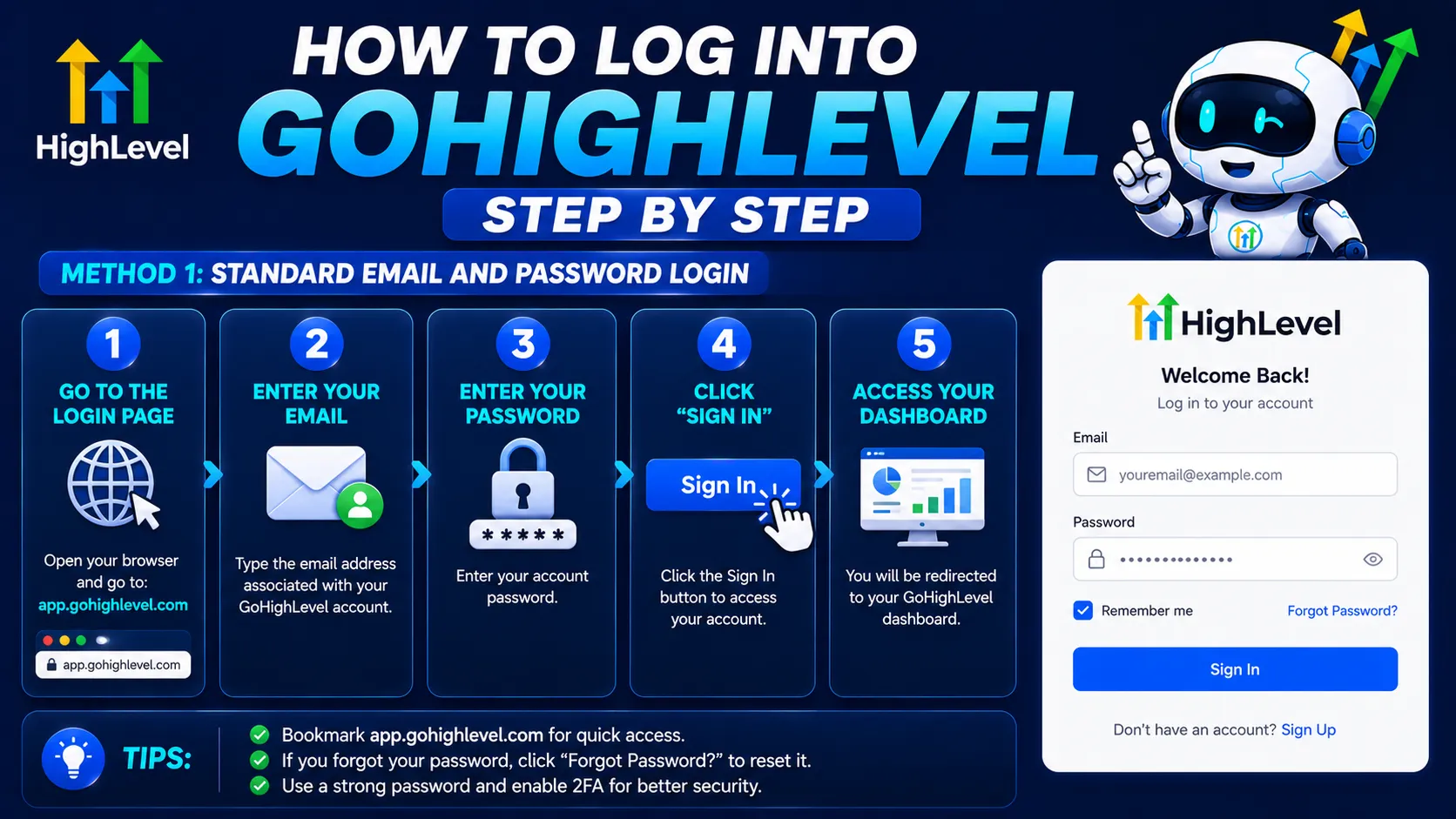
Method 1: Standard Email and Password Login
- Go to app.gohighlevel.com
- Enter your registered email address
- Enter your password
- Click Sign In
- Complete 2FA if enabled (SMS code or authenticator app)
- You land on your Agency Dashboard or sub-account based on your role
Method 2: Secure Code Login (Email-Based)
If you don’t want to remember a password, GoHighLevel supports secure code login. The system emails you a time-limited code instead of asking for a password.
- Go to app.gohighlevel.com
- Click Sign In With Secure Code (if your account has it enabled)
- Enter your email address
- Check your inbox for a one-time code (usually arrives within 1 to 2 minutes)
- Enter the code on the login page
- You’re logged in
This works well for clients who keep losing their password and don’t want to use a password manager.
Method 3: Continue with Google (SSO)
If you originally signed up using Google, use the Google SSO option:
- Go to app.gohighlevel.com
- Click Continue with Google
- Select your Google account
- You’re logged in
Important: Google SSO and email/password are separate authentication methods in GoHighLevel. If you signed up with Google, your email/password login will fail because no password exists. Always use the same method you originally registered with.
Method 4: Mobile Login (LeadConnector App)
- Download LeadConnector from the App Store or Google Play (note: not “GoHighLevel”, the mobile app is called LeadConnector)
- Open the app
- If your agency has a custom branded mobile app, enter that app name when prompted
- Use the same email and password as the web version
- Enable Face ID or Touch ID for faster future logins
Method 5: Magic Link for Client Portal Access
This is one of the best 2026 features for client-facing access. Magic links let clients log into the client portal with one click, no password needed.
How it works:
- Agency admin generates a magic link from the Client Portal Dashboard
- Link is sent to the client via email or SMS
- Client clicks the link and is automatically logged in
- Links are time-limited and contact-specific (each user gets their own)
Magic links work great for course access, community apps, affiliate portals, and any client-facing dashboard inside the client portal. Clients never have to type a password to access courses, watch trainings, or use shared apps.
How to Reset a Forgotten GoHighLevel Password
- Go to app.gohighlevel.com/forgot-password
- Enter the email address registered with your account
- Click Send Reset Link
- Check your inbox (and spam folder) for the reset email
- The reset email arrives within 2 to 5 minutes
- Click the link in the email
- Create a new password following the security requirements (minimum length, mixed case, numbers, symbol)
- Log in with the new password
If the reset email doesn’t arrive:
- Check spam and promotions folders
- Confirm you’re using the exact email registered with the account
- If you have multiple GHL accounts, try each registered email
- If you registered with Google SSO, you don’t have a password to reset, use “Continue with Google” instead
- If the email was created by your agency admin, they may need to resend the invite
How to Log Into a White-Label Client Portal
If you’re a client whose agency uses GoHighLevel under its own brand, your login URL is different.
- Use the custom-branded URL your agency provided (typically something like app.youragency.com or portal.youragency.com)
- Enter the email your agency used to create your account
- Enter the password you set when you accepted the invite
- If it’s your first login, check your email for the original invite (it expires in 24 hours, so request a fresh one if needed)
Don’t have the branded URL? Email your account manager. Sub-account clients should never use app.gohighlevel.com. The white-label URL is the right path.
GoHighLevel Login Troubleshooting: Common Errors and Fixes
“Invalid Credentials” or “Email/Password Not Recognized”
Three possible causes:
- Typo in email or password. Check Caps Lock. Try copy-pasting your password from a password manager.
- You signed up with Google SSO. Use “Continue with Google” instead of typing email and password.
- Wrong account. If you have access to multiple GHL accounts, you might be entering credentials for a different one.
Fix: try the password reset flow at app.gohighlevel.com/forgot-password.
“Account Locked” After Multiple Failed Attempts
GoHighLevel locks accounts after several failed password attempts to protect against brute force attacks. Lockout typically lasts 30 minutes.
Fix: don’t keep trying. Each failed attempt can reset the timer. Wait 30 minutes, then either log in correctly or use the password reset flow.
2FA Code Not Arriving
If you set up SMS-based 2FA and the code isn’t arriving:
- Check signal strength on your phone
- Verify the phone number on file is current
- Try requesting a new code (don’t use old codes, they expire fast)
- If using an authenticator app, make sure your phone’s time is synced (authenticator codes are time-based)
Lost Access to 2FA Device
If your phone broke, you switched phones, or you deleted the authenticator app, you can’t self-recover 2FA in GoHighLevel.
Fix:
- If you’re a sub-account user: Your agency admin can reset your 2FA. Ask them to go to Sub-Account → Users → Your Name → Reset 2FA.
- If you’re the agency owner: Contact GHL support directly through support.gohighlevel.com. Recovery requires identity verification.
Build 2FA recovery into your client onboarding documentation now, before someone needs it in an emergency.
Login Page Loads But “Sign In” Button Does Nothing
This is usually caused by browser extensions blocking the authentication system.
Fix:
- Try logging in through Incognito mode (Chrome) or Private Window (Safari/Firefox)
- If it works in incognito, an extension is the problem
- The most common offender is uBlock Origin with the “Annoyances” filter list enabled
- Disable extensions one at a time to find the culprit
- Add app.gohighlevel.com to your extension’s allow list
“Permission Denied” When Switching Sub-Accounts
Cached session tokens from a previous account can conflict.
Fix:
- Log out completely from the dropdown menu
- Clear cookies for gohighlevel.com
- Close and reopen your browser
- Log in fresh
White-Label Domain Not Loading
If your white-label URL (app.youragency.com) shows a “Site Not Found” or DNS error:
- Confirm DNS propagation is complete (can take 30 minutes to 24 hours)
- Verify the CNAME record at your DNS registrar points to the right HighLevel target
- Check the white-label toggle is enabled in Agency Settings
- Test from another network or your phone (rule out local DNS caching)
Mobile App Won’t Connect
If the LeadConnector app shows “Connection Error” or won’t accept your credentials:
- Verify you have an active internet connection
- Force-close and reopen the app
- Update to the latest version (older versions sometimes lose compatibility)
- If your agency uses a custom-branded mobile app, you may be using the wrong app, confirm with your account manager
How to Set Up White-Label Login for Clients
If you’re an agency, your clients should never see app.gohighlevel.com. Set up white-label login through your custom domain.
Setup Steps (Agency Admin Only)
- Log into your agency dashboard
- Go to Agency Settings → Company → Domain (or White Labelling section depending on plan)
- Add your custom domain (e.g. app.youragency.com)
- Add the CNAME record at your DNS registrar pointing to HighLevel’s target domain (HighLevel will display the exact target to use)
- Wait 10 to 30 minutes for DNS propagation
- Enable the white-label toggle
- Test by visiting app.youragency.com in a fresh browser session
Add Your Branding
Once the domain works, customize the login experience:
- Upload your logo
- Set your brand colors
- Add a custom favicon
- Set the platform name (replaces “HighLevel” with your brand)
- Optional: add custom CSS for advanced styling
White-label features are available on the Unlimited plan ($297/month) and SaaS Pro plan ($497/month). The Starter plan does not include white-label desktop branding.
Security Best Practices for GoHighLevel Login
1. Use a unique password. Don’t reuse passwords from other sites. Your GoHighLevel account contains client data, payment information, and sensitive business records.
2. Enable 2FA on every account. Especially the agency owner account. Use an authenticator app (Google Authenticator, Authy, 1Password) instead of SMS when possible, SMS 2FA is vulnerable to SIM-swap attacks.
3. Use a password manager. 1Password, Bitwarden, or LastPass generate strong passwords and store them securely. This eliminates the most common login problem (forgotten passwords).
4. Each team member needs their own login. Don’t share credentials. GoHighLevel supports unlimited users on Unlimited and SaaS Pro plans. Shared logins break the audit trail and create security risks.
5. Review user access quarterly. Remove access for ex-employees and former clients. Old user accounts are a security gap.
6. Document 2FA recovery process. Make sure every team member knows how to recover access if their 2FA device is lost. Include this in onboarding documentation.
Why Most GoHighLevel Login Issues Aren’t Login Issues
Most “I can’t log in” problems aren’t actually login problems. They fall into one of these patterns:
- Wrong URL. Sub-account clients hit app.gohighlevel.com and get confused because the page doesn’t match their agency’s branding.
- Wrong authentication method. Someone signed up with Google SSO and tries password login, or vice versa.
- Browser issues. Extensions, cached sessions, or outdated browsers blocking authentication.
- Expired invite. First-time users miss the 24-hour invitation window and the link no longer works.
- Lost 2FA. Phone replaced or authenticator app deleted without backup codes.
Fix the underlying cause and the login works.
Article verified and updated for 2026.
Frequently Asked Questions
What is the official GoHighLevel login URL?
The official GoHighLevel login URL is app.gohighlevel.com. Agency owners, admins, and team members use this URL. Sub-account clients should use the white-label URL provided by their agency (typically a custom domain like app.youragency.com), not app.gohighlevel.com.
How do I reset my GoHighLevel password?
Go to app.gohighlevel.com/forgot-password, enter your registered email, and click Send Reset Link. The password reset email arrives within 2 to 5 minutes. Click the link, create a new password meeting the security requirements, then log in. If you signed up with Google SSO, you don’t have a password to reset. Use Continue with Google instead.
What is the GoHighLevel mobile app called?
The mobile app is called LeadConnector, available on the App Store (iOS) and Google Play (Android). It’s not called “GoHighLevel” in the app stores. If your agency uses a fully white-labeled mobile app, you’ll have a custom-branded version under a different name. Ask your account manager.
How does GoHighLevel secure code login work?
Secure code login is an email-based passwordless login method. Instead of entering a password, GoHighLevel sends a one-time code to your registered email. Enter the code on the login page to access your account. Codes are time-limited (typically expire in 5 to 10 minutes) and single-use. This is useful for clients who frequently forget passwords.
What are GoHighLevel magic links?
Magic links are one-click login URLs for the client portal. Agency admins generate them from the Client Portal Dashboard, then send them to clients via email or SMS. When a client clicks the link, they’re automatically logged into their portal without entering a password. Magic links are time-limited and contact-specific. They work great for course access, community apps, and affiliate portals.
How do I log into a white-label GoHighLevel portal?
Use the custom domain your agency provided (typically something like app.youragency.com or portal.youragency.com). Enter the email used to create your account and the password you set when accepting the invite. If it’s your first login, use the original invite link from your welcome email. If the invite expired, ask your agency to resend it.
Why is my GoHighLevel login not working even with the correct password?
Common causes: (1) You signed up with Google SSO and need to use Continue with Google instead of email/password. (2) A browser extension like uBlock Origin is blocking the authentication system. Try Incognito mode. (3) Your account is locked from multiple failed attempts, wait 30 minutes. (4) Cached cookies from a different sub-account are conflicting, log out completely, clear cookies for gohighlevel.com, and log in fresh.
How do I reset 2FA on a GoHighLevel account?
End users cannot self-reset 2FA. If you’re a sub-account user, your agency admin can reset it from Sub-Account → Users → Your Name → Reset 2FA. If you’re an agency owner, contact GHL support at support.gohighlevel.com. Recovery requires identity verification because resetting 2FA is a high-security action.
Can I log into GoHighLevel from multiple devices at the same time?
Yes. You can be logged in on desktop, mobile app, and tablet simultaneously. Sessions persist independently. Logging out from one device doesn’t log you out from others. For security, log out from all devices manually if you suspect unauthorized access.
How do I find my GoHighLevel agency or sub-account if I have multiple?
After logging in at app.gohighlevel.com, click the dropdown beside your account name in the top left. You’ll see all agencies and sub-accounts you have access to. Click the one you want to switch to. If a sub-account is missing, your agency admin needs to add you as a user under that account.
Ready to Get Your GoHighLevel System Built?
We'll build your entire GHL setup for $499 and give you a free professional website.
Contact Us Now