Last updated:
Ready to Try GoHighLevel?
Get the all-in-one platform for CRM, automations, funnels & websites — built for agencies.
Start your free trial and explore every feature.
The CloseBot GoHighLevel integration links the CloseBot AI agent to a GoHighLevel sub account so the bot can text your leads, answer questions, and book appointments on your calendars. You connect it once with a secure login window, and then the AI works inside your normal GoHighLevel conversations.
In this guide you will learn the 6 easy steps to set up the CloseBot GoHighLevel integration, what the bot can do, and the mistakes that trip up most new users. Every step below is checked against the official CloseBot help docs.
What Is the CloseBot GoHighLevel Integration?
CloseBot is an AI agent builder made to qualify leads, follow up, and book meetings around the clock. GoHighLevel is the all in one CRM many agencies use for funnels, calendars, and messaging.
The CloseBot GoHighLevel integration joins the two. CloseBot calls each connected sub account a “Source.” Once a Source is linked, the AI can read new messages and reply for you.
Think of it like hiring a sales assistant who never sleeps. GoHighLevel holds the contacts and calendars. CloseBot does the talking.
Key Parts You Should Know
CloseBot uses a few simple building blocks. Knowing them makes setup much easier.
- Sources: where messages come from, such as a GoHighLevel sub account.
- Personas: the voice and role your agent takes on.
- Job Flows: the logic and actions the agent follows.
- Uploads: web scrapes, notes, and files that power the agent’s answers.
What CloseBot Does Inside GoHighLevel
Before you connect anything, it helps to know what you get. Here are the main jobs the bot handles once the CloseBot GoHighLevel integration is live.
1. AI Conversations That Qualify Leads
CloseBot holds real back and forth chats with your leads. It can ask qualifying questions, handle common objections, and keep the talk moving toward a goal. CloseBot says it supports more than 40 languages.
2. Appointment Booking on Your Calendars
The Booking action lets the AI schedule meetings right on your GoHighLevel calendars. It pulls open times, matches them to what the lead wants, and creates the appointment. This even works in testing mode.
3. Knowledge Sources and Website Scraping
The bot answers questions using your own business info. You can upload PDFs and Word files, add notes, or scrape your website. CloseBot also lets you scrape a site map and refresh it on a recurring basis, so answers stay current when your site changes.
Uploads are linked to Sources, not to one single bot. This means an agency can use one job flow for many clients in the same niche, while each client keeps their own knowledge.
4. Works Across Channels
Source filters decide which channels the agent covers, such as text, email, chat, or social messages. You choose where the bot speaks and where a human takes over.
New to GoHighLevel? Try it free for 30 days
Get HighLevel's official 30-day free trial and free Bootcamp through our partner link (the standard trial is 14 days). Prefer it done for you? We set up GoHighLevel from $499, with a free website.
Start 30-day free trialHave us set it upPartner link: we may earn a commission at no extra cost to you. Disclosure
Before You Start: What You Need
Make sure you have these things ready before you start the CloseBot GoHighLevel integration. It will save you time later.
- An active GoHighLevel account with at least one sub account.
- Permission to approve app access for that sub account.
- A CloseBot account. CloseBot offers a free start with no credit card, per its website.
- A calendar set up in GoHighLevel if you want the bot to book meetings.
- A browser that allows pop ups, since the login opens in a new window.
New to the platform? Our GoHighLevel features guide explains sub accounts, calendars, and conversations in plain words.
How to Set Up the CloseBot GoHighLevel Integration in 6 Easy Steps
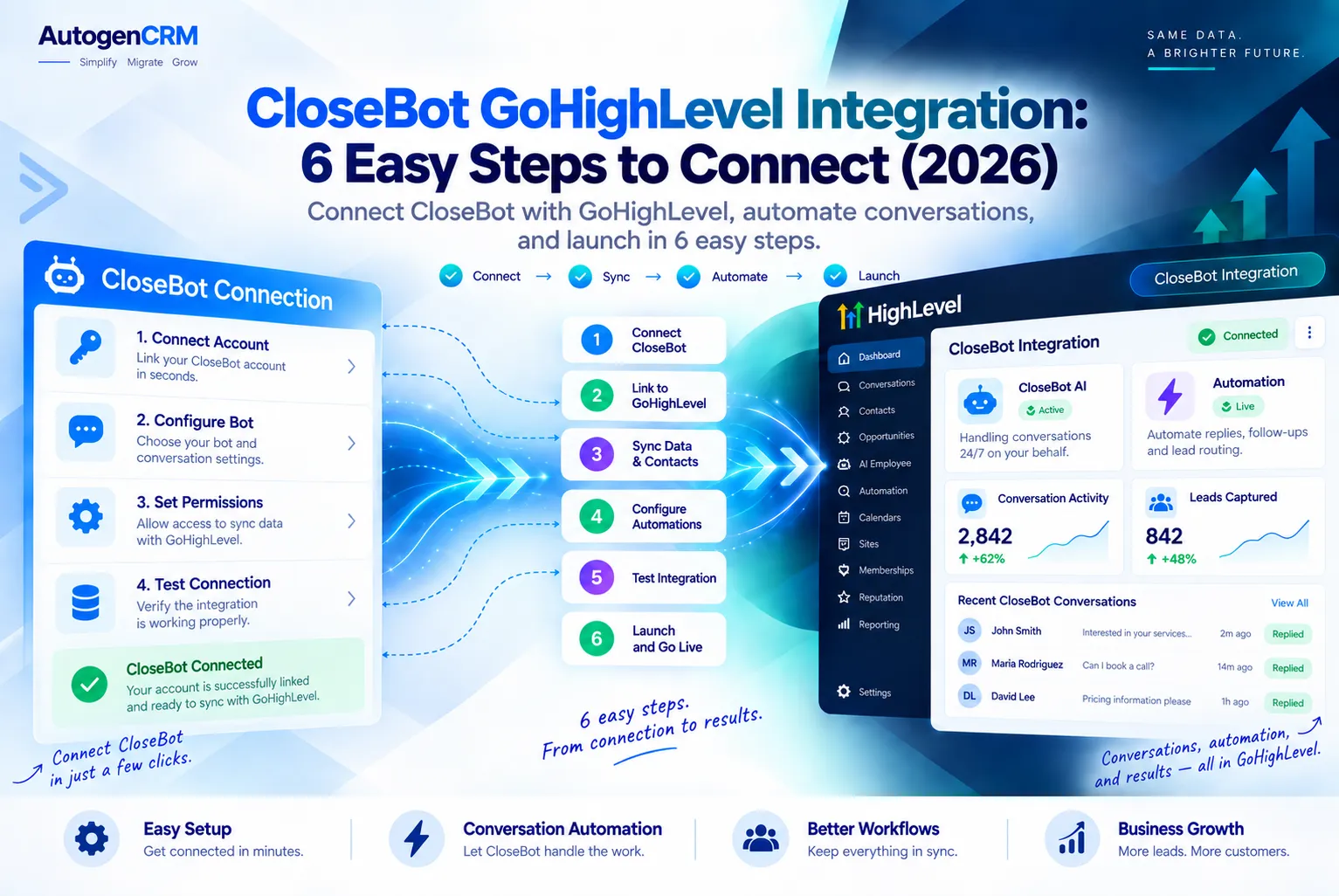
These steps follow the official CloseBot GoHighLevel connection guide. The whole process takes only a few minutes.
- Open Sources. Log in to CloseBot, go to the Sources page, and click to add a new Source.
- Pick HighLevel. Choose “HighLevel Sub Account” from the list and click Connect.
- Sign in. A pop up login window opens. Pick the account you want to authorize. If you are not logged in to GoHighLevel, sign in first.
- Approve permissions. Go to the tab showing the CloseBot app permissions. Scroll to the bottom and approve them.
- Choose the sub account. Select the GoHighLevel sub account you want to connect, then go back to the CloseBot tab.
- Add the Source. Click Add Source. You will land on the Sources list, which means the connection worked.
That is the CloseBot GoHighLevel integration link itself. But a connected Source does nothing until you give the bot a job. The next part covers that.
After Connecting: Make the Bot Useful
To finish your CloseBot GoHighLevel integration, CloseBot’s own walkthrough lists a clear order to follow after your Source is added. Here it is in simple terms.
- Add uploads. Upload your files or scrape your site, then attach them to the Source.
- Build a job flow. Use Agent Actions to give the bot instructions and tools, such as booking.
- Connect the Source to the flow. Set source filters for the channels the bot should handle.
- Pick a persona. Give the bot a name, role, and tone that fit the business.
- Test, then go live. Chat with the bot yourself before real leads see it.
Setting Up the Booking Action
The CloseBot booking docs share a few smart tips. Pick your calendar from the dropdown, or use the permanent calendar ID if one flow serves many clients.
Keep the short description simple, like “Book a 30 minute in person appointment.” You can also add a tag that fires if booking fails, so your team can follow up by hand.
Rescheduling by chat is off by default. Turn it on in Job Flow Settings under Important Business Info if you want it.
Quick Reference Table
Use this table as a cheat sheet for the CloseBot GoHighLevel integration.
| Task | Where to Do It | Tip |
|---|---|---|
| Connect sub account | CloseBot Sources page | Allow pop ups first |
| Add knowledge | Uploads, attached to the Source | Use recurring site map scrapes |
| Set channels | Source filters on the job flow | Start with text only |
| Book meetings | Booking action in the job flow | Use the permanent calendar ID |
| Fix bad replies | Reasoning or logs button | Check time zone and availability data |
Common CloseBot GoHighLevel Integration Mistakes
Most problems with a CloseBot GoHighLevel integration come from a handful of easy errors. CloseBot’s booking troubleshooting guide names several of them.
Wrong or Missing Calendar ID
A blank or wrong calendar ID stops booking cold. Copy the permanent ID from Calendars, then Calendar Settings in GoHighLevel, or just pick the calendar from the dropdown.
Time Zone Mix Ups
CloseBot uses the contact’s time zone from the CRM first. If it is missing, it uses the Source’s time zone. Set both correctly, and add a step that asks the lead’s time zone before booking.
Talking About Booking Too Early
If your prompts mention booking in every section, the bot may push meetings too soon. CloseBot advises keeping booking talk only inside the booking nodes.
Max Attempts Set Too Low
When the bot runs out of booking attempts, it can stall. Turn Max Attempts off or set it to a large number on booking actions.
Skipping the Knowledge Base
A bot with no uploads will guess or give vague answers. Add your services, hours, and common questions before launch. This is the quickest way to make replies sound like your business.
Going Live Without Testing
Always run a few test chats first on your CloseBot GoHighLevel integration. Watch how the bot handles price questions, angry leads, and odd requests. Fix the job flow before real leads arrive.
Setup Tips From Real Agency Work
Here are a few habits that help any CloseBot GoHighLevel integration run smoothly.
- Start small. Turn the bot on for one channel and one lead source first.
- Reuse job flows. One good flow can serve many clients in the same niche.
- Read the logs. The reasoning button shows exactly what data the bot saw.
- Keep a human backup. Use a failure tag so your team catches missed bookings.
- Refresh your knowledge. Update uploads whenever prices or services change.
Curious how CloseBot compares to the AI tools built into GoHighLevel? Read our GoHighLevel AI Employee guide to see what the native option covers.
Is the CloseBot GoHighLevel Integration Worth It?
If your leads wait hours for a reply, they often go cold. An AI agent that answers in seconds and books calls can help close that gap.
The CloseBot GoHighLevel integration fits agencies that run many sub accounts in one niche, since uploads and job flows can be shared. It also suits local businesses that get lots of after hours messages.
For cost details, check the CloseBot website for current plans, since prices can change.
Final Thoughts
The CloseBot GoHighLevel integration takes about 6 easy steps to connect, but the real value comes from what you do next. Add strong uploads, build a clear job flow, set up booking with the right calendar ID, and test before you go live.
Your next step is simple. Connect one sub account today and run a few test chats. If you do not have GoHighLevel yet, you can try GoHighLevel here.
Want help setting up the CloseBot GoHighLevel integration, calendars, and workflows for your agency? The AutoGenCRM team can build it for you, so your bot starts booking meetings faster.
Ready to Get Your GoHighLevel System Built?
We'll build your entire GHL setup for $499 and give you a free professional website.
Book a Free Call See Packages & PricingOr call +1 (681) 276-7045 · Mon–Fri, 9 AM–5 PM ET