Ready to Try GoHighLevel?
Get the all-in-one platform for CRM, automations, funnels & websites — built for agencies.
Start your free trial and explore every feature.
Claude with GHL means connecting Anthropic’s Claude (Desktop, Code, or API) to GoHighLevel through the Model Context Protocol (MCP). HighLevel’s official MCP server at https://services.leadconnectorhq.com/mcp/ now includes 36 native tools covering contacts, conversations, opportunities, calendars, payments, blogs, email templates, and social media posting, with a published roadmap to 250+. Setup takes 10 to 15 minutes using a Private Integration Token (PIT). Once connected, Claude can read your CRM, send messages, move deals, publish blog posts, and schedule social content from plain English commands. Verified against HighLevel’s official documentation, updated July 2026.
You want Claude to actually do work inside GoHighLevel, not just chat about it. That is exactly what MCP (Model Context Protocol) does, and HighLevel’s official server has grown fast since launch. What changed in the latest update: HighLevel expanded the official MCP server from around 21 tools to 36 tools. The new additions matter for agencies: full blog management (create, update, and check post slugs), email template creation, and complete social media posting with analytics. HighLevel also published official n8n integration docs and made the locationId header optional, so you can pass the location inside your prompt instead of hardcoding it. This guide covers the verified current setup, the full tool list, working test commands, security practices, and how Claude MCP compares to GHL’s built-in Ask AI.
What “Claude with GHL” Actually Means
Connecting Claude to GoHighLevel through MCP gives Claude secure, permission-scoped read and write access to your sub-account. You control exactly what it can touch through the scopes on your Private Integration Token. 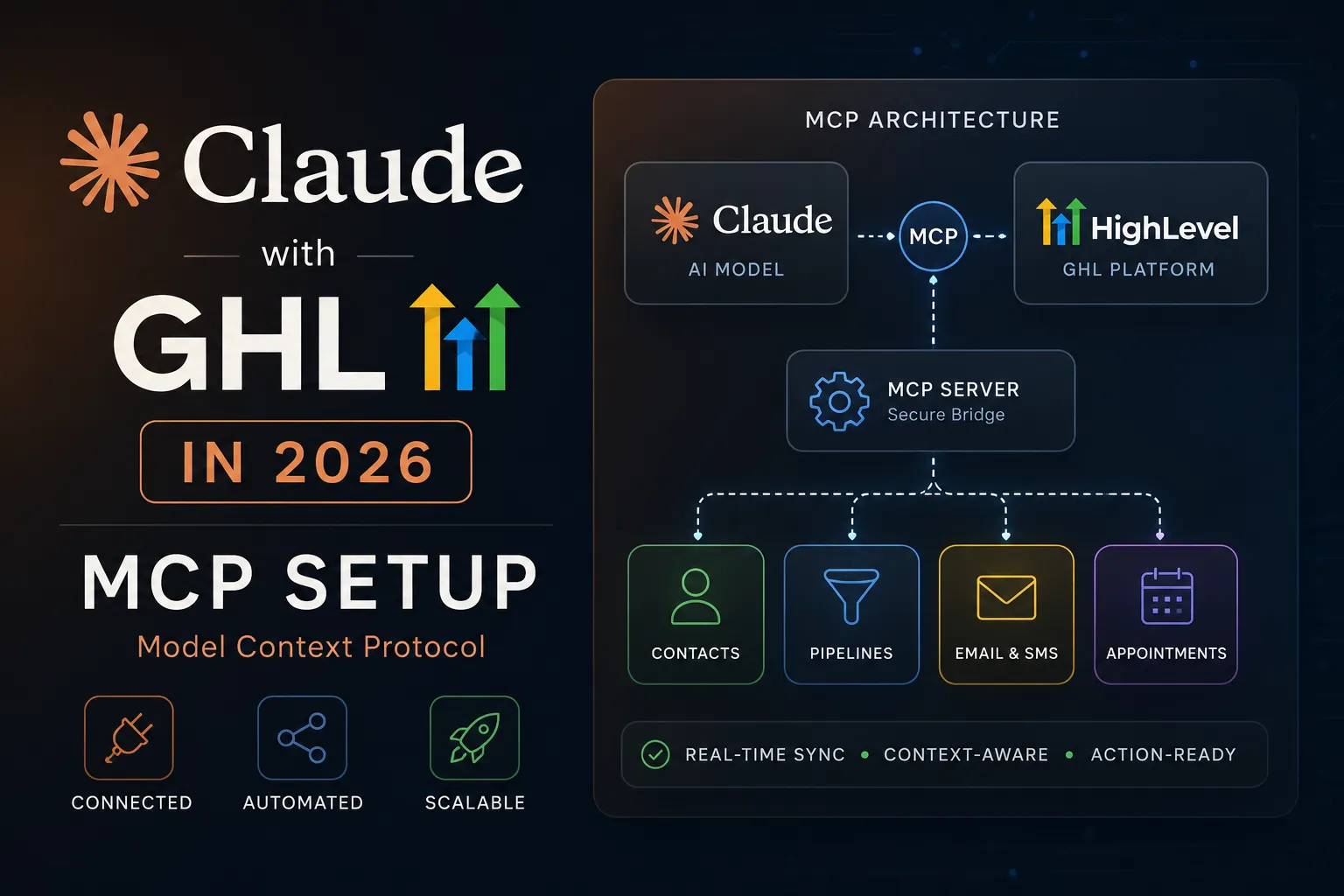 Before MCP, connecting Claude to GHL meant custom API builds, Zapier middleware, or brittle scripts. MCP replaces all of that with one HTTP endpoint. Think of it as USB for AI agents: one universal connector, no custom adapters.
What Claude Can Do Inside GHL Once Connected
- Read and update contacts, tags, tasks, and custom fields
- Search opportunities and move them between pipeline stages
- Read conversations and send SMS, email, and chat messages
- Pull calendar events and appointment notes
- Look up payment orders and transaction history
- Create, update, and publish blog posts (new in the expanded toolset)
- Create email templates (new)
- Create, edit, and schedule social media posts, plus pull social analytics (new)
HighLevel’s Official MCP Server: Current Status (July 2026)
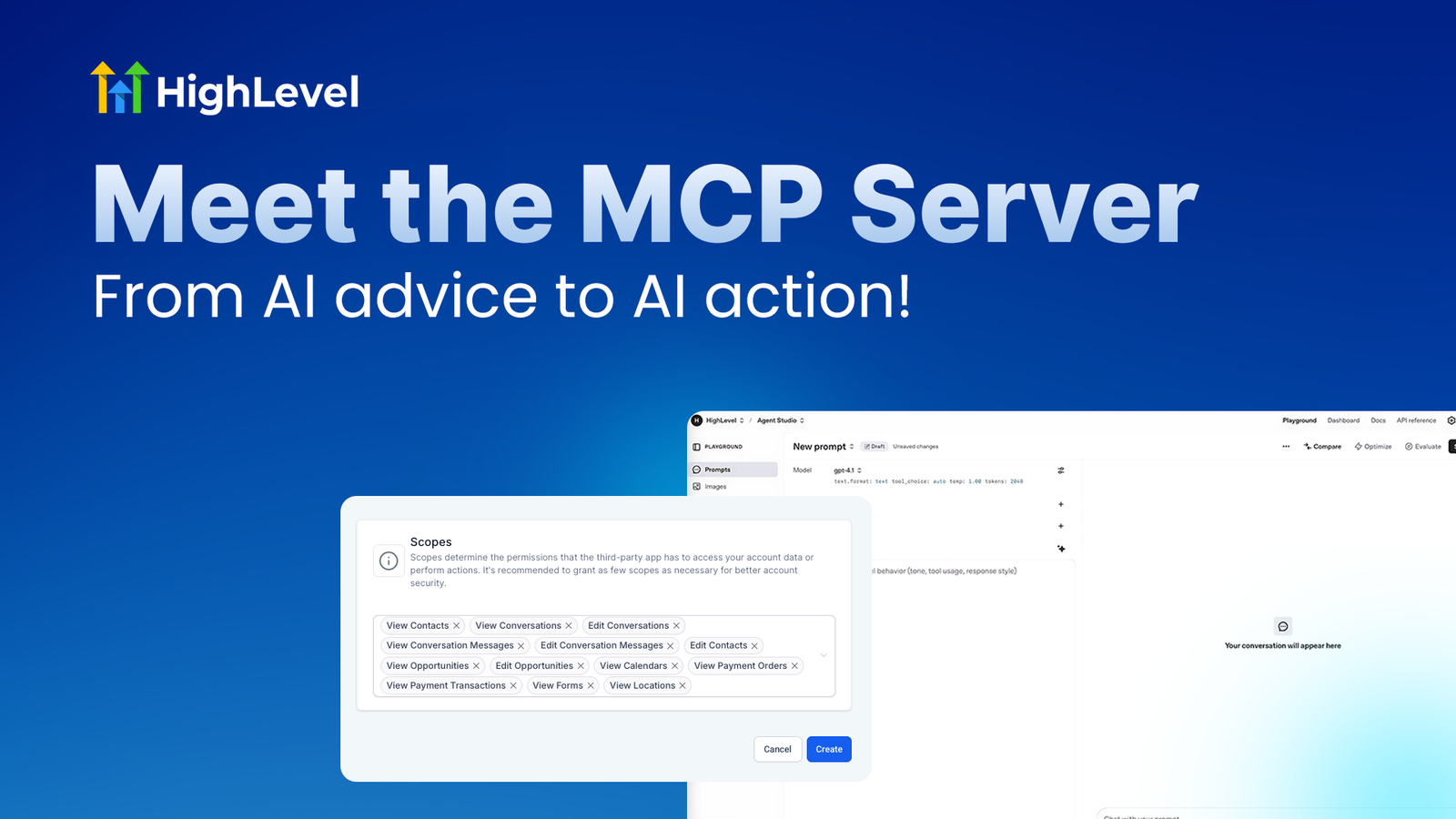 Endpoint: https://services.leadconnectorhq.com/mcp/ Tool count: 36 official tools. Earlier releases listed 21; the server was expanded with blog, email template, and social media posting tools. Roadmap: expansion to 250+ tools, individual MCP servers per service, an npx package for clients without native HTTP streaming support, and OAuth support. Compatibility: any HTTP-based MCP client, including Claude Desktop, Claude Code, Cursor, Windsurf, OpenAI Playground, Gemini CLI, and n8n (v1.104+ with HTTP Streamable transport). Cost: free with any GHL plan. You only pay for your GHL subscription and your Claude plan.
All 36 Official Tools
| Category | Tools |
|---|---|
| Contacts (8) | Get Contacts, Get Contact, Create Contact, Update Contact, Upsert Contact, Add Tags, Remove Tags, Get All Tasks |
| Conversations (3) | Search Conversation, Get Messages, Send a New Message |
| Opportunities (4) | Search Opportunity, Get Pipelines, Get Opportunity, Update Opportunity |
| Calendars (2) | Get Calendar Events, Get Appointment Notes |
| Payments (2) | Get Order by ID, List Transactions |
| Blogs (7) | Get Blogs, Get Blog Post, Create Blog Post, Update Blog Post, Check URL Slug, Get Blog Authors, Get Blog Categories |
| Email (2) | Get Email Templates, Create Email Template |
| Social Media (6) | Get Accounts, Get Posts, Get Post, Create Post, Edit Post, Get Social Media Statistics |
| Location (2) | Get Location, Get Custom Fields |
Source: HighLevel’s official MCP documentation and support portal, verified July 2026.
What You Need Before Setup
- A GoHighLevel account on any plan, with admin access to a sub-account (Private Integrations live at the sub-account level).
- Claude installed: Claude Desktop, Claude Code, or any MCP-compatible client.
- Your Location ID from Settings → Business Profile. Note: the locationId header is now optional. You can pass it in your prompt instead, which is useful for agencies working across multiple sub-accounts.
- 10 to 15 minutes.
No coding needed for the basic setup.
Step-by-Step: Connect Claude to GHL via MCP
Step 1: Create a Private Integration Token in GHL
- Log into your GoHighLevel sub-account
- Go to Settings → Private Integrations
- Click Create New Integration
- Name it clearly: “Claude MCP” or “Claude Agent, [Client Name]”
- Click Next to select scopes
Step 2: Select the Right Scopes
Start minimal. You can add scopes later in 30 seconds. Recovering from an over-permissioned leaked token is much harder. 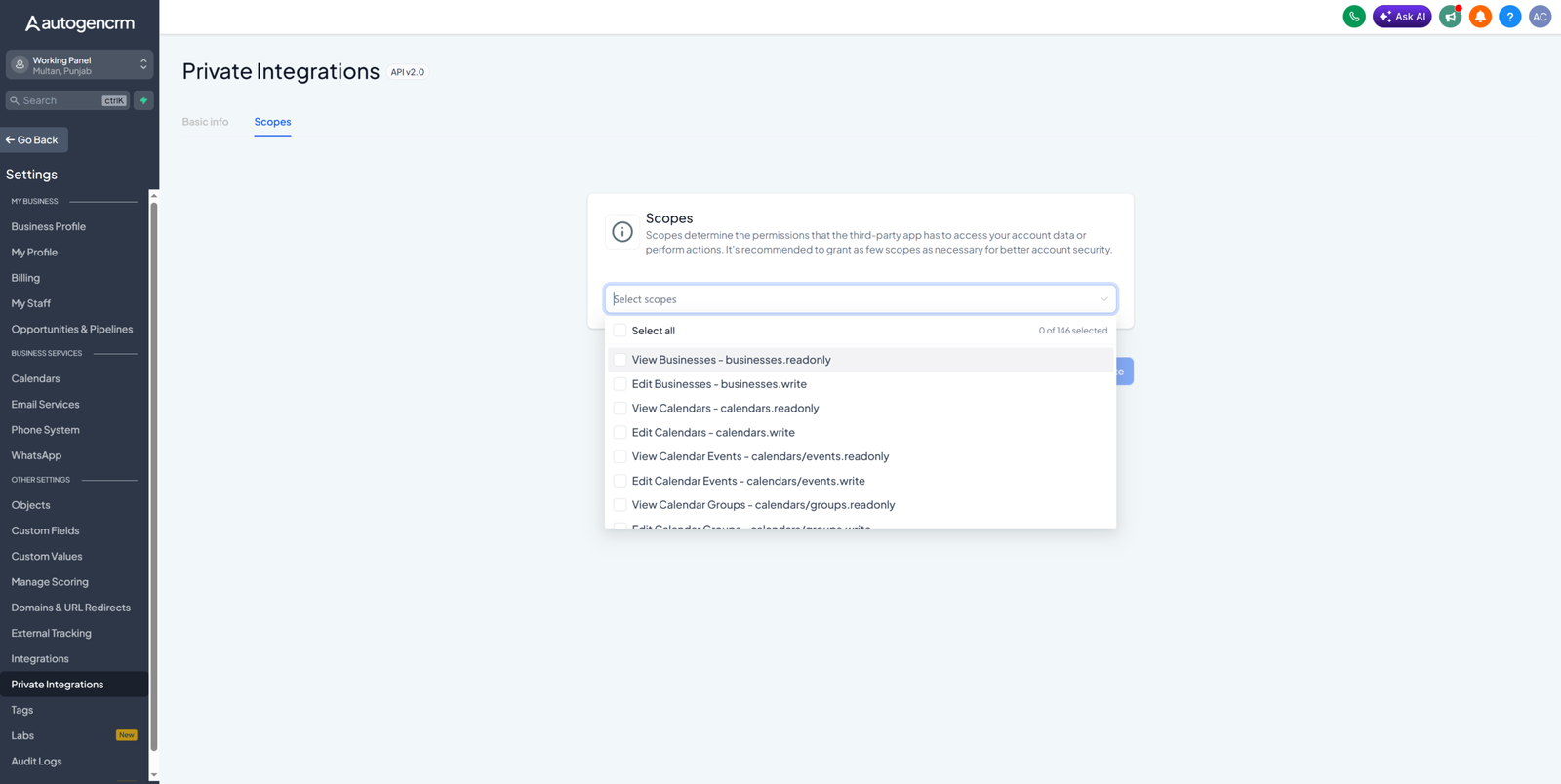 Core scopes (most users):
- View Locations
- View/Edit Contacts
- View/Edit Conversations and Conversation Messages
- View/Edit Opportunities
- View Calendars and Calendar Events
- View Custom Fields
Add these only if you use the new tools:
- Blogs: Create Blog Post, Update Blog Post, Check Blog Post Slug, View Blog Authors, View Blog Categories, blogslistreadonly, blogspostsreadonly
- Email: View Email Templates; Create, Update and Delete Email Templates
- Social: View/Edit Social Media Posts, View Social Media Accounts, socialplannerstatisticsreadonly
- Payments: View Payment Orders, View Payment Transactions
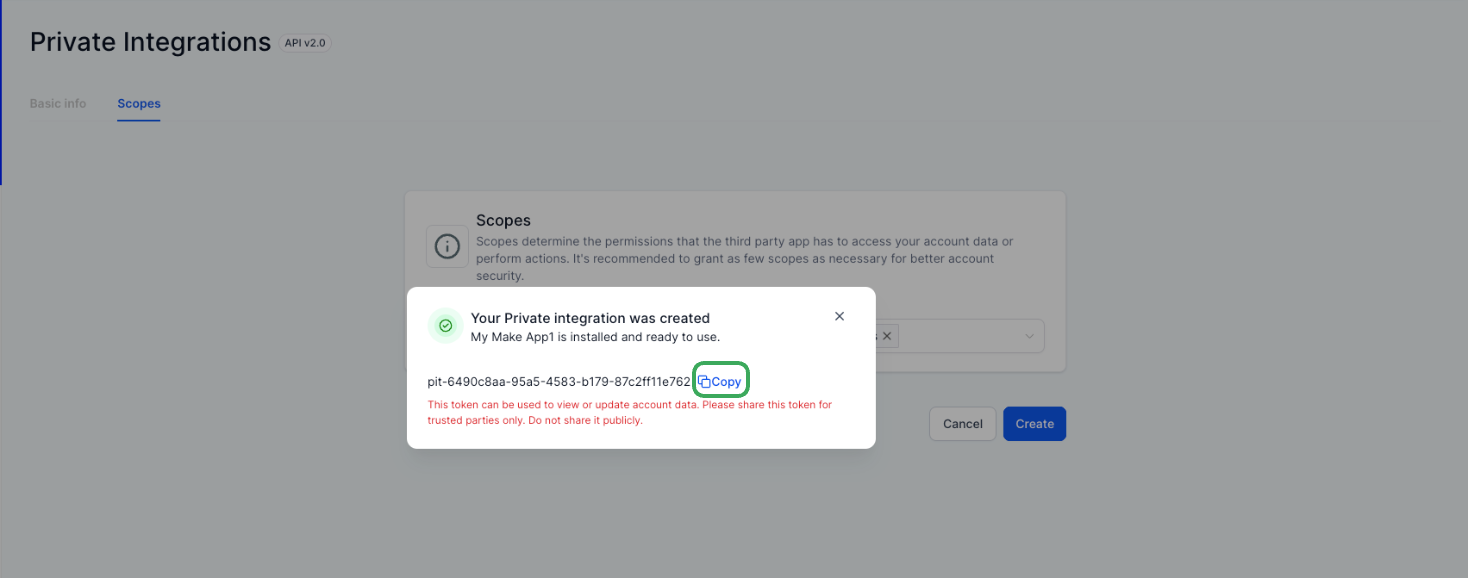
Step 3: Generate and Copy Your PIT Token
Click Create Token, confirm, and copy the token (it starts with “pit-”). You cannot view it again later, only regenerate. Store it somewhere safe.
Step 4: Get Your Location ID
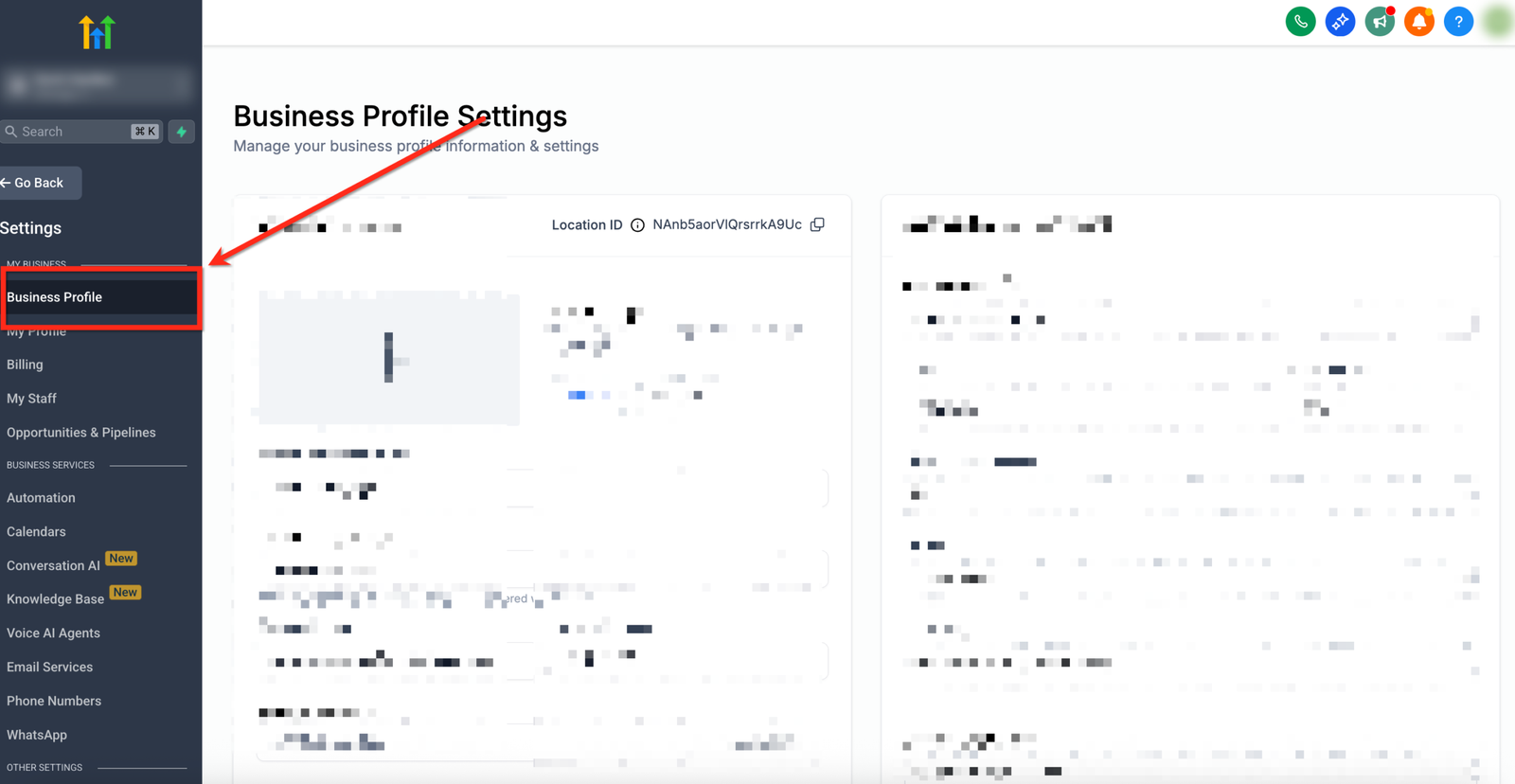 Go to Settings → Business Profile and copy the Location ID. Or skip this step and simply tell Claude the location ID in your prompt when needed, since the header is now optional.
Step 5: Configure Claude
For Claude Desktop (config file method):
- Open Claude Desktop
- Go to Settings → Developer → Edit Configuration
- Open claude_desktop_config.json
- Paste the configuration below and save
- Fully quit Claude Desktop (File → Exit) and reopen it
{
  "mcpServers": {
    "ghl-mcp": {
      "type": "http",
      "url": "https://services.leadconnectorhq.com/mcp/",
      "headers": {
        "Authorization": "Bearer YOUR_PIT_TOKEN",
        "locationId": "YOUR_LOCATION_ID"
      }
    }
  }
}
Tip: newer Claude Desktop versions also support adding remote MCP servers as Connectors from Settings without editing the config file. If you see Settings → Connectors → Add custom connector, you can paste the URL there instead. For Claude Code (terminal):
claude mcp add --transport http ghl-mcp https://services.leadconnectorhq.com/mcp/ \
  -H "Authorization: Bearer YOUR_PIT_TOKEN" \
  -H "locationId: YOUR_LOCATION_ID"
Verify with /mcp inside Claude Code. You should see ghl-mcp connected with its tools listed.
Step 6: Test the Connection
"Connect to GHL. Pull all my pipelines, tags, and custom fields."
Success responses listing your data mean you are live. Authorization errors mean a bad PIT or Location ID. Scope errors mean you need to add permissions to the PIT.
7 Working Commands to Test After Setup
1. Pipeline Analysis
"How many contacts do I have in each pipeline stage? Show me which
stages have the most stuck deals and suggest which ones need follow-up first."
2. Bulk Contact Tagging
"Find all contacts added in the last 30 days and tag them 'Fresh Lead'."
3. Personalized Follow-Up Drafts
"Show me my top 10 stuck opportunities. For each one, draft a
personalized SMS follow-up based on their last conversation.
Don't send them yet, just show me the drafts."
4. Custom Reporting
"Pull all opportunities closed in the last 30 days. Group them by
source. Show me which lead source has the highest close rate."
5. Blog Publishing (new)
"Check if the slug 'gohighlevel-pricing-2026' is available on my blog.
If yes, create a draft blog post with the article I paste below,
under the category 'GHL Guides', with me as the author."
6. Email Template Creation (new)
"Create an email template called 'Webinar Follow-Up' with a subject
line, a personalized greeting using the first name field, and a
booking link CTA."
7. Social Media Scheduling (new)
"Show me my connected social accounts. Then create a post for
Facebook and Instagram announcing our new service, scheduled for
Thursday 10am. Show me the draft before publishing."
Official vs Community MCP Servers
Official server (recommended starting point): 36 tools, maintained by HighLevel, PIT-scoped, HTTPS, zero hosting on your side. Community servers (GitHub projects such as mastanley13/GoHighLevel-MCP with 269+ tools, or BusyBee3333/Go-High-Level-MCP-2026-Complete with 520+ tools): far deeper API coverage (invoices, media library, custom objects, workflows, Voice AI), but you self-host, you maintain updates, and you accept the security responsibility of running unofficial code against your CRM. The gap between official and community shrank with the 36-tool update. Blogs, email templates, and social posting used to require community servers. They no longer do. Move to a community server only if you have a specific need the official 36 tools cannot cover.
Security Best Practices When Connecting Claude to GHL
- Minimum scopes only. Add more later when needed.
- Rotate PITs every 90 days. Settings → Private Integrations → Rotate Token. The “rotate and expire later” option keeps the old token valid 7 days so you can update configs without downtime.
- Environment variables, not hardcoded tokens. Use ${env:GHL_PIT_TOKEN} style references where your client supports it.
- One PIT per client sub-account. Never share a token across accounts.
- Test in a sandbox sub-account first. AI can move 95 contacts to the wrong stage in 5 seconds.
- Human-in-the-loop for sends and publishes. Always tell Claude “show me the draft first” for mass SMS, blog publishing, and social posts.
- Review API logs in Settings → Private Integrations for unusual patterns.
Common Setup Errors and Fixes
“Authorization failed” / “Invalid token”: PIT copied wrong, a legacy v1 API key (deprecated since mid-2024), or a rotated token that expired. Create a fresh Private Integration Token. “Location not found”: wrong Location ID, or your PIT does not have access to that location. Since the locationId header is optional now, you can also just state the location ID in your prompt. “Tool not available” / “Unauthorized action”: missing scope. Edit the integration and add it. MCP server shows disconnected in Claude Desktop: fully quit and reopen the app, validate your JSON syntax, and confirm the endpoint URL is exactly https://services.leadconnectorhq.com/mcp/. Tool cap in Cursor: Cursor limits active tools. Disable unused ones, or stick with the official server’s 36 tools instead of a 500-tool community server.
Claude MCP vs GHL’s Native Ask AI
HighLevel has its own native AI feature called Ask AI that lets you talk to your CRM inside the platform. No MCP setup required. 
| Feature | Claude MCP | GHL Ask AI (native) |
|---|---|---|
| Setup | 10 to 15 minutes | Zero, built in |
| Runs inside | Claude Desktop/Code | GHL dashboard |
| Reasoning depth | Claude’s full capability | GHL’s native AI |
| Cross-tool workflows | Yes (other MCP servers) | GHL only |
| File outputs (CSV, reports, scripts) | Yes | Limited |
| Cost | Your Claude plan | Included in GHL |
Use Ask AI for quick in-platform actions with zero setup. Use Claude MCP for complex analysis, multi-system workflows, custom file outputs, and content operations. The new blog and social tools make Claude a real content pipeline for GHL sites. Most operators end up using both.
Real Use Cases That Pay Back the Setup Time
1. Pipeline Cleanup at Scale
“Find all opportunities that haven’t moved in 30 days and aren’t tagged ‘cold’. Add a ‘Stuck Deal’ tag.” Manual time: 2 to 4 hours. Claude MCP time: seconds.
2. Content Pipeline Into GHL Blogs (new)
Draft an article with Claude, have it check the slug, create the post in the right category with the right author, and publish, all in one conversation. This was impossible on the official server before the blog tools shipped.
3. Social Calendar From One Prompt (new)
“Create a week of posts for my HVAC client across Facebook and Instagram, based on their top 3 services. Show me all drafts before scheduling.”
4. Snapshot Personalization
After importing a snapshot, have Claude update contact data and messaging templates with the client’s business info in seconds instead of clicking through settings.
5. Cross-Tool Orchestration
With GHL + Google Drive + Gmail MCP servers connected, one prompt can replace a 5-zap Zapier chain: “For every new GHL contact tagged ‘Premium’, create a folder in Drive, generate a welcome PDF, and send it via Gmail.”
The Honest Take on Claude with GHL
The official server’s jump to 36 tools closed the biggest gap it had: content operations. For most agencies, there is no longer a reason to start with a community server. Three things to keep in mind. The setup is one-time but real; if you only need quick in-platform actions, Ask AI is faster to start. Security is your responsibility; scoped tokens and sandbox testing are not optional. And the server is still expanding toward 250+ tools, so if you need invoices or advanced workflow editing today, community servers fill that gap at the cost of self-hosting. For agencies and operators serious about leverage, Claude MCP is worth the 15 minutes. A properly done GoHighLevel setup makes everything Claude touches cleaner, because AI on top of a messy account just makes messes faster. Article verified against HighLevel’s official MCP documentation and support portal. Updated July 2026.
Frequently Asked Questions
How many tools does the official HighLevel MCP server have?
36 official tools as of mid-2026, covering contacts, conversations, opportunities, calendars, payments, blogs, email templates, social media posting, and location data. HighLevel’s roadmap targets 250+ tools. Community GitHub servers offer 269 to 520+ tools but are not officially supported.
What changed in the latest HighLevel MCP update?
The official server expanded from around 21 to 36 tools. New additions: full blog management (create, update, slug check, authors, categories), email template creation, and complete social media posting with analytics. HighLevel also made the locationId header optional and published official n8n integration documentation.
How do I connect Claude to GoHighLevel?
Create a Private Integration Token at Settings → Private Integrations, get your Location ID from Settings → Business Profile, and add the MCP endpoint https://services.leadconnectorhq.com/mcp/ to Claude Desktop’s config file or via the claude mcp add command in Claude Code. Total setup time: 10 to 15 minutes.
Is the Claude GHL MCP integration free?
Yes. The official MCP server is included with any GHL subscription. You pay for your GHL plan and your Claude plan separately. No middleware fees.
Can Claude publish blog posts to my GHL website?
Yes, as of the 36-tool update. Claude can check slug availability, create posts, update existing posts, and assign authors and categories through the official blogs tools, provided your PIT has the blog scopes enabled.
Can Claude schedule social media posts through GHL?
Yes. The official server now includes tools to list connected accounts, create and edit posts across supported platforms, and pull social media statistics. Enable the social media scopes on your PIT.
Is Claude with GHL secure?
Yes, when configured correctly. Access is scoped via Private Integration Tokens over HTTPS. Use minimum scopes, rotate tokens every 90 days, keep one token per client account, and test bulk operations in a sandbox first.
Do I need Claude Pro to use MCP with GHL?
No, but it helps. The free tier works for testing. For regular business use, Claude Pro ($20/month) gives higher limits and the most capable models.
Can I connect multiple GHL sub-accounts to Claude?
Yes. In Claude Code, use project-level .mcp.json files, one per client folder, each with that client’s PIT. In Claude Desktop, add multiple named servers (ghl-client1, ghl-client2). Since locationId can now be passed in prompts, agencies can also manage location switching conversationally, though separate tokens per client remain the safer pattern.
Does the GHL MCP work with tools other than Claude?
Yes. Any HTTP-based MCP client works: Cursor, Windsurf, OpenAI Playground, Gemini CLI, and n8n (v1.104 and later with the HTTP Streamable transport and header-based auth).
Ready to Get Your GoHighLevel System Built?
We'll build your entire GHL setup for $499 and give you a free professional website.
Contact Us Now