Need Professional GoHighLevel Setup?
We build complete GHL systems for agencies including CRM, automations, funnels & websites.
Done in 1-2 weeks + Free Website included.
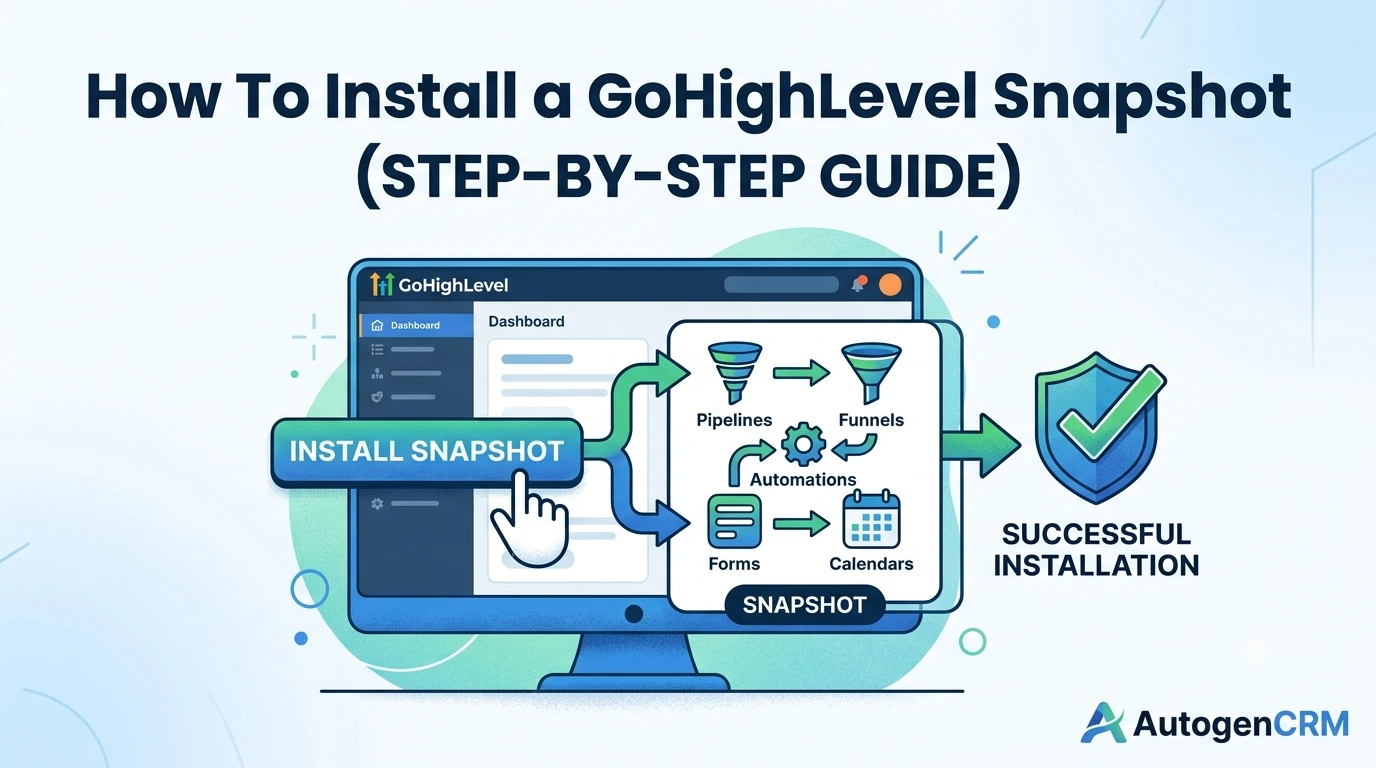
Wondering how to install a GoHighLevel snapshot without breaking your setup? You’re not alone. Most agency owners hit this question the first time they try to launch a client account fast. The good news is that installation is simple once you know the exact steps. A snapshot makes all your pipelines, funnels, and automations accessible in one file. It’s imported, and your CRM is up and running. Every day at AutogenCRM, we are installing niche snapshots for agencies all over the USA. The process is covered in this guide, step-by-step. No technical skills required. It is only a matter of following along, and you will soon have a working system in minutes. Let’s get started.
What You Need Before You Start the Installation
The right preparation is the key to a smooth installation. To get started, ensure that your GoHighLevel account is active. One needs the complete GoHighLevel snapshot file or share link to hand as well. Bring your client’s business information to create custom value mapping. This small prep step will save you time later in the process.
Here are some quick tips:
- Active GoHighLevel sub-account
- An image file, also known as a snapshot file, or a share link from the browser.
- Business name, phone number, and email of the client.
- Allow administrators to log in to the sub-account
Step 1: Access Your GoHighLevel Sub-Account
Please log in to your GoHighLevel agency dashboard first. Choose the sub-account where you would like to place the snapshot. If you are establishing a completely new client, create your sub-account before this step. Make sure you’re in the correct account before proceeding. Installing to the wrong account will destroy work that already exists.
Step 2: Locate the Import Snapshot Option
In the sub-account, change to the settings menu. Look for the “Import Snapshot” or “Snapshots” section. It’s at this point that the real GoHighLevel snapshot import takes place. This feature was created by GoHighLevel for that very purpose: easy one-click deployment. Click the import button to start importing your file.
Step 3: Upload the Snapshot File
Copy and paste your snapshot share link or upload the file. GoHighLevel will begin to bring in pipelines, workflows, and funnels. This will normally take several minutes. Avoid closing the tab while the import is running. It could take a bit longer if there are many automations in the large snapshot.
Step 4: Map Custom Values and Fields
This is the place where most installation errors occur. Custom values are settings that determine, among others, the name of the business, the telephone number, and booking links. Review each field and verify with your client that they have the same information. If this step is not followed, it is likely to cause the automation to be broken later. Be patient; accuracy is more important than speed.
Step 5: Test Every Automation and Pipeline
Don’t miss post-installation testing. Test your forms and funnels with a test lead. Test that follow-up messages and follow-up emails work as expected. Check that calendar bookings and reminders are as expected. This step is the actual account cloning, without needing to do the manual setup, and testing is a test of the success of the copy.
Some tests to do:
- Gather forms and lead information. Collect forms and leads.
- Automation triggers for email and SMS.
- Email and SMS automation triggers.
- Calendar booking confirmations
- Pipeline stage movement
Step 6: Launch and Monitor Your New Done-for-You Setup
After testing, your system is live and ready to go. If you have any automations turned off, make sure to turn them on before you pass it on to your client. Keep an eye on activity during the first few days after launch. Ensure that all triggers are not overlooked or missed, and delayed responses are not observed. Small problems can be identified early and become a major issue.
Updating Your Snapshot After Installation
A snapshot is not a one-and-done installation. Your automations should keep up with your growing business. Keep client information updated with custom values. Check pipelines regularly for old stages. After a 30-day snapshot install, AutogenCRM offers free updates for 30 days.
How GHL Snapshot Installation Differs Across Industries
Not all businesses have the same approach to installing a snapshot. A real estate agency demands various pipeline stages as compared to a fitness studio. The time for booking and follow-up varies across sectors. AutogenCRM tailors the installation procedure to each niche. This ensures that automations are relevant from the first lead.
Should You Install a Snapshot Yourself or Hire Help
Some agencies prefer to install snapshots on their own. If you have a team familiar with GoHighLevel, this is beneficial. Some people decide to get professional installation since they don’t want to do it the wrong way and wouldn’t want to waste time. When you’re technically onboarding several clients, it makes sense to hire people to help. AutogenCRM has both self-install snapshots and full installation services.
How to Confirm Your Snapshot Installed Correctly
It is vital to review the work after it is installed. Record a test lead through all of the forms and funnels. Make sure automations are firing in the time frame they are supposed to. Check the stages in your pipeline to make sure they have moved. If you have a properly installed snapshot, there must be no manual changes to be made.
Common Installation Mistakes to Avoid
Even the most seasoned agencies make mistakes. The most frequent error is forgetting to update the custom values. A common problem is to skip the testing stage altogether. Some users also try to import snapshots to the incorrect sub-account. All these errors can be avoided if you follow a careful process.
What to Do If a Snapshot Fails to Import
Even with a tested snapshot, import errors occur from time to time. Try to reach the site again – check the internet connection. If the error persists, check to see if the snapshot link has expired. If it does not resolve after 2 attempts, please contact your snapshot provider. AutogenCRM will support any installation issues within 7 days of delivery.
Why Agencies Trust AutogenCRM for Snapshot Installation
The correct installation of a snapshot is important the first time. If it is not installed properly, it will result in lost leads and annoyed clients. AutogenCRM has supported over 500 agencies in the USA to deploy and configure their GoHighLevel snapshots. All installations are tested on completion before handing over. We will record written and video instructions for your reference as well. This translates to having a working system without a lot of finger-pointing.
Our snapshot installation service comes with the following:
- Full snapshot import & configuration
- Custom value mapping for your client
- Complete Automation and Pipeline Testing
- A detailed procedure for your team to follow step-by-step.
If you prefer to let us do everything for you, our GoHighLevel setup & onboarding service does it all.
Final Thoughts
Learning how to install a GoHighLevel snapshot doesn’t have to be complicated. Carefully follow all the steps: from your sub-account to each automation test. Most typical installation issues can be avoided by proper mapping and testing. There is a process to do this, and you can launch client accounts in minutes, not days. If the agency is looking for a system that works immediately, then they can always build and install a tested snapshot from AutogenCRM.
Frequently Asked Questions
How many minutes or hours does it take to install a GoHighLevel snapshot?
Installations typically require a few minutes. Depending on the complexity, additional time for full testing and value mapping may be needed.
Can I install a snapshot into an existing sub-account?
Yes, but be careful. Importing to an account with existing pipelines and automations can replace the existing ones.
What if I don’t do the custom value mapping step?
Automations can be triggered with the wrong information or not be triggered at all. Always map custom values before going live.
Do I have to have technical skills to install a snapshot?
No coding is required. The GoHighLevel snapshot import process is user-friendly.
May I have the snapshot installed for me by AutogenCRM?
Yes. Full setup, testing, and documentation are our service as setup.
Need Help Installing Your Snapshot? Talk to Our Experts
Avoid having a broken setup on your next client launch. Every GoHighLevel snapshot is installed, tested, and documented for agencies throughout the USA by AutogenCRM. Speak to our specialists today and have your snapshot installed correctly and for the first time.
Ready to Get Your GoHighLevel System Built?
We'll build your entire GHL setup for $499 and give you a free professional website.
Contact Us Now