
Last updated:
Ready to Try GoHighLevel?
Get the all-in-one platform for CRM, automations, funnels & websites — built for agencies.
Start your free trial and explore every feature.
To delete custom fields in GoHighLevel (HighLevel), go to Sub-Account → Settings → Custom Fields, find the field, click the three dots (or trash icon), and select Delete. Confirm the deletion. HighLevel does NOT support bulk deletion of custom fields as of 2026, even though checkboxes appear in the interface. You must delete fields one at a time, use the HighLevel API for large-scale cleanup, or hide unused fields with the “Hide Empty” option. Deletion permanently removes the field and all stored data for every contact. Before deleting any field in use, audit forms, workflows, smart lists, and pipeline triggers that reference it.
You have 60 custom fields cluttering your HighLevel sub-account and you can’t figure out which ones are used. You select 20 fields with checkboxes, hit delete, and nothing happens. You’re not crazy. Bulk delete doesn’t work.
This is one of the most-requested features in HighLevel (with active complaints going back to 2022). As of 2026, native bulk deletion is still not supported. The checkboxes exist but the action doesn’t.
This guide covers the actual working methods: how to delete fields one by one safely, the API option for developers, workarounds for cleanup at scale, and how to avoid this mess in the first place.
How to Delete Custom Fields in GoHighLevel (Step by Step)
To delete a custom field in GoHighLevel, open your sub-account, go to Settings → Custom Fields and filter by object type. Find the field, click the three dots next to it and choose Delete, then confirm. The basic deletion process is straightforward when it works, as the steps below show.
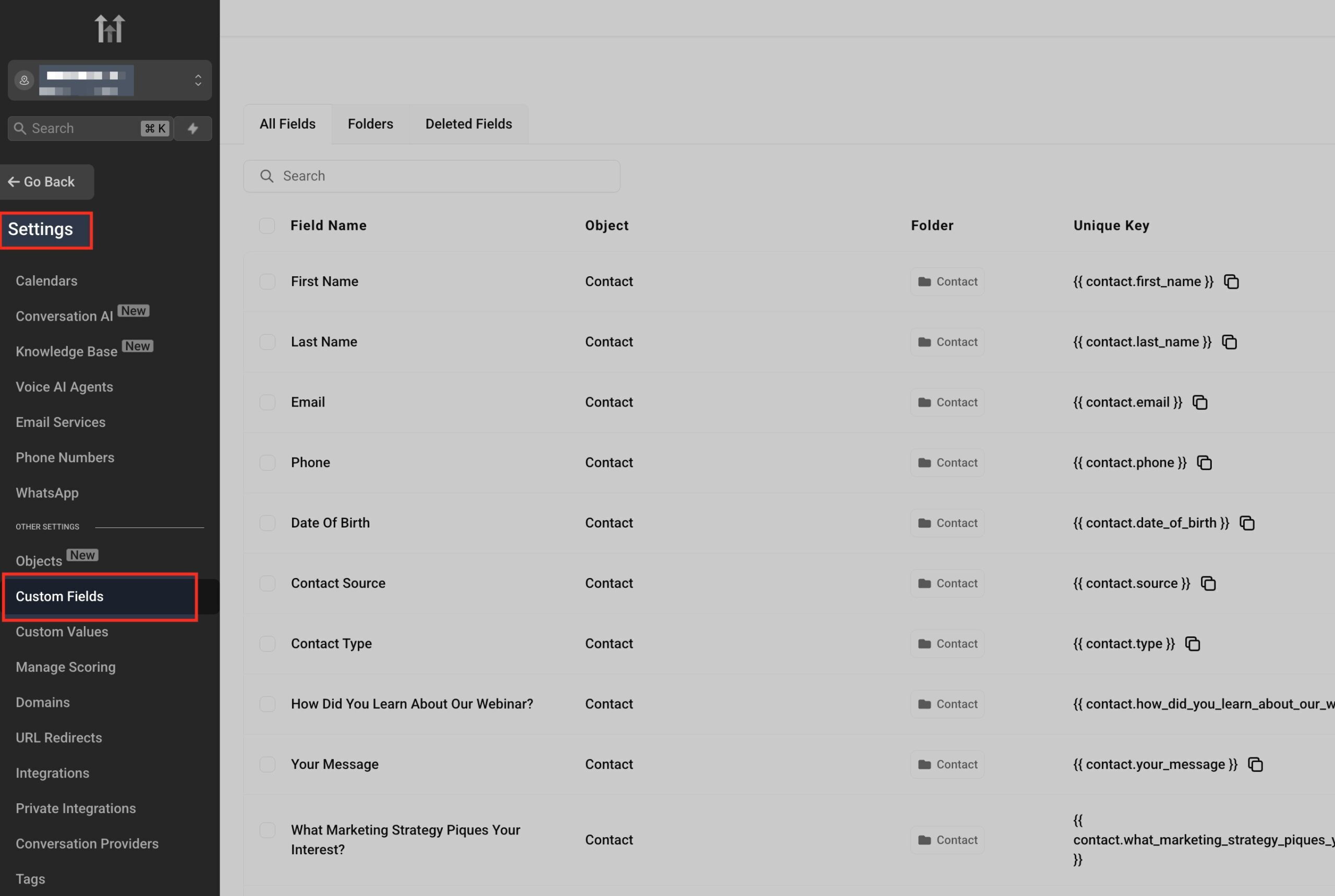
- Log into your HighLevel sub-account
- Go to Settings → Custom Fields
- Use the object type dropdown at the top right to filter (Contact, Opportunity, Company)
- Find the field you want to delete (use the search bar for faster filtering)
- Click the three dots menu next to the field name (or the trash icon in older UI versions)
- Select Delete
- Confirm the deletion when prompted
The field disappears immediately. All data stored in that field across all contacts is permanently removed. There’s no recovery.
The Bulk Delete Problem: It Doesn’t Work (As of 2026)
This is the biggest frustration with HighLevel custom fields and the most common reason agency owners spend hours on cleanup that should take minutes. The checkboxes suggest a bulk option, but deletion still happens one field at a time in the interface.
HighLevel shows checkboxes next to each custom field. You can select multiple fields at once. You’d expect a “Bulk Delete” button to appear. It doesn’t.
Selecting multiple custom fields in the Contacts section only allows bulk move (to a different folder/group). It does NOT allow bulk delete. The delete button is greyed out when multiple fields are selected.
This has been a top-voted feature request on ideas.gohighlevel.com since 2022. As recently as March 2026, agency owners are still posting frustrated comments asking for this basic functionality. HighLevel has not shipped it.
One Exception: Opportunity Custom Fields
Opportunity custom fields (under Pipelines, not Contacts) DO have working bulk actions. You can select multiple opportunity custom fields with the checkbox menu and use the Bulk Actions menu to edit, delete, or move them.
This bulk action only applies to Opportunity custom fields, not Contact custom fields. The asymmetry is intentional (or at least HighLevel hasn’t fixed it yet).
New to GoHighLevel? Try it free for 30 days
Get HighLevel's official 30-day free trial and free Bootcamp through our partner link (the standard trial is 14 days). Prefer it done for you? We set up GoHighLevel from $499, with a free website.
Start 30-day free trialHave us set it upPartner link: we may earn a commission at no extra cost to you. Disclosure
“Cannot Delete Field” Error: Why It Happens
If HighLevel shows “Field cannot be deleted because it is in use,” the field is referenced somewhere active. The error doesn’t tell you where, which is the annoying part. Workflows, forms, surveys and custom values are the usual places to check.
You need to find and remove the reference before deletion works. Here’s the audit order:
| Check This | Where to Look | What to Fix |
|---|---|---|
| Workflow references | Automation → Workflows → search each workflow for field name | Remove field from trigger filters and “Update Contact Field” actions |
| Form mappings | Sites → Forms → check each form element | Remove field from form and unmap any hidden field references |
| Survey mappings | Sites → Surveys → check each survey | Remove field from survey questions |
| Funnel hidden fields | Sites → Funnels → page builder → hidden field elements | Remove field from funnel pages |
| Smart List filters | Contacts → Smart Lists → filter criteria | Edit smart list, remove field from filter conditions |
| Pipeline triggers | Opportunities → Pipelines → stage automation | Remove field references from stage automation |
| Trigger Links | Marketing → Trigger Links | Remove field references from link actions |
| Calendar custom fields | Settings → Calendars → check custom field collection | Remove field from calendar booking forms |
After removing every reference, retry the deletion. If it still fails, the field is likely on a contact record with active automation in flight. Wait a few minutes and try again.
Bulk Delete Workarounds for Large Cleanups
If you have 30, 50, or 200+ unused custom fields, deleting them one at a time is painful. Here are the three working workarounds. Each workaround below suits a different level of technical skill, starting with the API for developers.
Workaround 1: Use the HighLevel API (Developer Method)
If you’re comfortable with API requests or have a developer available, this is the only true bulk delete option.
Endpoint:
DELETE /locations/:locationId/customFields/:idHow it works:
- Get your Location ID and API key from Settings → Business Profile → API Key
- List all custom fields with:
GET /locations/:locationId/customFields - Loop through field IDs you want to delete
- Send DELETE requests for each one
- Cleanup completes in seconds instead of hours
You can build this as a quick script in Python, Node.js, or any language. Tools like Make.com (Integromat) and n8n can also execute these API calls without coding.
Caveats:
- Fields in use will still fail to delete via API, same audit rules apply
- Be careful with the loop, API rate limits apply
- Test on a single field before running a bulk script
- Have a contact data export ready in case of accidental deletion
Workaround 2: Use “Hide Empty” Instead of Deleting
If your goal is cleanup rather than actual deletion, hide empty fields on contact profiles instead. This removes visual clutter without losing data or breaking automations.
How to enable:
- Open any contact record
- Find the “Hide Empty” toggle (usually near the field display section)
- Enable it
- Empty fields disappear from view but remain in the system
This works for individual users viewing contact records. It doesn’t remove the field from forms, workflows, or settings, but it does cut visual clutter significantly.
Workaround 3: Folders/Groups for Organization
Sometimes the real problem isn’t field count but field organization. Group your custom fields into folders so you can collapse/expand them based on context.
How to create groups:
- Go to Settings → Custom Fields
- Click Manage Folders (or “Manage Groups” in older versions)
- Create logical group names: “Lead Information,” “Appointment Data,” “Service History,” “Marketing Attribution”
- Assign each existing field to its appropriate group by editing the field
This makes a sub-account with 60 fields feel like 5 groups of 12 fields each. Much more manageable without deleting anything.
Important Limitations to Know Before You Delete
Before you delete custom fields in GoHighLevel, know three limits. Field types cannot be changed after creation, and deleted data is gone for good with no recycle bin. Workflow merge fields that used the field break without warning. The full list below explains each limit.
1. Field type cannot be changed after creation. If you created a text field and need it to be a dropdown, you must delete the old field and create a new one. There’s no way to convert field types.
2. Data is permanently lost. When you delete a field, all data stored in that field across every contact disappears. No recovery, no archive, no recycle bin.
3. Workflow merge fields silently break. If a deleted field is referenced in a workflow message, the merge field resolves as blank in any sent message. HighLevel does NOT warn you that the workflow is broken. It silently sends “Hi [blank], thanks for…”
4. Hidden form field mappings are easy to miss. Facebook Lead Ads, Google Lead Forms, and other integrations often use hidden field mappings. Deleting a field that’s mapped to an external integration breaks data capture without any error message. Lead data continues coming in but the field stays blank.
5. Smart List filters fail silently. If a Smart List filters by a deleted custom field, the list may return wrong contacts or no contacts. The filter doesn’t error out, it just gives bad results.
6. Default/system fields cannot be deleted. Fields like “First Name,” “Email,” and “Phone” are core CRM fields. They appear in the custom fields list but you can’t delete them. Don’t try to.
Best Practice: Audit Before Deleting
For any field that has data or might be in use, run this audit first. Export the field data first, then search your workflows, forms and templates for the field name. That way nothing breaks quietly after you delete it.
- Export contact data with the field included. Go to Contacts → Export → include all custom fields. This gives you a backup if you need the data later.
- Search workflows for the field name. Open Automation → Workflows. Use browser Ctrl+F (Cmd+F on Mac) to search each workflow for the field name.
- Check every form and survey. Open each one and check element-by-element for the field reference.
- Review Smart Lists. Open every Smart List and check filter criteria.
- Check pipeline stage automation. Each pipeline stage can have triggers that reference custom fields. Verify none of them use the field you want to delete.
- Document what the field stores (if it has data). At minimum, note the field name and how many contacts have data in it before deleting.
- Test in staging if you have one. If you run a development sub-account separately, replicate the deletion there first to surface any cascade issues.
- Delete during low-traffic hours. If the field is on a live form, doing the deletion during peak hours risks losing data from leads who submit while you’re mid-delete.
Why Sub-Accounts End Up With 60+ Custom Fields (And How to Prevent It)
The real solution to deletion pain isn’t faster cleanup. It’s preventing accumulation in the first place. Snapshot imports and form templates add fields automatically, so a naming rule and a quarterly review keep the list short and easy to manage.
Custom fields accumulate for predictable reasons:
- Snapshot imports duplicate fields. Importing a snapshot into an existing account adds the snapshot’s fields, often duplicating fields with similar names.
- Form templates create fields automatically. Some pre-built templates create custom fields without asking. You don’t realize until you have 30 fields you didn’t intentionally make.
- Multiple team members create ad hoc fields. Without naming conventions, you end up with “lead_source,” “leadSource,” “Lead Source,” and “lead source detail” all storing similar data.
- Test fields from setup never get cleaned up. “Test Field,” “Field 1,” “abc” linger forever.
- Integration setups add fields silently. Connecting Zapier, Facebook Lead Ads, or other tools sometimes creates custom fields automatically.
Prevention Rules That Work
1. Set a naming convention before creating any new fields. Use prefixes by data category: lead_, appointment_, service_, billing_. This makes audit and cleanup vastly easier later.
2. Require approval for new custom fields. If you’re running an agency or team, require new field requests to go through a single team member (or yourself). Most fields get created reactively and never used.
3. Use Custom Values for static business data. Business name, address, phone, and similar static data should live in Custom Values, not Custom Fields. Custom Fields are for contact-specific data only.
4. Run a quarterly field audit. Once every 3 months, review all custom fields. Anything created for a one-time test that’s no longer used gets deleted (or hidden if you can’t safely delete it).
5. Document field purpose in the field description. When creating a field, fill in the description field with what it’s for and when it was created. Future-you will thank you.
6. Delete test fields immediately after testing. Don’t leave “Test Field 1” and “Field XYZ” sitting in your account forever. Delete the moment the test is done.
The Bottom Line on Deleting HighLevel Custom Fields
The deletion process itself is simple: Settings → Custom Fields → three dots → Delete. The hard parts are the missing bulk delete, permanent data loss and workflow references that break silently, so audit first and delete second every time.
The problems are:
- Bulk delete doesn’t work (despite the checkboxes suggesting it should)
- Data is permanently lost when you delete
- Workflow references break silently
- Hidden form mappings get missed easily
The right approach: audit thoroughly before deleting, use the API for bulk cleanup, and prevent the field clutter problem in the first place with naming conventions and quarterly audits.
For everyday users, expect to spend an hour cleaning up a typical legacy sub-account. For accounts with 100+ fields, plan a few hours or use the API approach.
HighLevel will eventually add native bulk delete (it’s a top-voted feature request). Until then, the workarounds above are the working options.
Frequently Asked Questions
How do I delete a custom field in HighLevel?
Go to Sub-Account → Settings → Custom Fields. Find the field you want to delete. Click the three dots menu next to the field (or trash icon in older UI). Select Delete and confirm. The field and all its data are permanently removed. There’s no recycle bin or recovery option.
Can I bulk delete custom fields in HighLevel?
No, not natively for Contact custom fields. As of 2026, HighLevel shows checkboxes that let you select multiple custom fields, but the only working bulk action is “Move to folder.” Bulk delete is the top-voted feature request on ideas.gohighlevel.com and has been requested since 2022, but HighLevel has not implemented it. Opportunity custom fields (different from Contact fields) DO support bulk delete via the Bulk Actions menu.
How do I bulk delete custom fields using the HighLevel API?
Use the endpoint: DELETE /locations/:locationId/customFields/:id. Get your Location ID and API key from Settings → Business Profile → API Key. List all custom fields with GET /locations/:locationId/customFields. Then loop through the IDs you want to remove and send DELETE requests for each. You can do this with a Python script, Node.js, Make.com, n8n, or any tool that handles HTTP requests. Fields in use still fail to delete via API, so the same audit rules apply.
Why does HighLevel say “Field cannot be deleted”?
The field is referenced in an active form, survey, workflow, smart list, funnel hidden field, pipeline stage automation, trigger link, or calendar booking form. HighLevel doesn’t tell you which one. Audit each of those areas, remove the field reference wherever you find it, then retry the deletion. This is the most common reason deletions fail.
What happens to data when I delete a custom field?
All data stored in that field across every contact is permanently removed. There’s no recovery, no archive, no recycle bin. Before deleting any field with data, export your contact list with the field included so you have a backup. This is irreversible.
Can I change a custom field type instead of deleting it?
No. Once a custom field is created, you cannot change its type (text, number, dropdown, date, etc.). The only way to “change” a field type is to delete the existing field and create a new one with the correct type. If contacts have data in the field, export it first because the data will be lost.
How do I clean up custom fields without deleting them?
Two options. First, use the “Hide Empty” toggle on contact profiles to remove visual clutter without deleting data. Second, organize fields into Folders/Groups via Settings → Custom Fields → Manage Folders. Group by data category (Lead Info, Appointments, Services) so the sub-account feels organized without losing any fields.
What happens to workflows that reference a deleted custom field?
The merge field in any workflow message resolves as blank. HighLevel does NOT warn you that the workflow is broken. Messages send with “Hi [blank], thanks for…” instead of “Hi John, thanks for…” Trigger filters that reference deleted fields also stop working correctly without any error. Always audit workflows for field references before deletion.
Are custom fields the same as Custom Values in HighLevel?
No, they’re different. Custom Fields store data per contact (each contact has their own value). Custom Values store static business data that applies to the entire sub-account (your business address, business phone, etc.). Use Custom Values for static business data and Custom Fields for contact-specific data. Mixing these up is why many accounts accumulate too many fields.
Can I recover a deleted custom field in HighLevel?
No. Once deleted, custom fields and their data cannot be recovered. There’s no undo or recovery option. This is why exporting contact data with the field included is critical before any deletion. If you accidentally delete an important field, the only recovery is to recreate the field structure and manually re-enter any data you have from backup exports.
Ready to Get Your GoHighLevel System Built?
We'll build your entire GHL setup for $499 and give you a free professional website.
Book a Free Call See Packages & PricingOr call +1 (681) 276-7045 · Mon–Fri, 9 AM–5 PM ET